Create Scan Task
Scan task is the first step in the scraping process, used to scan files in the target directory according to scan rules and generate scan result files. Through scan tasks, you can selectively scrape files, improve scraping efficiency, and avoid scraping junk files.
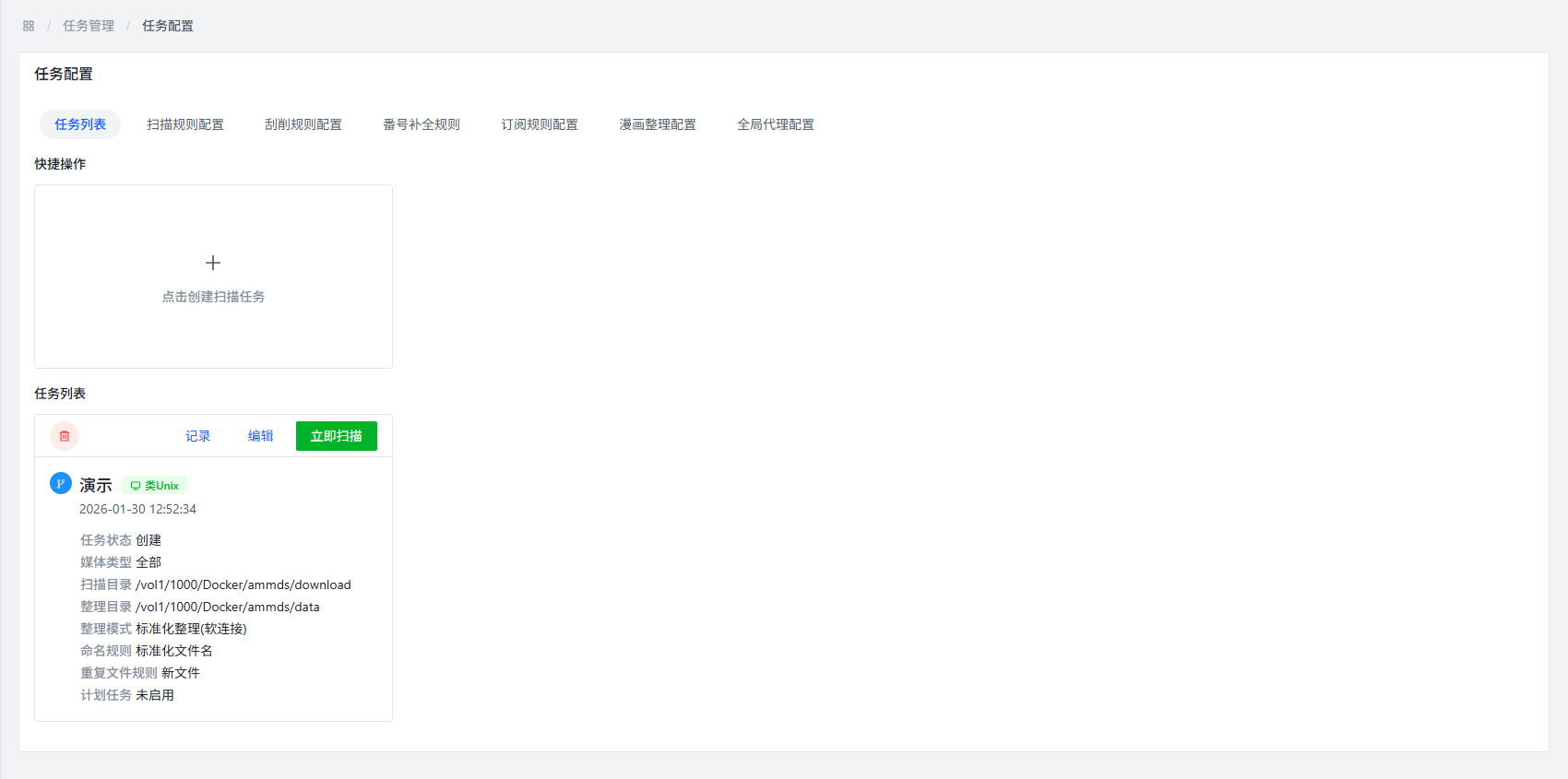
Access Task List
You can access the task list page through the following path:
Task Management >> Task Configuration >> Task List
On the task list page, click the Create Task button to create a scan task.
Multi-task Management
You can configure multiple different scan tasks according to your needs. Each task can have different scan directories and output directories.
Advantages of multi-task management:
- Helps classify and manage movie files
- Can set different processing rules for different types of movie files
- Improves overall processing efficiency
Examples:
- Create a scan task specifically for scanning Japanese movie files and output them to a specified directory
- Create another scan task specifically for scanning European and American movie files and output them to another directory
Create Scan Task

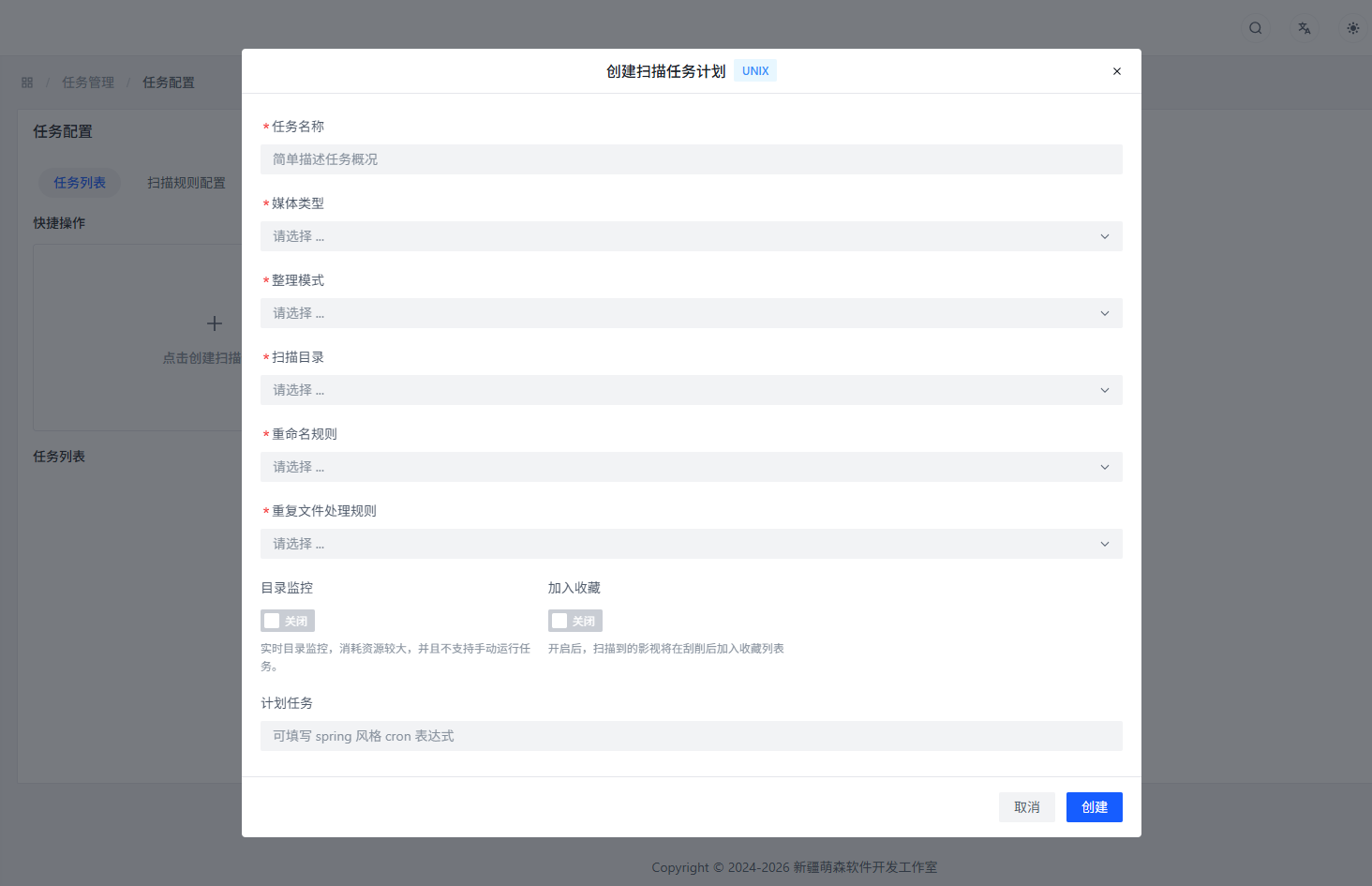
Task Name
Function Description: Set the name of the scan task.
Configuration Suggestion: Use descriptive names for easier subsequent management and identification, such as: "Japanese Movie Scan", "European and American Movie Scan", etc.
Media Type
Function Description: Set the media type of the scan task.
Role: Assists the system in identifying numbers, improving number recognition rate.
Configuration Suggestion: If it's a mixed type of movie files, just select "All".
Organization Mode
Function Description: Set the file organization method.
Optional Modes:
In-place Organization
- Function: During organization, no operations are performed on the parent directory, and organization is performed directly in the original file's directory
- Applicable Scenario: Want to keep the file location unchanged, only rename files or organize metadata
Move Mode
- Function: Move files to the target directory during organization
- Target Directory: Format configured in scrape configuration
- Applicable Scenario: Want to centrally manage files in a specified directory
Copy Mode
- Function: Copy files to the target directory during organization
- Target Directory: Format configured in scrape configuration
- Applicable Scenario: Want to keep the original files while creating organized copies in the specified directory
Soft Link Mode
- Function: Create soft links to files in the target directory during organization
- Target Directory: Format configured in scrape configuration
- Features:
- Does not occupy additional disk space
- Soft link files are pointers to original files
- If the original file is deleted or moved, the soft link file will become invalid
- Applicable Scenario: Want to create file access entries in the specified directory without occupying additional space
Hard Link Mode
- Function: Create hard links to files in the target directory during organization
- Target Directory: Format configured in scrape configuration
- Features:
- Will occupy additional disk space
- Hard link files are pointers to original files
- If the original file is deleted or moved, hard link files will remain valid
- Hard link files can only be created in the same file system
- Applicable Scenario: Want to create multiple references to files in the same file system to ensure file security
- Note: Has high requirements, generally not recommended
Except for in-place organization mode, other organization modes require specifying a target directory.
Scan Directory
Function Description: Set the target directory for the scan task.
Role: The system will recursively scan all files under this directory.
Configuration Suggestion: Select a directory containing the movie files you need to process.
Organization Directory
Function Description: Set the target directory for file organization.
Applicable Scenario: Except for in-place organization mode, other organization modes require specifying this directory.
Configuration Suggestion: Select a directory with sufficient storage space for storing organized files.
Rename Rule
Function Description: Set the file renaming method.
Optional Rules:
Original File Name
- Function: Keep the original file name unchanged during organization
- Applicable Scenario: Want to retain the original naming of files
Standardized File Name
- Function: During organization, standardize file names according to the file name format configured in scrape configuration
- Naming Basis: Depends on the file name format configured in scrape configuration
- Applicable Scenario: Want to unify file naming format and improve file management standardization
Duplicate File Handling
Function Description: Set the processing method for cases where the target file already exists.
Configuration Suggestion: Choose an appropriate processing method according to your needs, such as: skip, overwrite, rename, etc.
Directory Monitoring
Function Description: After enabling, the system will monitor this directory after the initial scan task initialization, and when new files appear, it will automatically scan and add them to the scan result file.
Applicable Scenario: Want the system to automatically process newly added files without manually triggering scans
Add to Favorites
Function Description: After enabling, this movie metadata will be automatically added to favorites after organization.
Applicable Scenario: Want to quickly mark and access important movie resources
Scheduled Task
Function Description: Set the automatic execution time of the scan task.
Note: This conflicts with directory monitoring, only one can be selected.
Configuration Format: Use Spring-style cron expressions
Example: To execute the scan task every hour, fill in 0 0 * * * ?
Execute Scan Task
After creation, click the Scan Now button to execute the scan task.

Task Management Operations
- Edit: Click the Edit button to modify the scan task configuration
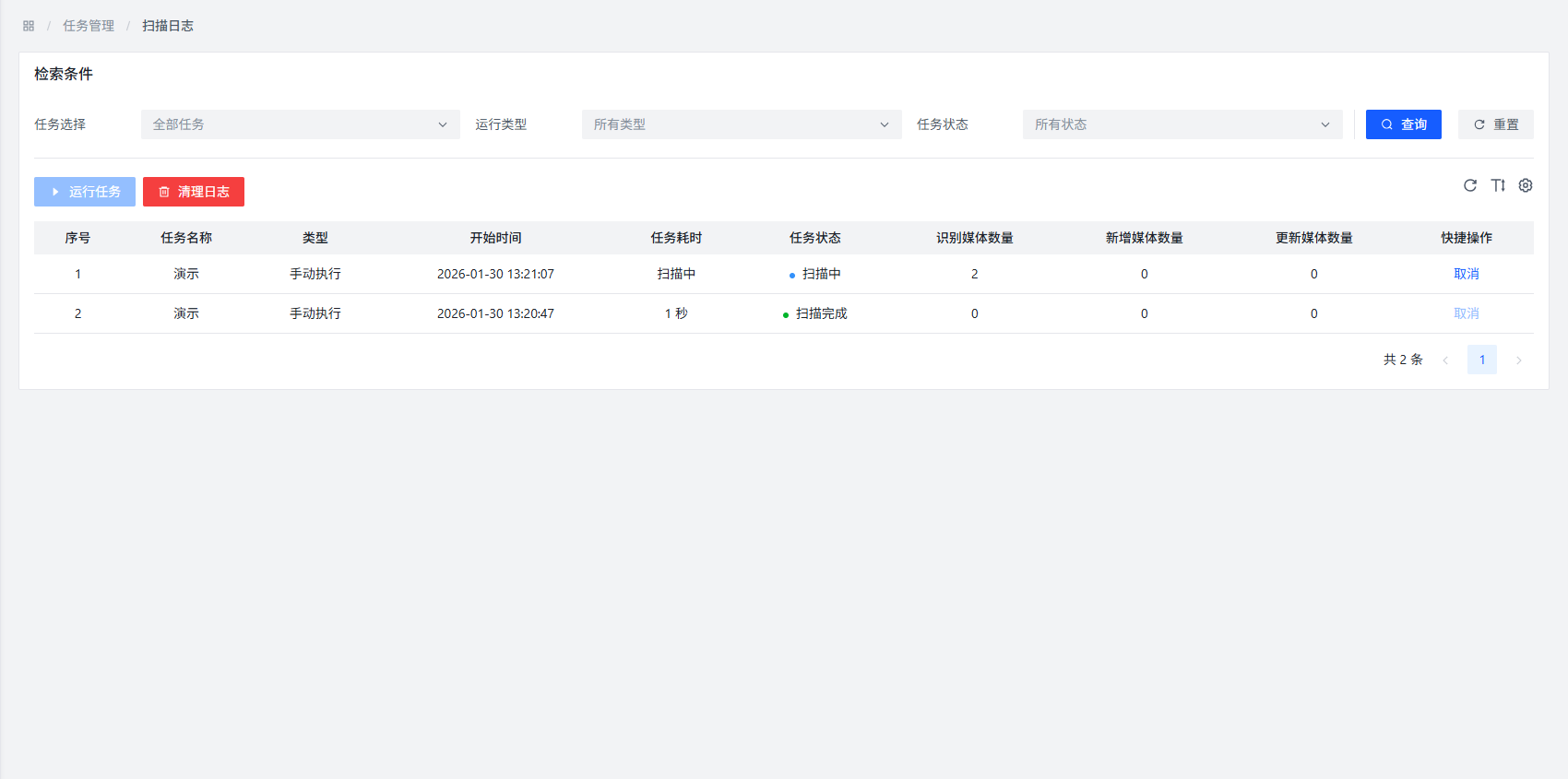
- Record: Click the Record button to view the execution history of the scan task
- Delete: Click the Delete button to delete unnecessary scan tasks
Scan Result View

After scanning, newly added scrapable files can be viewed and processed in Task Management >> Scrape Storage.
Scheduled Tasks
The project uses Spring-style cron expressions to specify the execution time of scheduled tasks.
Common Expressions
| Expression | Description |
|---|---|
0 0 * * * ? | Execute once every hour |
0 0 0 * * ? | Execute once every day at midnight |
0 0 0 * * 1 | Execute once every Monday at midnight |
0 0 0 1 * ? | Execute once every month on the 1st at midnight |
Configuration Example
The following is a typical scan task configuration example:
| Configuration Item | Setting Value |
|---|---|
| Task Name | Japanese Movie Scan |
| Media Type | Japanese |
| Organization Mode | Move Mode |
| Scan Directory | D:\Downloads\NewMovies |
| Organization Directory | E:\Media\Movies\Japanese |
| Rename Rule | Standardized File Name |
| Duplicate File Handling | Skip |
| Directory Monitoring | Enabled |
| Add to Favorites | Disabled |
| Scheduled Task | - |
Common Questions
Q: What to do if the scan task execution fails?
A: Possible reasons include:
- Scan directory does not exist or no permission to access
- Organization directory does not exist or no permission to write
- Configuration error
- Insufficient system resources
Solutions:
- Check directory paths and permissions
- Check configuration parameters
- Ensure the system has sufficient resources
- View execution records to understand specific error information
Q: What is the difference between directory monitoring and scheduled tasks?
A:
- Directory Monitoring: Real-time monitoring of directory changes, immediate processing when new files are added
- Scheduled Tasks: Regular scanning according to preset time intervals
Q: What is the difference between soft links and hard links?
A:
- Soft Links: Equivalent to Windows shortcuts, do not occupy additional space, but depend on the original file
- Hard Links: Equivalent to multiple references to files, occupy additional space, but do not depend on the original file (still usable after original file deletion)
Q: Why are some files not displayed in the scan results?
A: Possible reasons include:
- File format is not in the format restriction list of scan rules
- The directory where the file is located has been added to the ignore directory
- File name contains ignored strings
- File size is smaller than the set minimum video size threshold
Q: How to improve scan efficiency?
A: You can try the following methods:
- Reasonably set ignore directories and ignore files
- Create specialized scan tasks for different types of files
- Use directory monitoring function to avoid repeated scanning
- Appropriately adjust system resource allocation
Best Practices
- Task Classification: Create different scan tasks based on movie types to improve processing efficiency
- Reasonable Naming: Use descriptive task names for easier subsequent management
- Regular Maintenance: Regularly check and clean up unnecessary scan tasks
- Backup Configuration: Record current configuration before modifying important configurations to restore in case of problems
- Monitor Execution: Regularly check scan task execution records to discover and solve problems in a timely manner