Metatube
MetaTube is an open-source media metadata scraping plugin backend designed specifically for Jellyfin, Emby, and Plex. It is primarily used to automatically retrieve video information, including posters, synopses, cast members, production studios, ratings, and more. This plugin effectively solves the problem of low recognition rates for Chinese resources, enabling high-precision "poster wall" management of media libraries through a self-built API.
Features
The MetaTube plugin offers the following core features:
- 🎯 High-precision Identification: Optimized recognition algorithm for Chinese resources, greatly improving recognition success rate
- 🌍 Multi-platform Support: Compatible with mainstream media servers such as Jellyfin, Emby, and Plex
- 📦 Dual Service Modes: Supports both remote deployment and built-in service operation modes
- 🔐 Secure Authentication: Ensures service access security through TOKEN mechanism
- 🌐 Multiple Deployment Options: Supports local Docker deployment and Koyeb cloud service deployment
- 📝 Automatic Translation: Built-in multiple translation services, supporting automatic metadata translation
- 🎭 Rich Data Sources: Integrates multiple actor and video data providers
Deployment Options
MetaTube supports multiple deployment methods, and you can choose the most suitable one based on your actual needs:
Self-deployment Options
For detailed deployment documentation, please refer to the MetaTube Official Documentation
Docker Deployment
Deployment Command:
docker run -d -p 8080:8080 -v $PWD/config:/config --name metatube ghcr.io/metatube-community/metatube-server:latest -dsn /config/metatube.db
Upgrade Operation:
docker stop metatube
docker rm metatube
docker run -d -p 8080:8080 -v $PWD/config:/config --name metatube ghcr.io/metatube-community/metatube-server:latest -dsn /config/metatube.db
Docker Compose Deployment
Create Configuration File:
vi docker-compose.yml
Configuration Content:
services:
metatube-server:
image: ghcr.io/metatube-community/metatube-server:latest
container_name: metatube
restart: always
network_mode: bridge
ports:
- 8080:8080
environment:
- HTTP_PROXY=${HTTP_PROXY:-}
- HTTPS_PROXY=${HTTPS_PROXY:-}
- DB_AUTO_MIGRATE=true
- PORT=8080
Start Service:
docker-compose up -d
Upgrade Service:
docker-compose up -d --force-recreate
Configure Access Token
After deployment, record the following information for subsequent configuration:
- Access Address: Typically the IP address of the deployment host plus port 8080, for example:
http://192.168.1.100:8080 - TOKEN: A 32-character string used for service authentication, it is recommended to generate it randomly
Generate Random TOKEN:
openssl rand -hex 16
Configure TOKEN:
Docker Command Configuration
docker run -d -p 8080:8080 -v $PWD/config:/config --name metatube -e TOKEN=your_token ghcr.io/metatube-community/metatube-server:latest -dsn /config/metatube.db
Docker Compose Configuration
services:
metatube-server:
environment:
- TOKEN=your_token
Koyeb Deployment Option
Koyeb provides a convenient cloud service deployment option, suitable for users without a server environment:
You need to register a Koyeb account before deployment; a free account is sufficient for basic needs.
Quick Deployment
Click the following button to start quick deployment:
Deployment Steps:
- Log in to your Koyeb account
- Click the button above to create an application
- Add
TOKENin the environment variable configuration (it is recommended to use a randomly generated 32-character string) - Click the "Deploy" button and wait for the deployment to complete
Manual Deployment
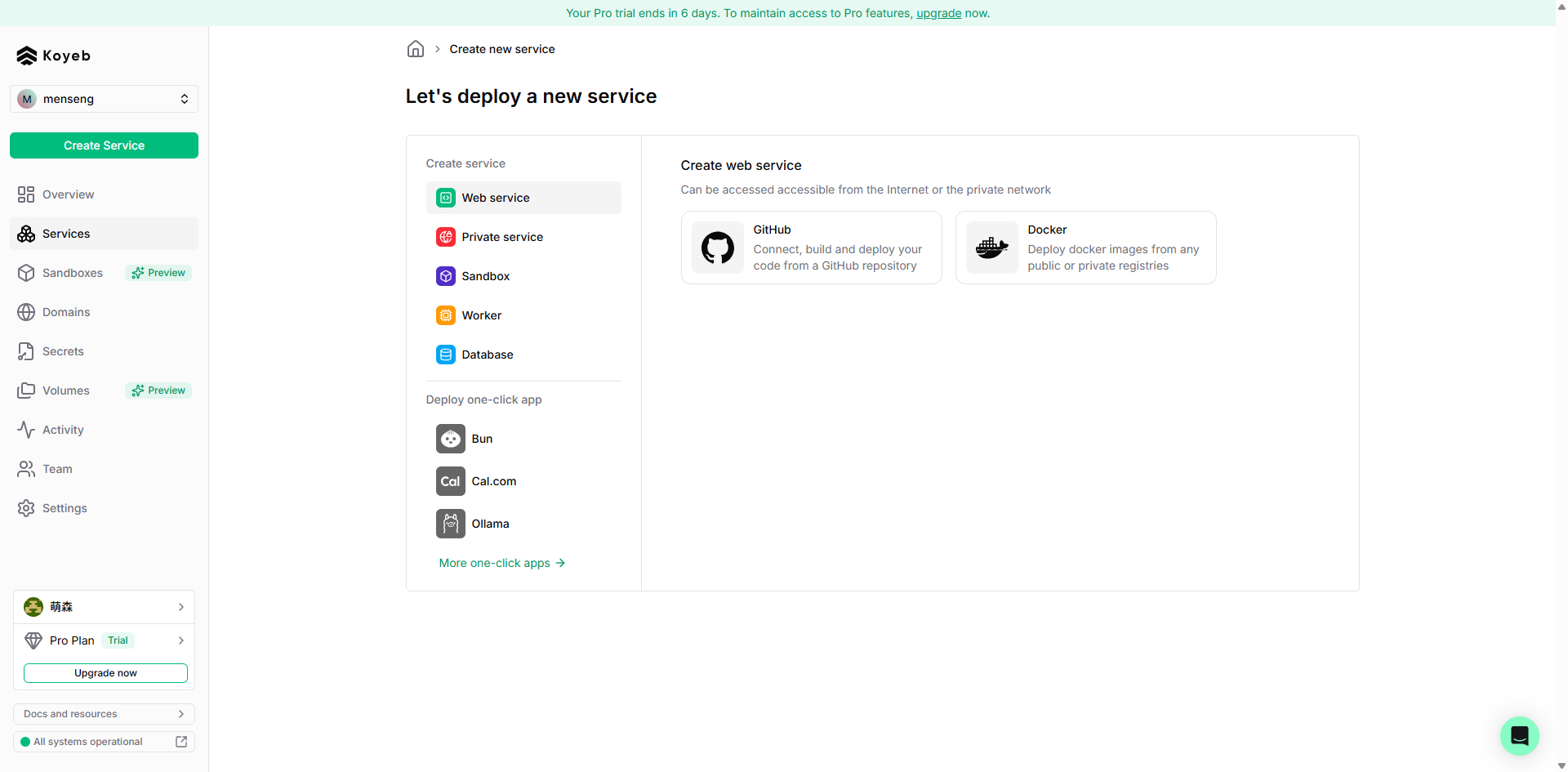
Step 1: Create Service

- Log in to the Koyeb console and click the "Create service" button on the left
- Select "Web service" as the service type
- Select "Docker" as the deployment method
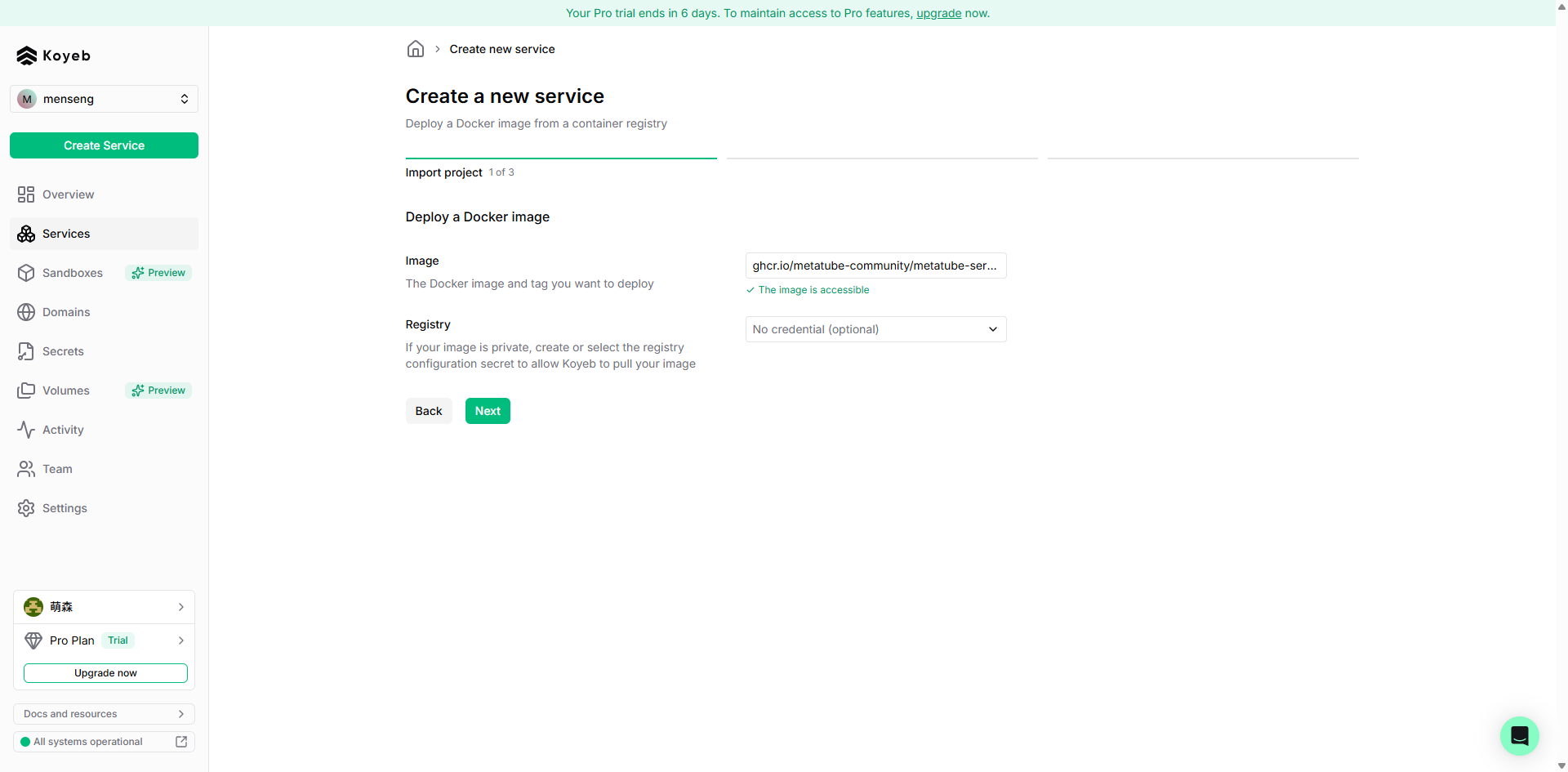
Step 2: Configure Image

- Image address:
ghcr.io/metatube-community/metatube-server:latest
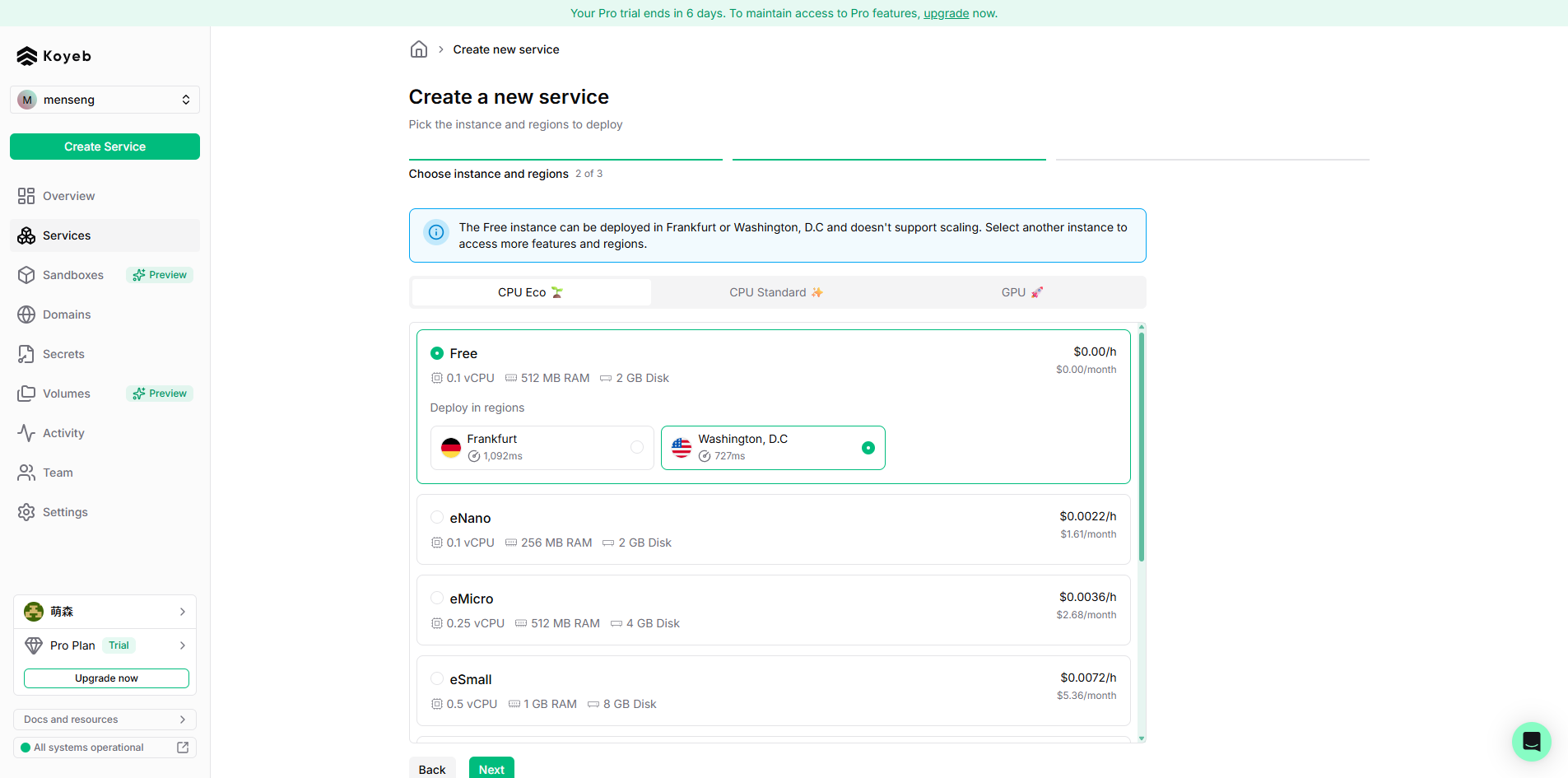
Step 3: Select Region

- Free accounts only support the Washington, DC region
- It is recommended to choose Japan or US regions for better access experience (requires paid account)
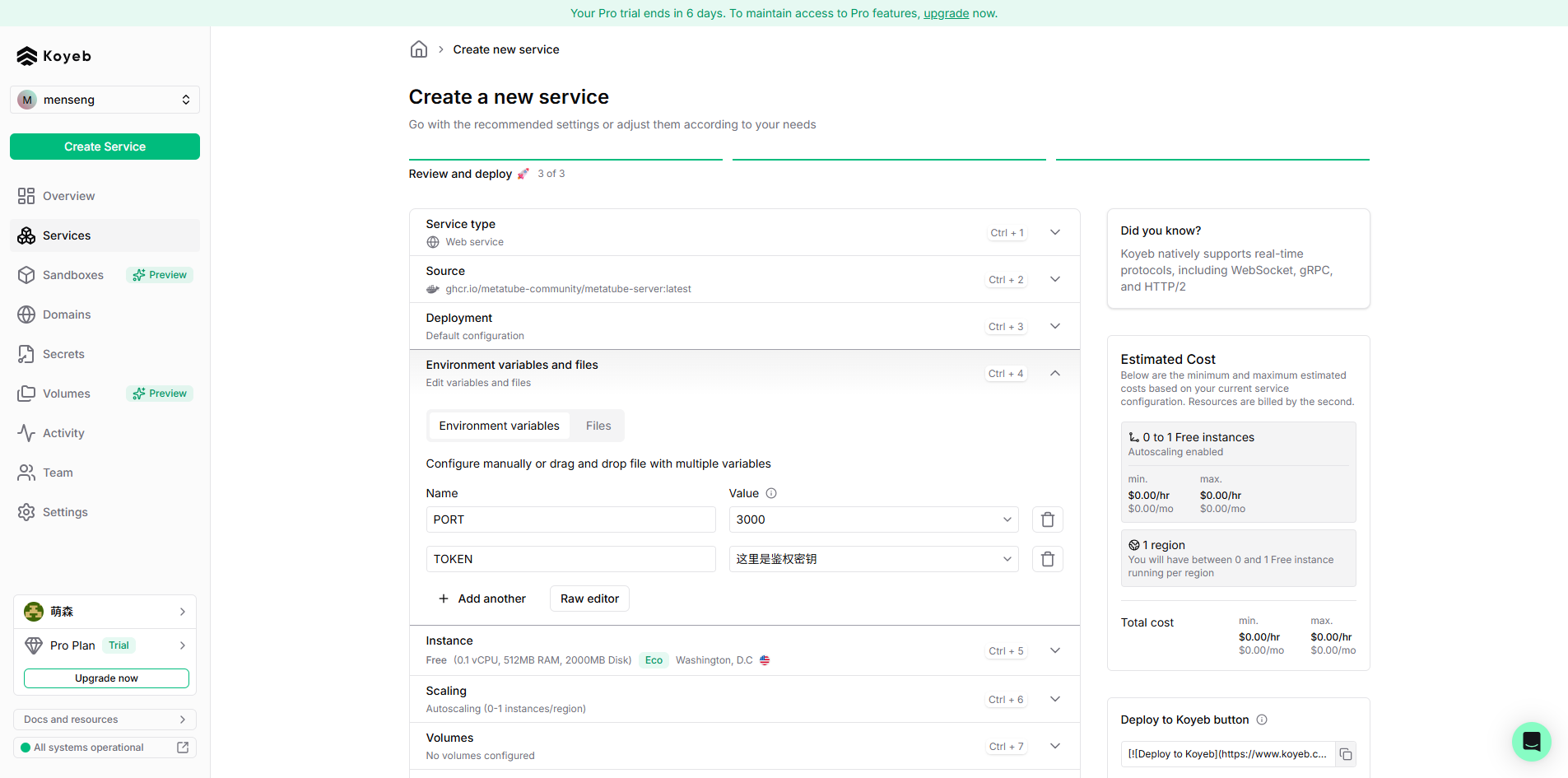
Step 4: Configure Environment Variables

- Configure
PORTto3000 - Configure
TOKENas the authentication key to prevent unauthorized access
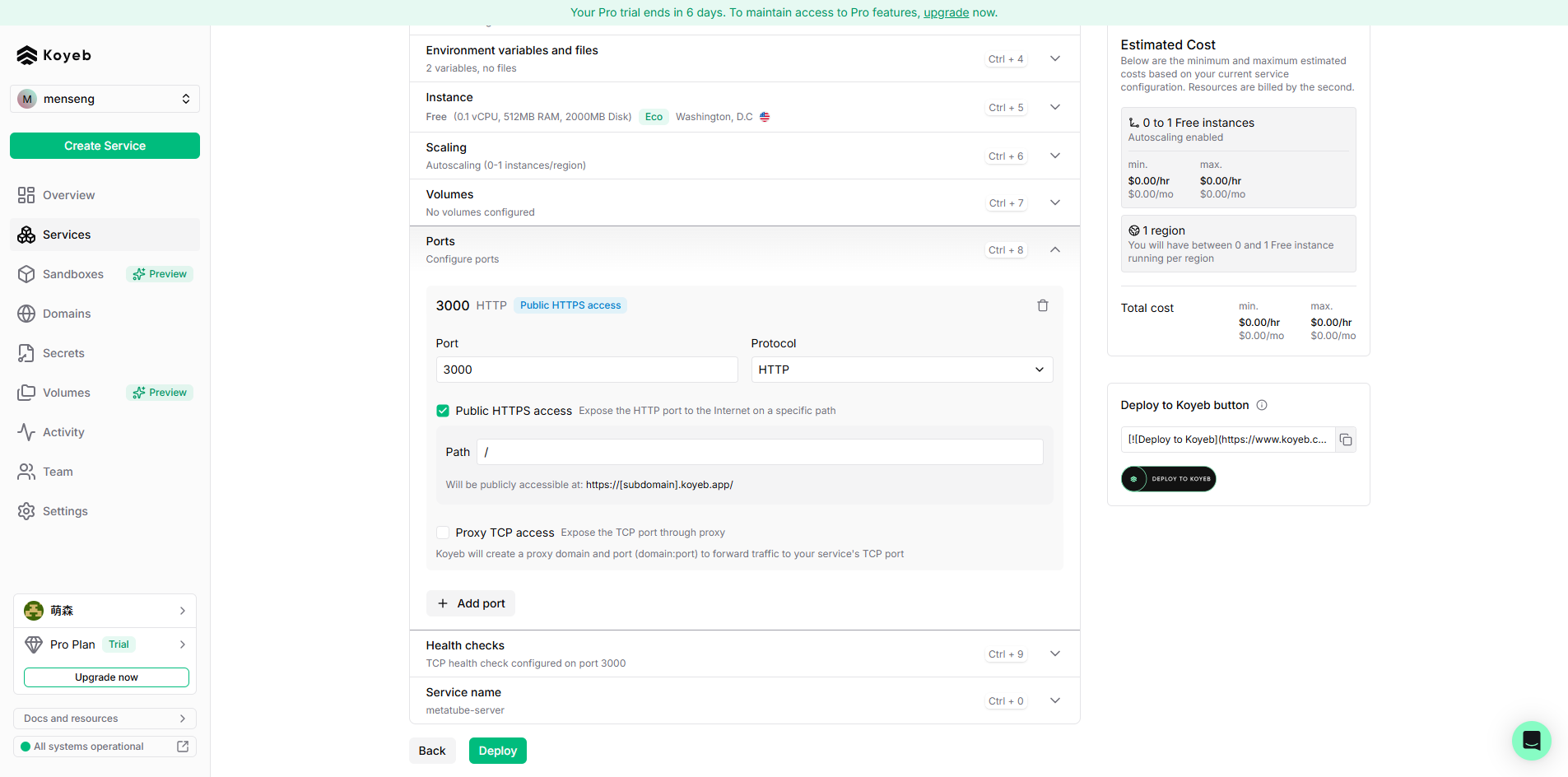
Step 5: Configure Port Mapping

- Port:
3000(consistent with thePORTenvironment variable) - Protocol:
http - Check "Public HTTPS access" and set the path to
/
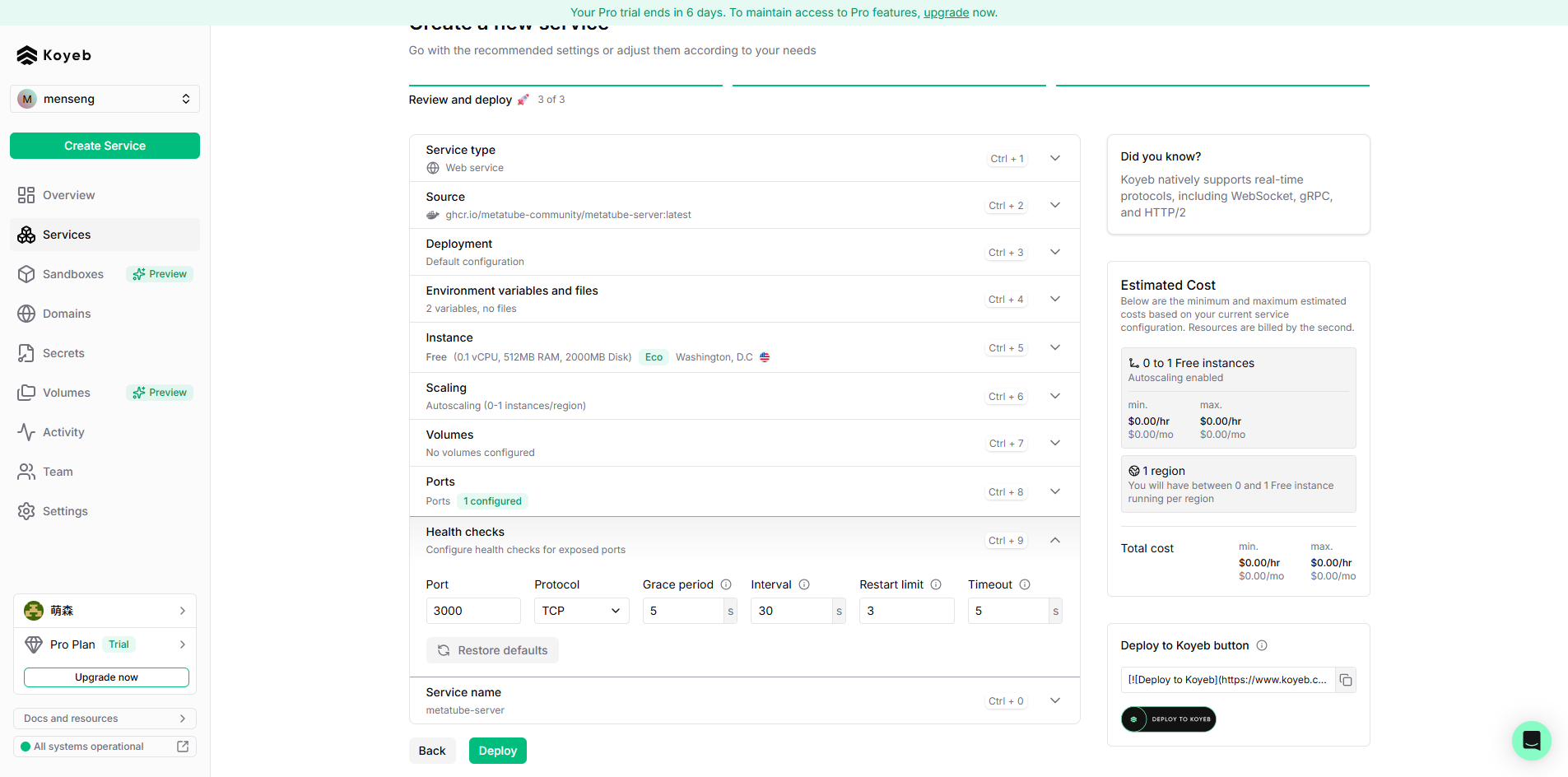
Step 6: Configure Health Check

- Protocol:
tcp - Port:
3000(consistent with thePORTenvironment variable) - Keep other parameters as default
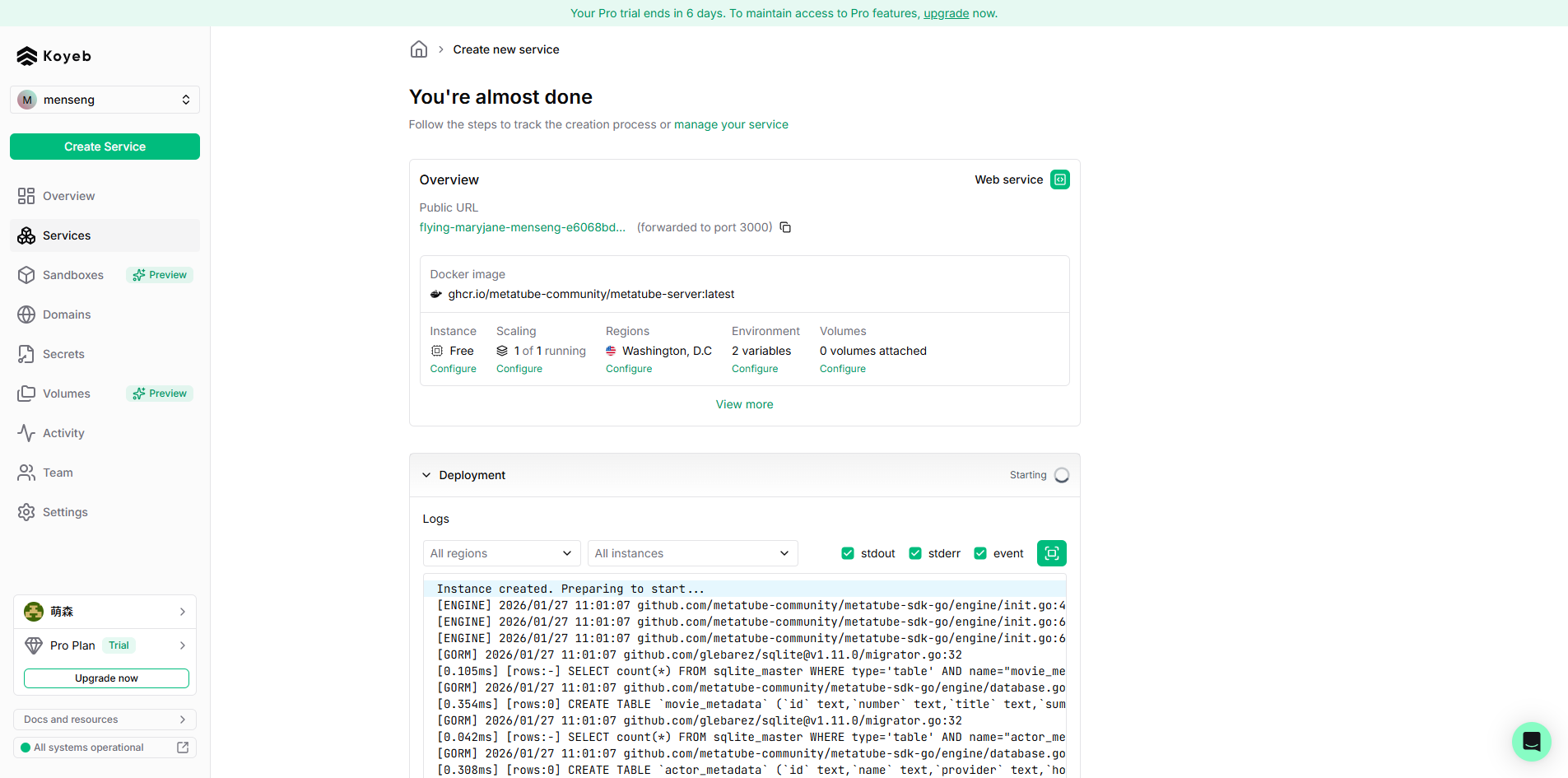
Step 7: Complete Deployment Click the "Deploy" button and wait for the application deployment to complete.
Deployment Complete

- You can view the application access address on the "Overview" page of the Koyeb console

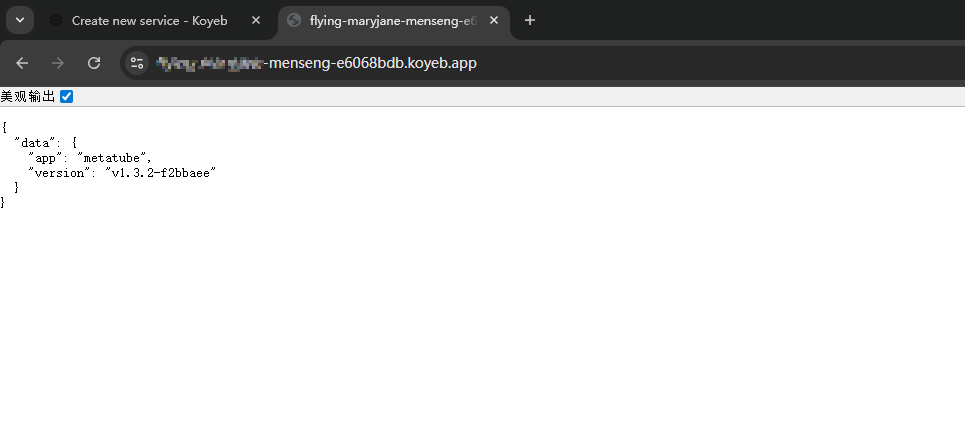
- Access this address to verify if the Metatube service responds normally
- Service access address format:
https://xxxx-xxx-xxx.koyeb.app/(where xxxx-xxx-xxx is the application name assigned by Koyeb)
Please record the access address and TOKEN for subsequent AMMDS plugin configuration.
Plugin Configuration
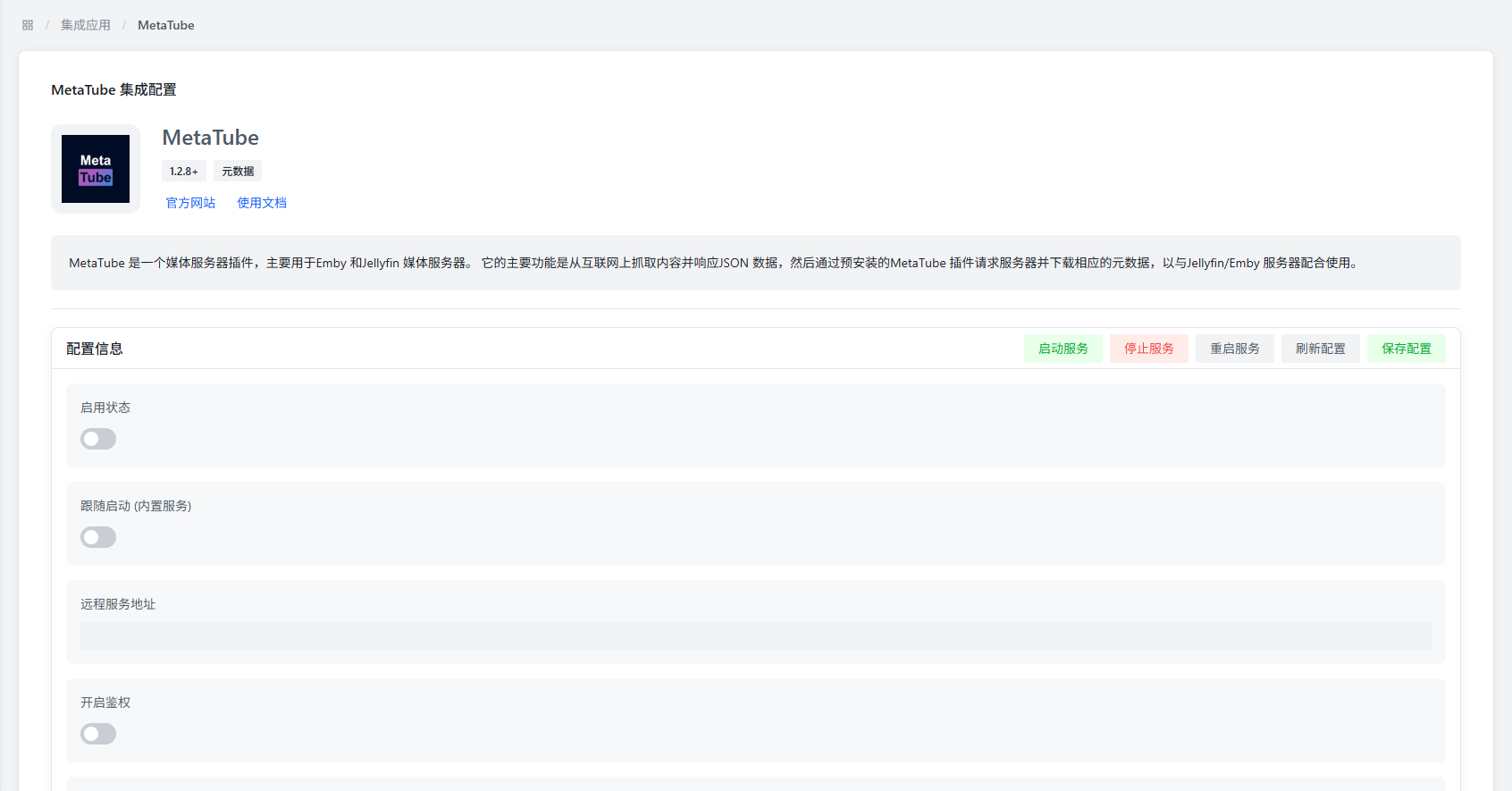
In the AMMDS management interface, access the configuration page through "Integrated Applications" → "Metadata" → "Metatube".
Service Modes
The MetaTube plugin supports two service modes:
- Remote Service: Uses an externally deployed MetaTube service
- Built-in Service: Uses the MetaTube service built into AMMDS
Only one service mode is active at a time, and the built-in service has higher priority than the remote service.
Quick Operations

The following quick operations are available in the upper right corner of the configuration page:
- Start Service: Starts the built-in Metatube service
- Stop Service: Stops the built-in Metatube service
- Restart Service: Restarts the built-in Metatube service
- Refresh Configuration: Refreshes configuration items
- Save Configuration: Saves the current configuration (all configuration changes require clicking this button to take effect)
Configuration Parameters

Basic Configuration
| Parameter | Description | Default Value |
|---|---|---|
| Enable Status | Controls whether to enable the Metatube plugin | Off |
| Auto-start | Controls whether to automatically start the built-in Metatube service when AMMDS starts | Off |
| Remote Service Address | Access address of the Metatube service | - |
Remote Service Address Examples:
https://xxxx-xxx-xxx.koyeb.apphttp://192.168.1.100:3000
- The remote service address must not end with
/, otherwise it will cause an access path error.
Authentication Configuration
| Parameter | Description | Default Value |
|---|---|---|
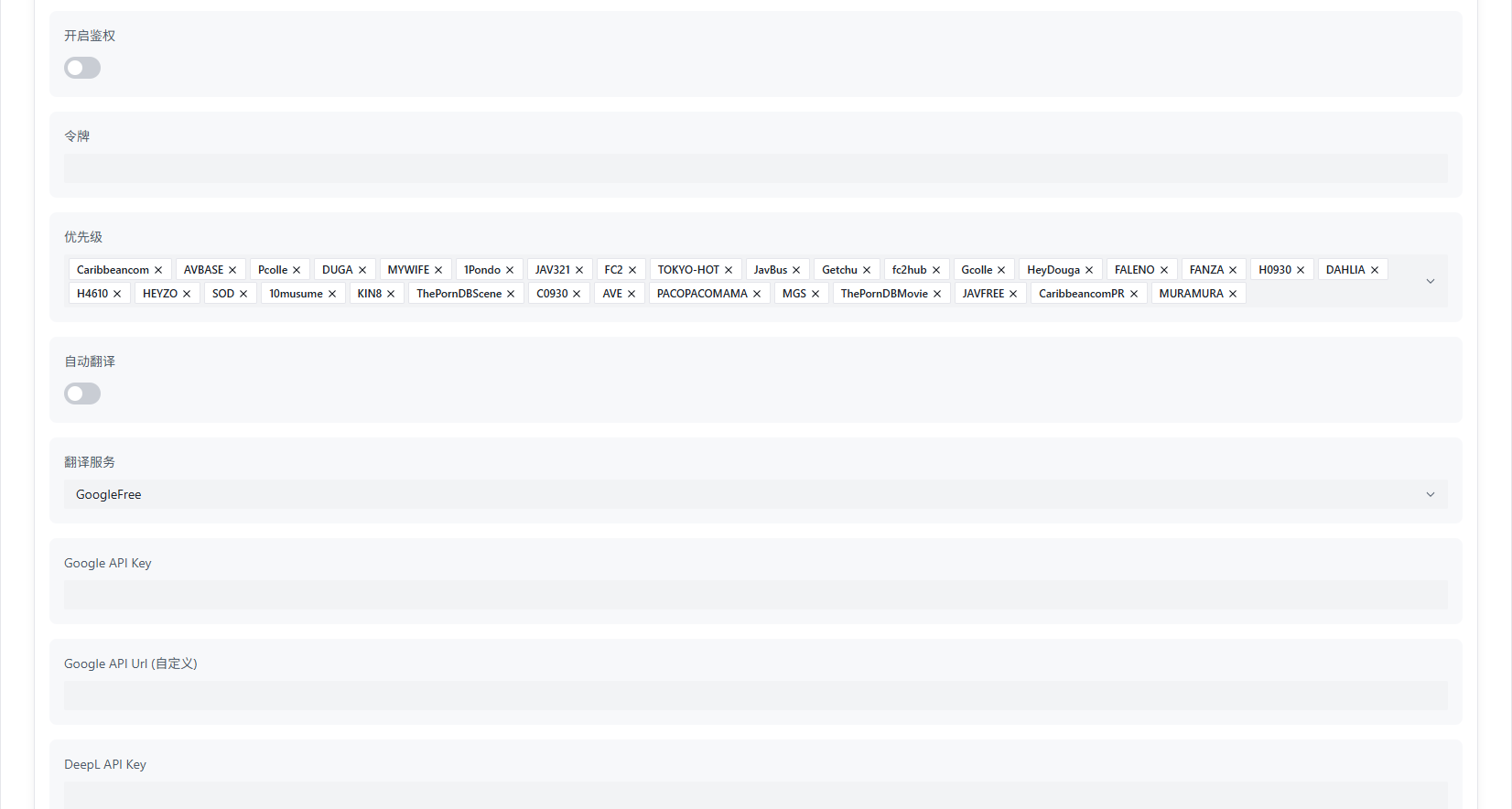
| Enable Authentication | Whether to enable Metatube service authentication | Off |
| Token | Access token for the Metatube service | - |
If a TOKEN is configured when deploying the Metatube service, this option must be enabled and the correct token must be filled in.
Data Source Configuration
- Priority: Set the priority order of data sources; data sources with higher rankings will be used first
Translation Configuration

| Parameter | Description | Default Value |
|---|---|---|
| Auto-translation | Whether to enable automatic translation service | Off |
| Translation Service | Select translation service provider | - |
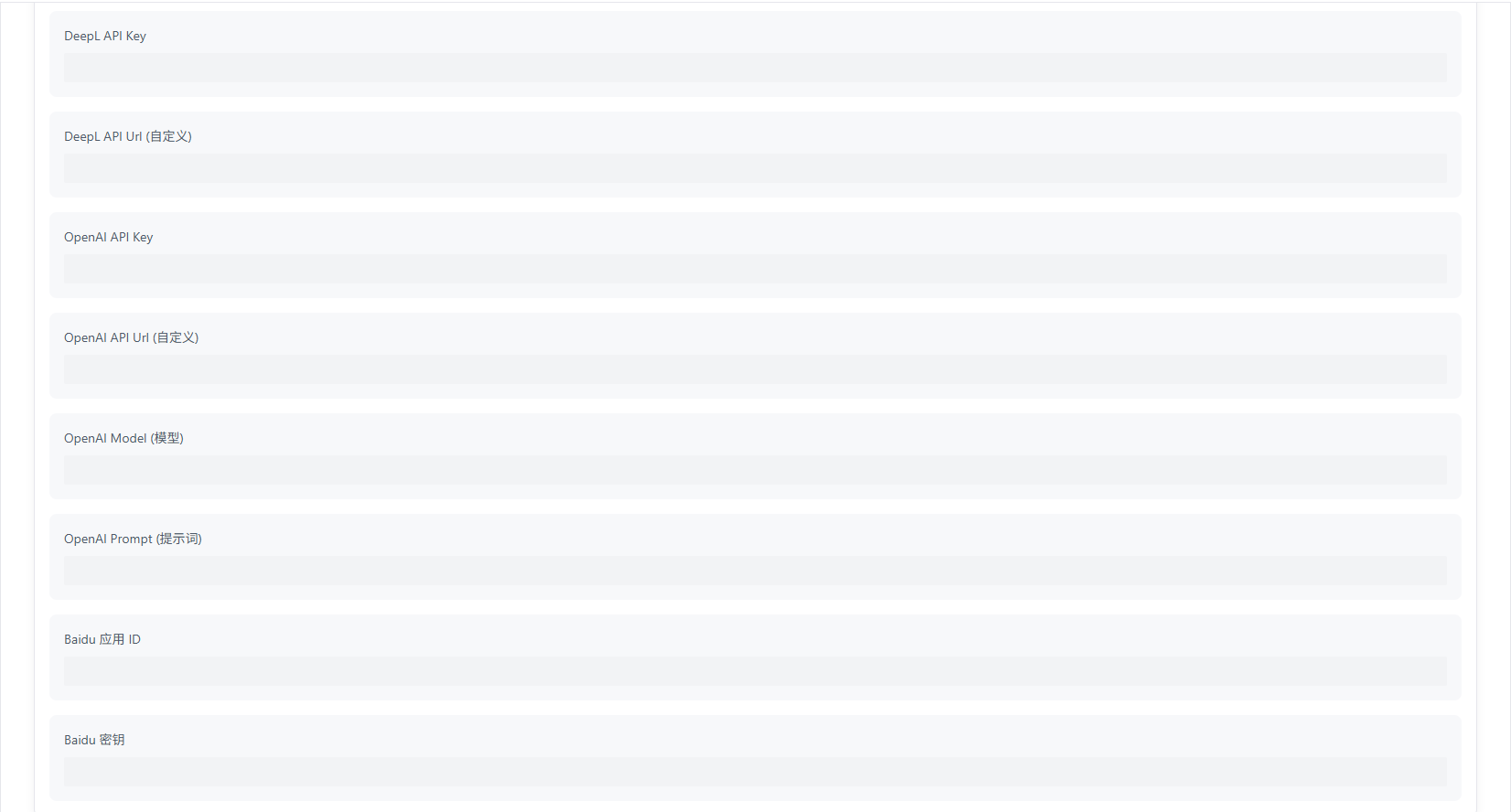
| API Key | API key required for some translation services | - |
After enabling auto-translation, titles, descriptions, and other fields will be automatically translated, and this will also apply to data sources of other plugins.
Testing Module

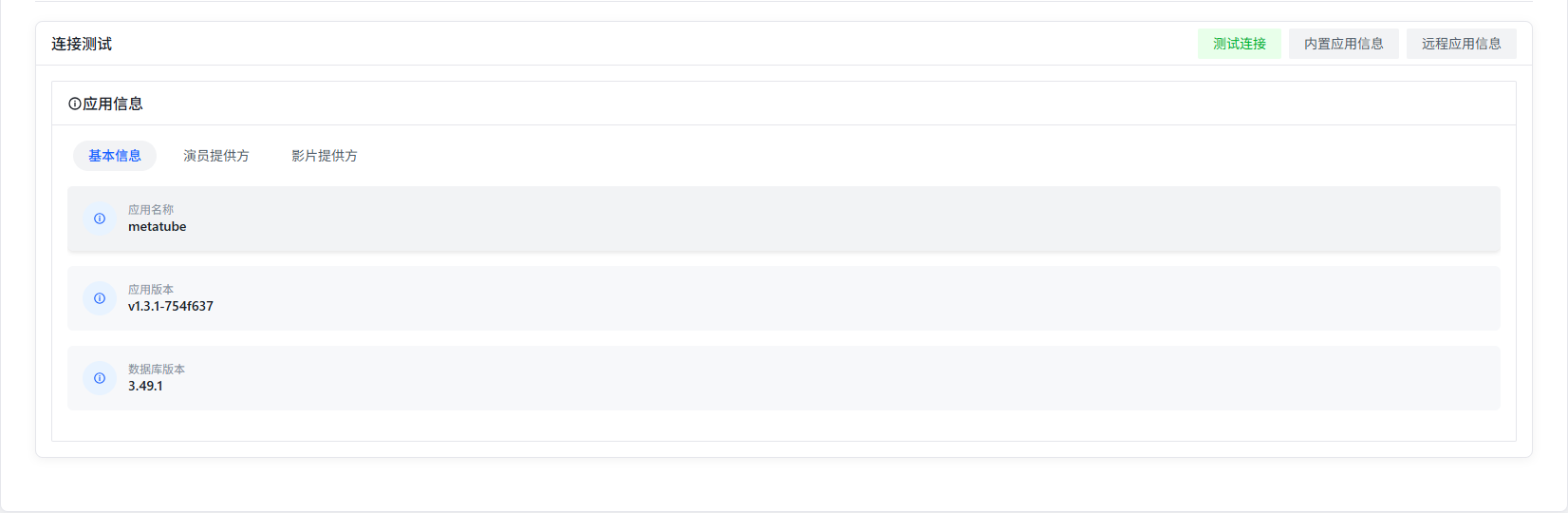
Quick Operations:
- Test Connection: Tests if the remote service address is reachable (only verifies network connectivity, not service status)
- Built-in Application Info: Displays application information (version number, configuration, etc.) of the built-in Metatube service
- Remote Application Info: Displays application information (version number, configuration, etc.) of the remote Metatube service

Application Info Display:
- Basic Info: Includes version number, database version, etc.
- Actor Providers: Data sources that provide actor data (avatars, basic information, etc.)
- Video Providers: Data sources that provide video metadata (titles, descriptions, actors, directors, release dates, etc.)
Notes
Regional Restrictions
Some provider sites (such as DMM) have strict restrictions on access regions, which may cause data retrieval failures.
Deploy in Japan or US regions for optimal access results.
Proxy Configuration
- Built-in Service: Automatically synchronizes AMMDS's proxy configuration
- Remote Service: You need to solve network access issues yourself to ensure the service can normally request provider sites
If the proxy does not take effect, it is recommended to restart the AMMDS service after configuring the proxy.
Common Issues
Service Unreachable
Troubleshooting Steps:
- Check if the service is running normally
- Verify network connection is normal
- Confirm if the firewall allows access to the corresponding port
- Check if the TOKEN configuration is correct
Data Retrieval Failure
Possible Causes:
- Network environment restrictions (such as regional restrictions)
- Data source sites temporarily unavailable
- Service configuration errors
Solutions:
- Try changing the deployment region
- Check network proxy settings
- Verify if data source configuration is correct
Translation Service Not Working
Troubleshooting Steps:
- Confirm auto-translation feature is enabled
- Check if the translation service API key is correct
- Verify network connection is normal
- Try changing the translation service provider