Version: v1.6.47

1Panel Deployment Guide

1Panel is a powerful server management panel that provides an intuitive web interface to help users efficiently manage applications, websites, files, databases, and large language models (LLMs) on Linux servers. This guide will detail the deployment process of AMMDS in a 1Panel environment.

Install Third-Party App Store

This solution is applicable to both 1Panel v1 and v2 versions.

Automatic Installation

The automatic installation solution updates the third-party app store content every 3 hours, ensuring you always get the latest app resources.

Installation Script

curl -sSL https://install.lifebus.top/auto_install.sh | bash

Uninstallation Script

curl -sSL https://install.lifebus.top/auto_uninstall.sh | bash

Manual Installation

The manual installation script only pulls the latest third-party app store content once. You need to run this script again for subsequent store content or version updates.

curl -sSL https://install.lifebus.top/app_install.sh | bash

Update Store Content

Operation Steps

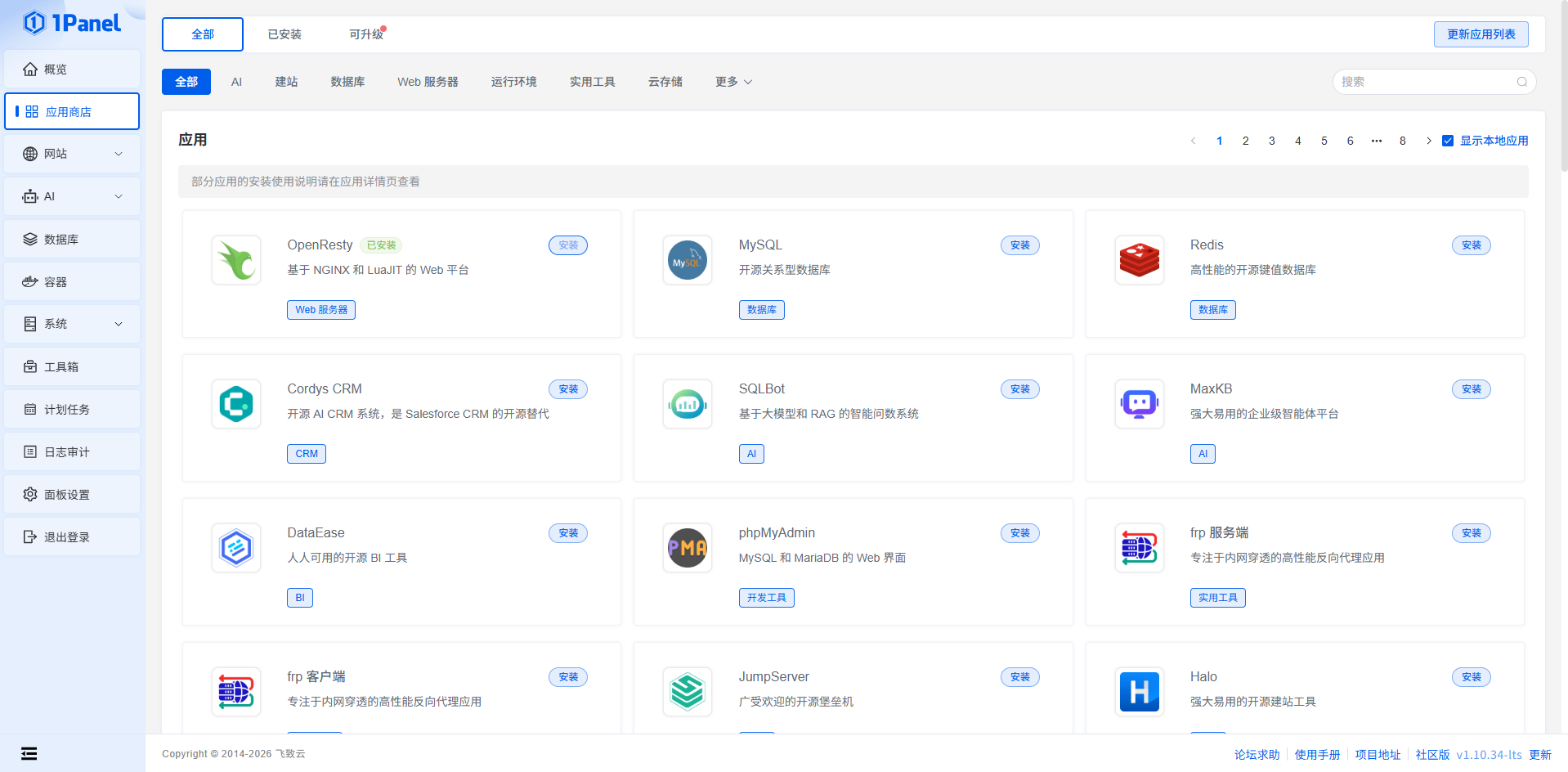
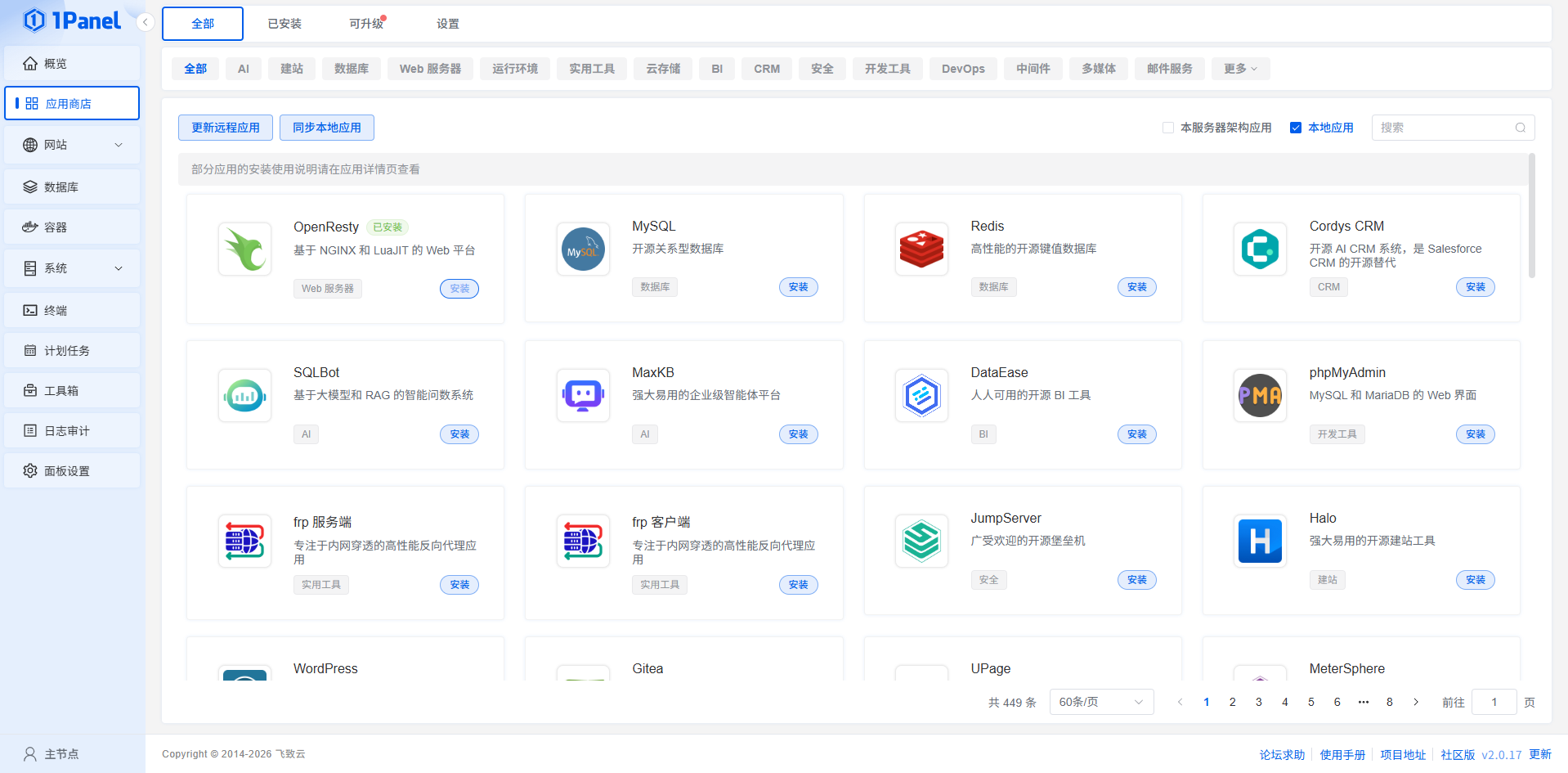
  1. Access Store Settings Navigate to the App Store via the left sidebar and click to enter the Store Settings page.

  2. Execute Update Operation

    Update Store Content

    v1 Version

    Click the "Update App List" button in the upper right corner of the store page.

    Update Store Content

    v2 Version

    Click the "Sync Local Apps" button in the upper left corner of the store page.

Install Application

App Search and Selection

Installation

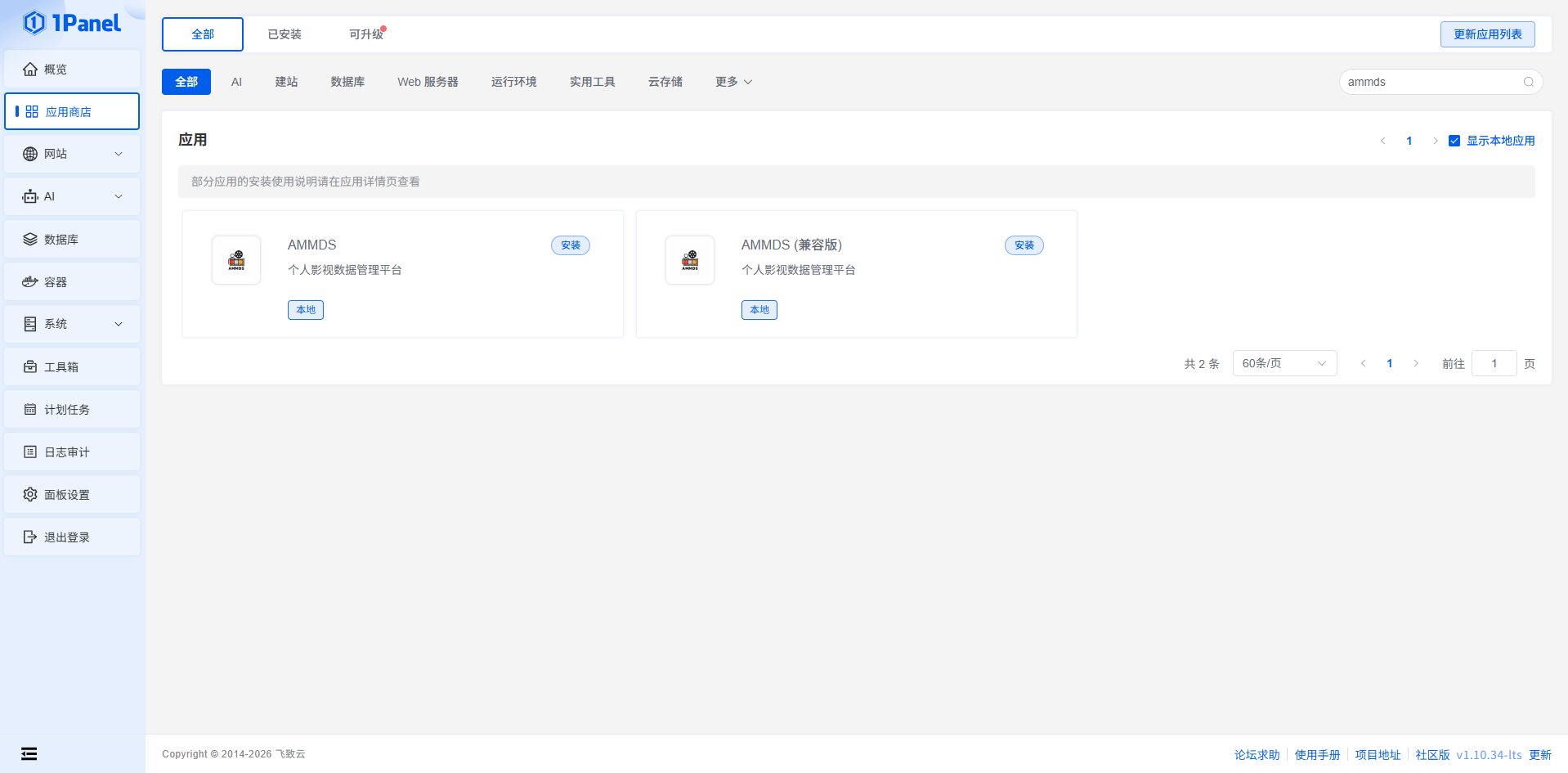
  1. Search for AMMDS App Search for the "ammds" app in the App Store.

  2. Version Selection The system will display two versions of the AMMDS app:

    • Compatible Version: Suitable for devices with lower hardware configurations
    • Latest Version: Suitable for devices with higher hardware configurations

    Installation

Installation Parameter Configuration

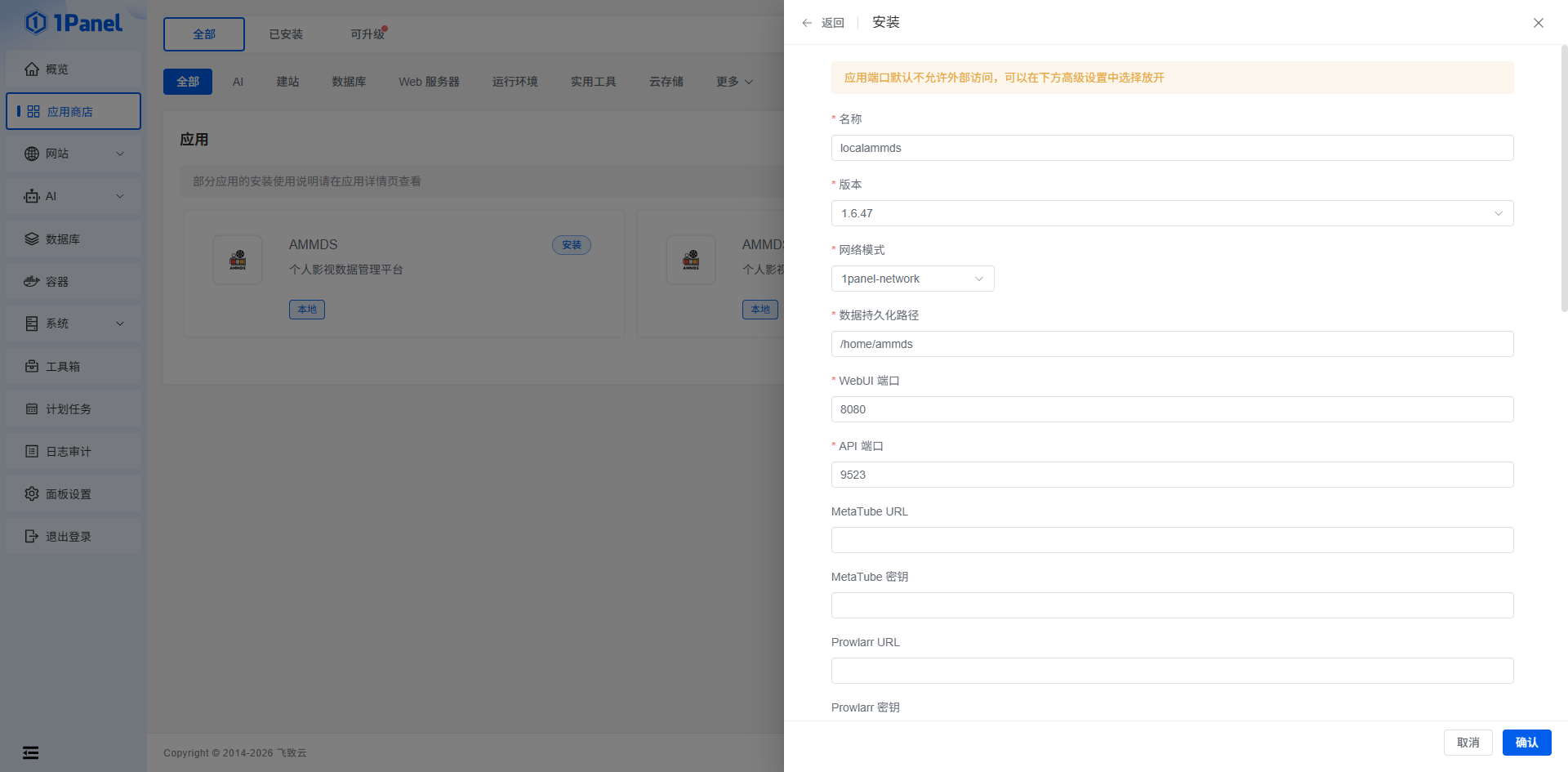
After clicking the install button, a parameter configuration panel will appear.

Basic Configuration

  • Name: It is recommended to fill in "ammds", or customize as needed
  • Version: It is recommended to select "Latest Version" to get the latest features
  • Network Mode: If there are no special requirements, it is recommended to keep the default configuration
  • Data Persistence Path: Fill in the absolute path on the server for storing AMMDS application data
  • WebUI Port: It is recommended to fill in 8080, or customize as needed
  • API Port: It is recommended to fill in 8081, or customize as needed

Other parameters are optional and can be filled in according to actual needs.

Installation

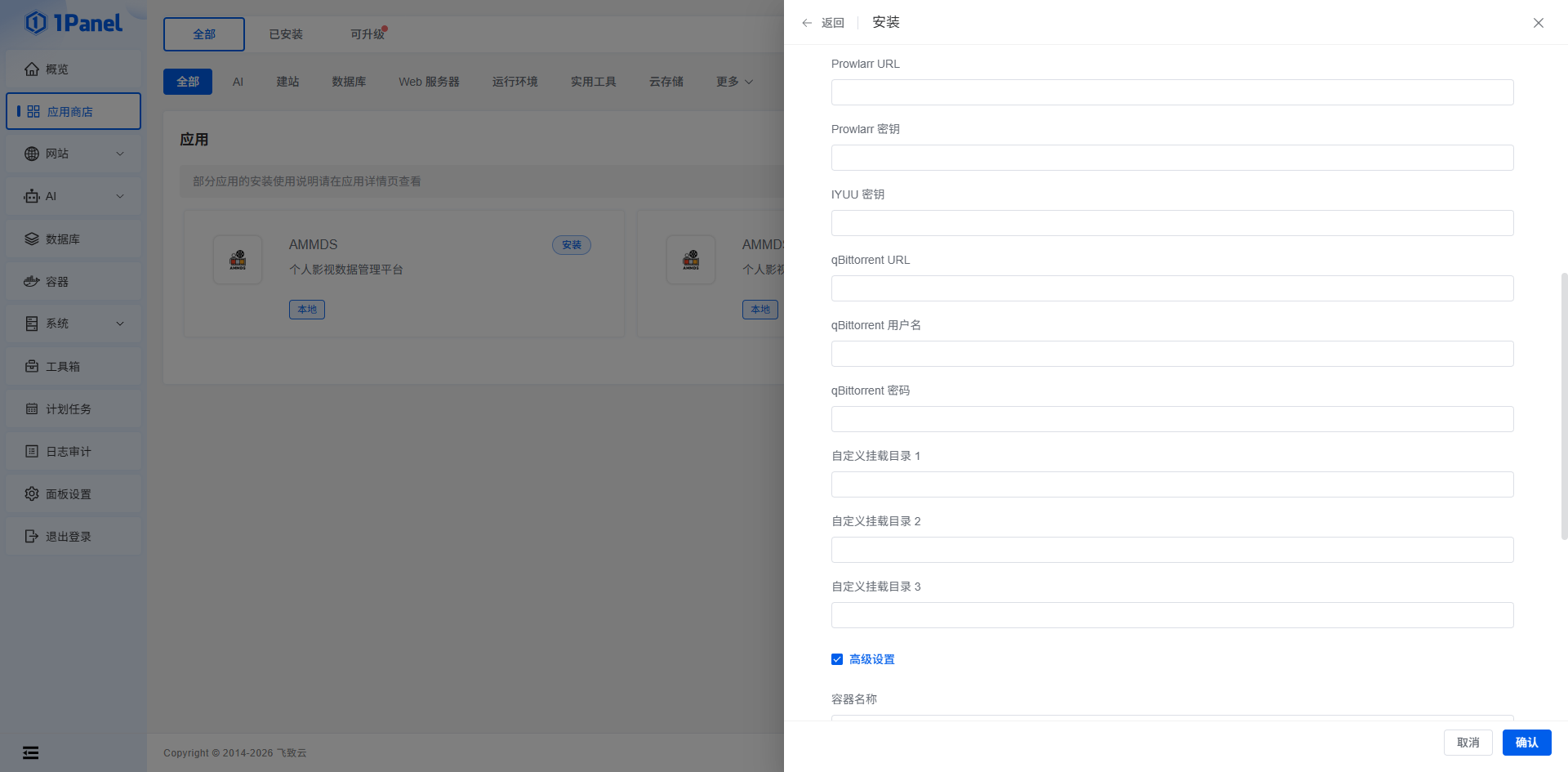
Mount Directory Settings

Custom Mount Directory: It is recommended to fill in the directory where media files are located, which is optional.

Installation

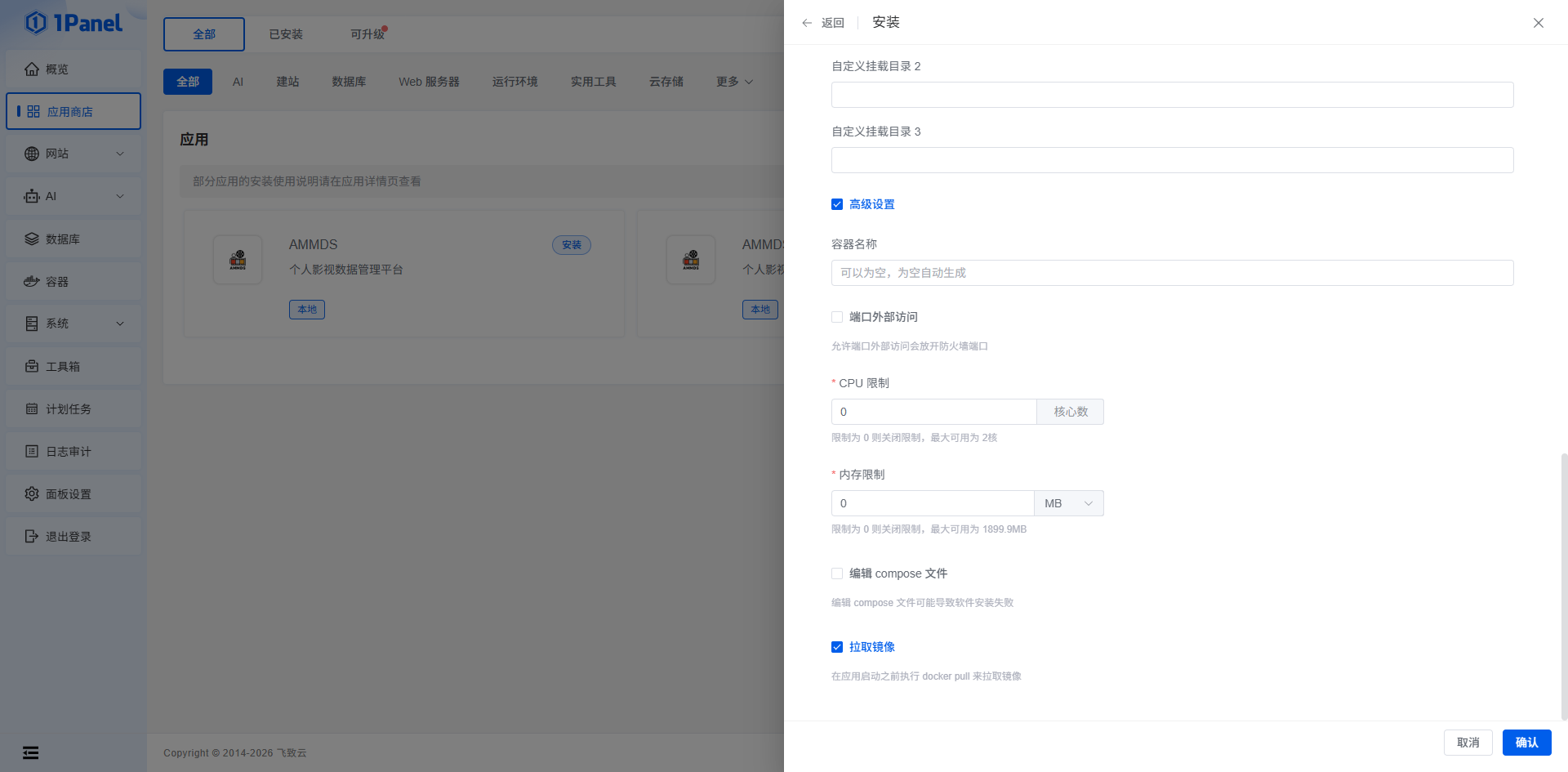
Port Access Configuration

You must check the "External Port Access" option, otherwise you will not be able to access the WebUI and API via the network.

Click the "Confirm" button to start installing the AMMDS application.

Installation Complete

Installation Complete

Verify Installation Success

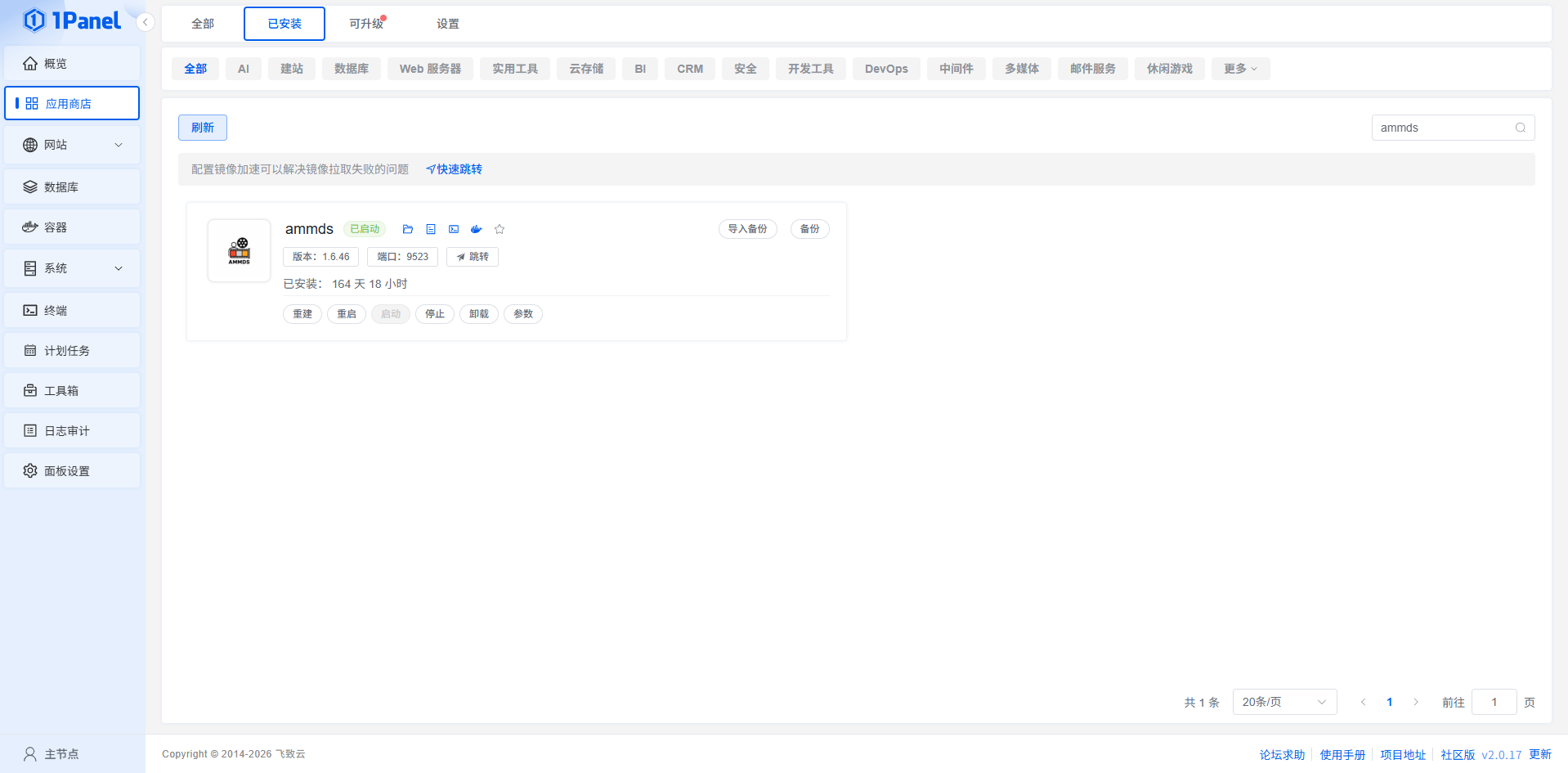
After installation is complete, you can view the installed AMMDS application in the "Installed" tab.

Management Function Introduction

The application card provides multiple quick operation buttons, including:

  • Terminal: Access the application container terminal
  • Logs: View application running logs
  • Start: Start the application service
  • Stop: Stop the application service
  • Restart: Restart the application service
  • Uninstall: Remove the application
  • Rebuild: Rebuild the application container

Access Application

Access Application

Access Method

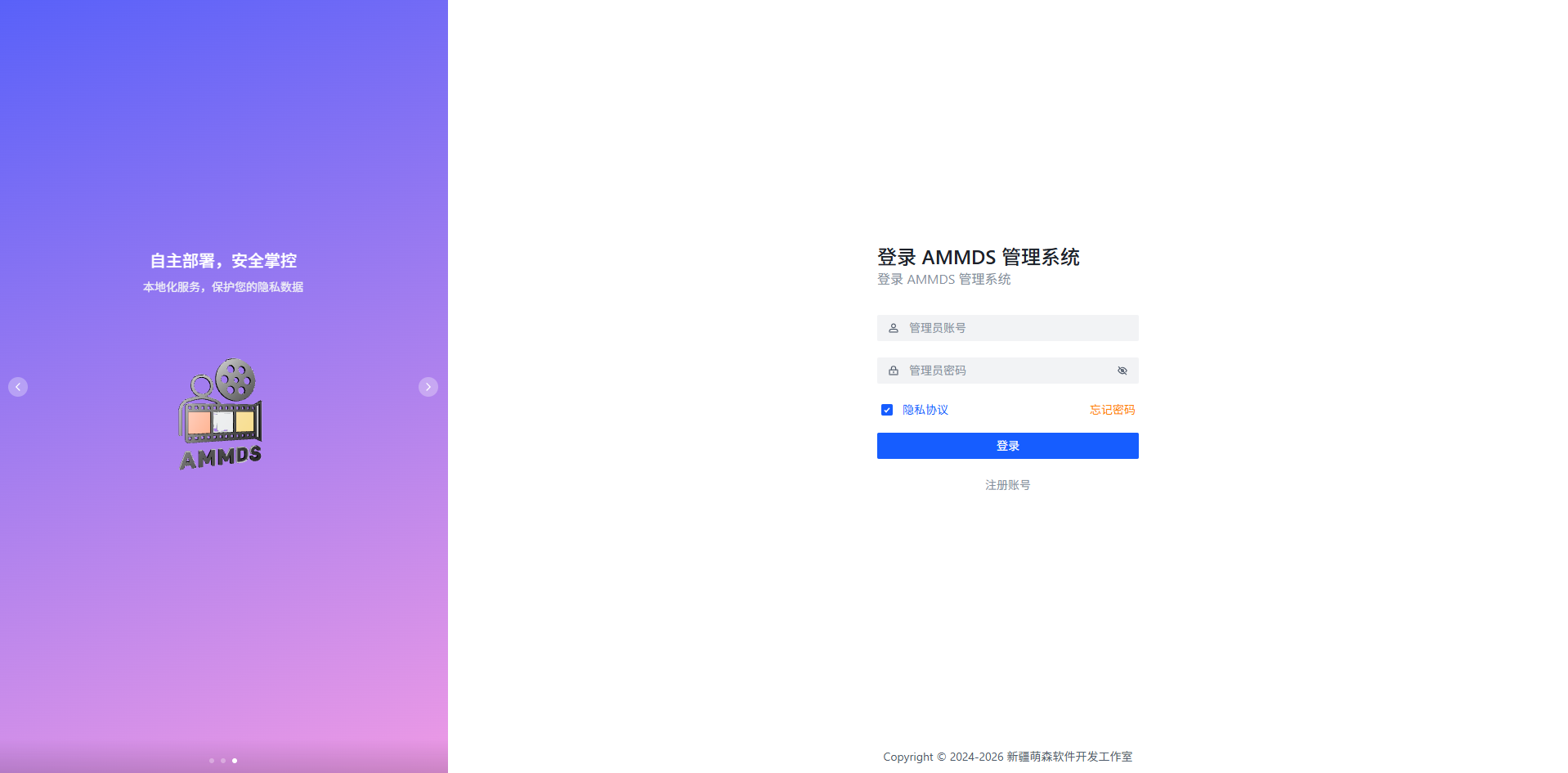
After installation is complete, you can access AMMDS's WebUI and API interfaces through a browser:

  • WebUI Address: http://<ServerIP>:<WebUIPort>
  • API Address: http://<ServerIP>:<APIPort>

Default Login Information

  • Username: ammds
  • Password: ammds
Security Tip

After first login, please immediately change the default password to ensure system security.

Advanced Attempts

Custom Configuration

If you are familiar with Docker container management, you can perform more detailed settings for the AMMDS application through 1Panel's advanced configuration options, including:

  • Resource limit adjustments (CPU, memory)
  • Environment variable configuration
  • Advanced network settings
  • Storage volume management

Multi-Instance Deployment

For users who need to isolate different functional scenarios, you can deploy multiple AMMDS instances in 1Panel, distinguished by different ports and data paths.

Warnings and Precautions

Security Warnings

Important Security Tips
  • Official Sources: Only obtain application installation scripts from official channels, avoid using third-party download sources
  • Password Security: Set strong passwords and change them regularly, avoid using weak passwords
  • Port Security: Ensure to modify default ports to reduce the risk of attacks
  • External Access: Configure port external access according to actual needs, avoid unnecessary exposure

System Requirements

System Configuration Requirements

Minimum Configuration

  • Operating System: Linux distribution (supporting 1Panel installation)
  • Processor: Intel Core i3 or equivalent performance
  • Memory: 4GB RAM
  • Disk Space: At least 10GB of available space
  • Network: Broadband internet connection
  • Operating System: Linux distribution (supporting 1Panel installation)
  • Processor: Intel Core i5 or equivalent performance
  • Memory: 8GB RAM or more
  • Disk Space: 20GB of available space
  • Network: Stable broadband internet connection

Usage Precautions

  • Data Backup: Regularly back up AMMDS configuration files and important data
  • Resource Management: Monitor server resource usage to avoid excessive resource occupation
  • Network Connection: Ensure stable network connection, especially when downloading resources and updating
  • System Maintenance: Regularly update 1Panel and related applications to ensure system stability

Troubleshooting

Common Issues

  • Installation Failure: Check if network connection is normal and if disk space is sufficient
  • Startup Abnormality: View application logs for detailed error information
  • Access Failure: Check if port configuration is correct and if firewall allows access
  • Upgrade Failure: Try uninstalling the old version first and then installing the new version

Contact Information

If you encounter unsolvable problems, please visit the official GitHub repository to submit an Issue or seek help.

Best Practices

Daily Maintenance

  • Regular Updates: Keep 1Panel and AMMDS updated to the latest versions to get the latest features and security fixes
  • Status Monitoring: Regularly check application running status and server resource usage
  • Cache Cleaning: Regularly clean application cache to optimize storage space usage

Optimization Configuration

  • Resource Allocation: Reasonably allocate application resource limits based on server performance
  • Network Optimization: Configure reasonable network settings to ensure smooth application access
  • Storage Planning: Reasonably plan data storage paths for easy management and backup

Security Hardening

  • Regular Password Changes: Regularly update login passwords and access credentials
  • Access Control: Configure access control policies according to actual needs
  • Log Auditing: Regularly check application logs to promptly discover abnormal situations

Community Participation

  • Feedback Issues: Provide timely feedback when encountering problems to help improve the product
  • Share Experience: Participate in community discussions and share usage experience and best practices
  • Contribute Code: If capable, you can participate in project development and contribute code