1Panel Deployment Guide
1Panel is a server management panel that lets you manage apps, websites, files, databases, and large language models (LLMs) through a web interface. Here's how to deploy AMMDS on 1Panel.
Install Third-Party App Store
This solution works with both 1Panel v1 and v2.
Automatic Installation
The automatic installation updates the third-party app store content every 3 hours, so you always get the latest apps.
Installation Script
curl -sSL https://install.lifebus.top/auto_install.sh | bash
Uninstallation Script
curl -sSL https://install.lifebus.top/auto_uninstall.sh | bash
Manual Installation
Manual installation pulls the latest app store content once. To update later, run the script again.
curl -sSL https://install.lifebus.top/app_install.sh | bash
Update Store Content
Steps
-
Enter Store Settings Go to the App Store via the left sidebar and click into Store Settings.
-
Perform Update
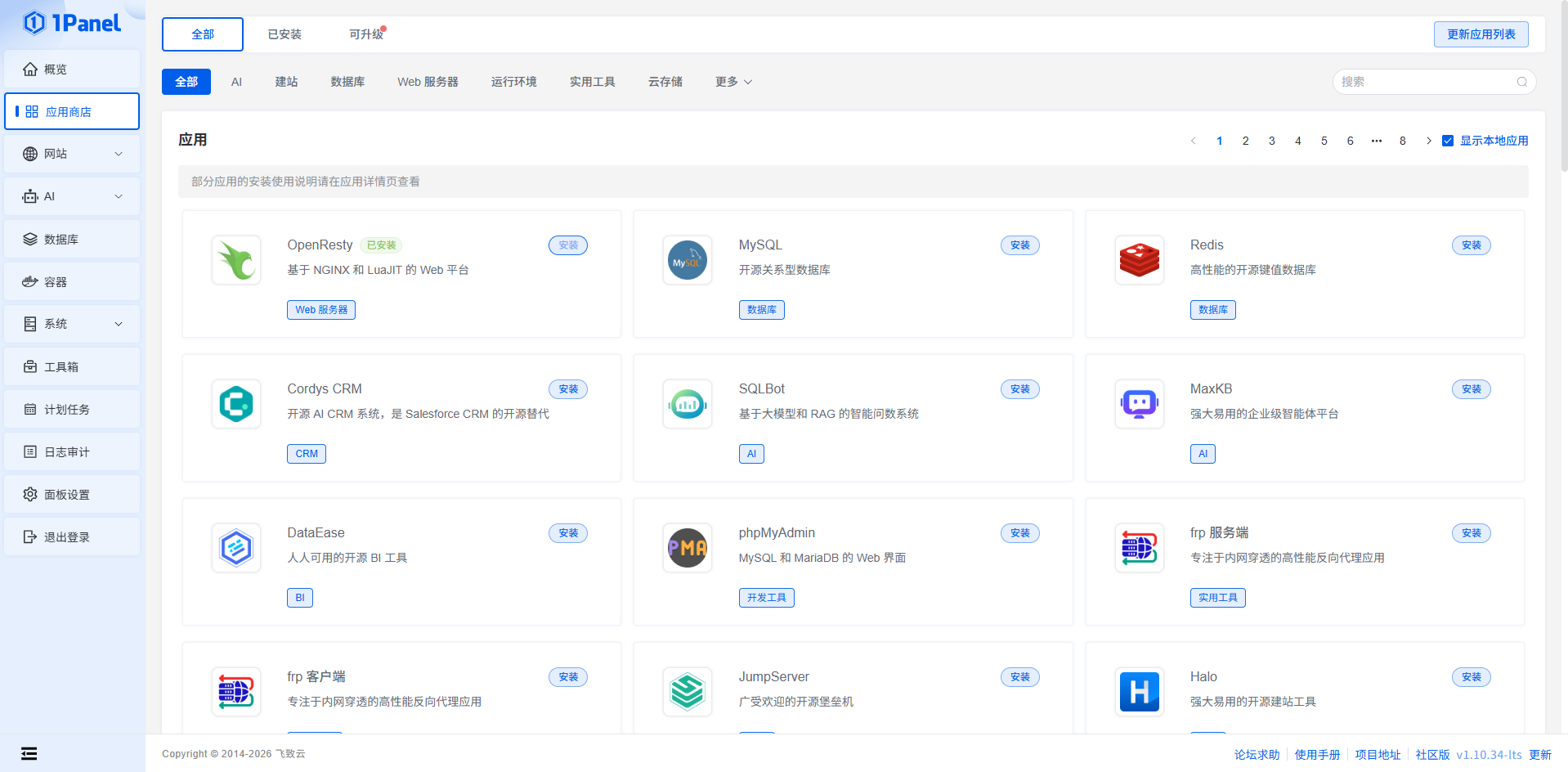
v1 Version
Click the "Update App List" button in the top right corner of the store page.
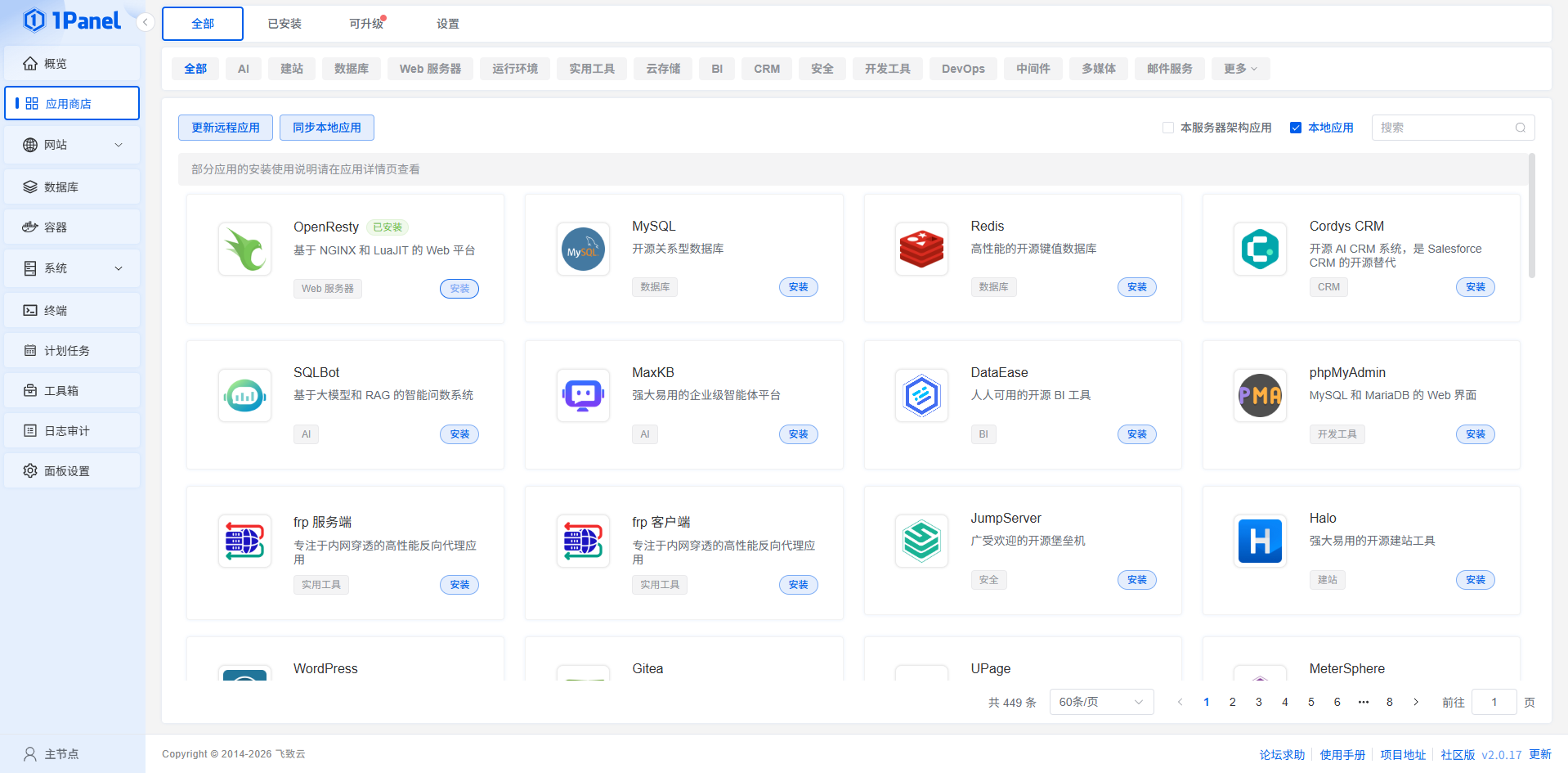
v2 Version
Click the "Sync Local Apps" button in the top left corner of the store page.
Install Application
Search and Select
-
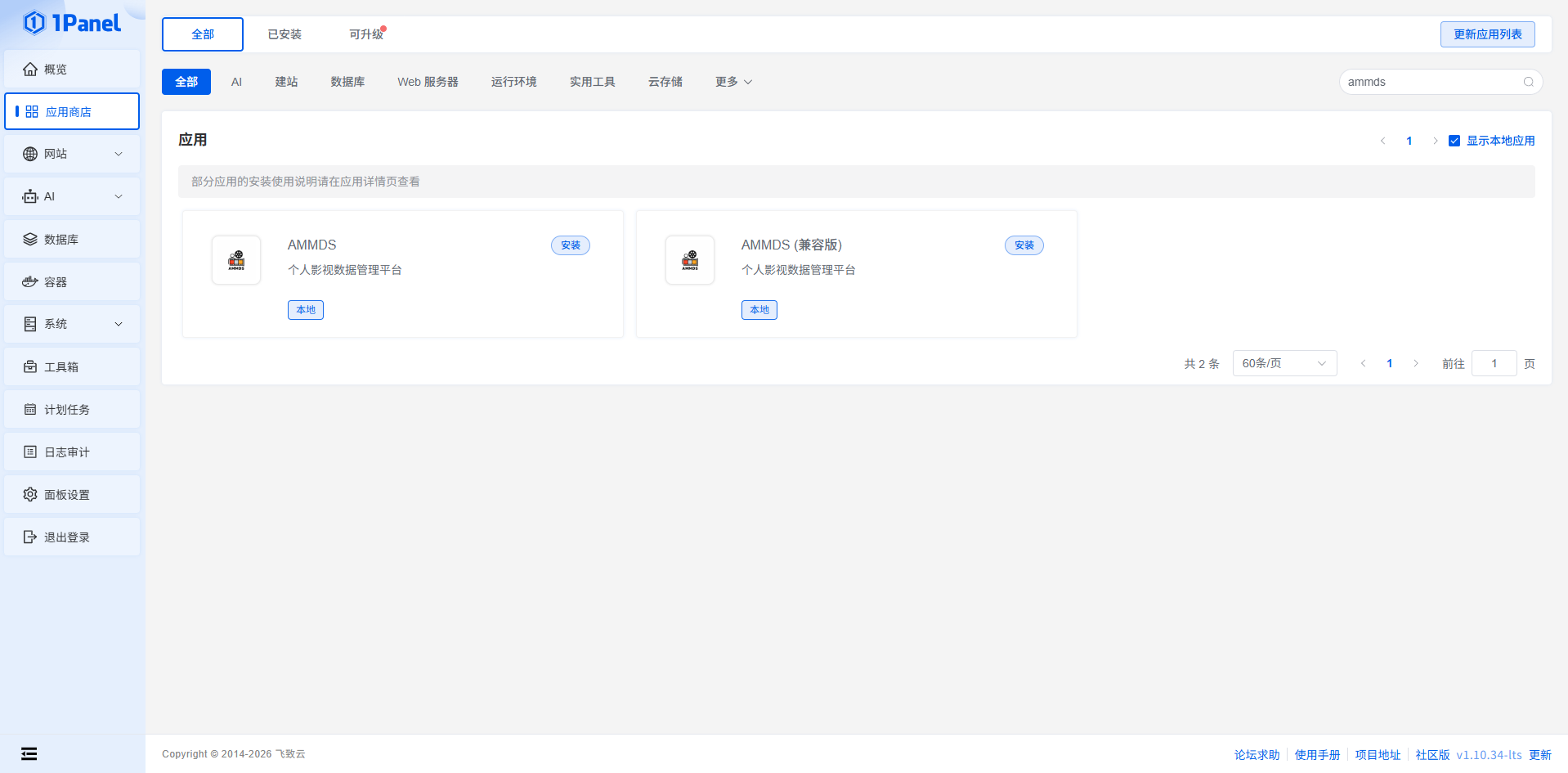
Search for AMMDS Search for "ammds" in the App Store.
-
Choose a Version Two versions will be shown:
- Compatible Version: Suitable for lower-end devices
- Latest Version: Suitable for higher-end devices
Configure Parameters
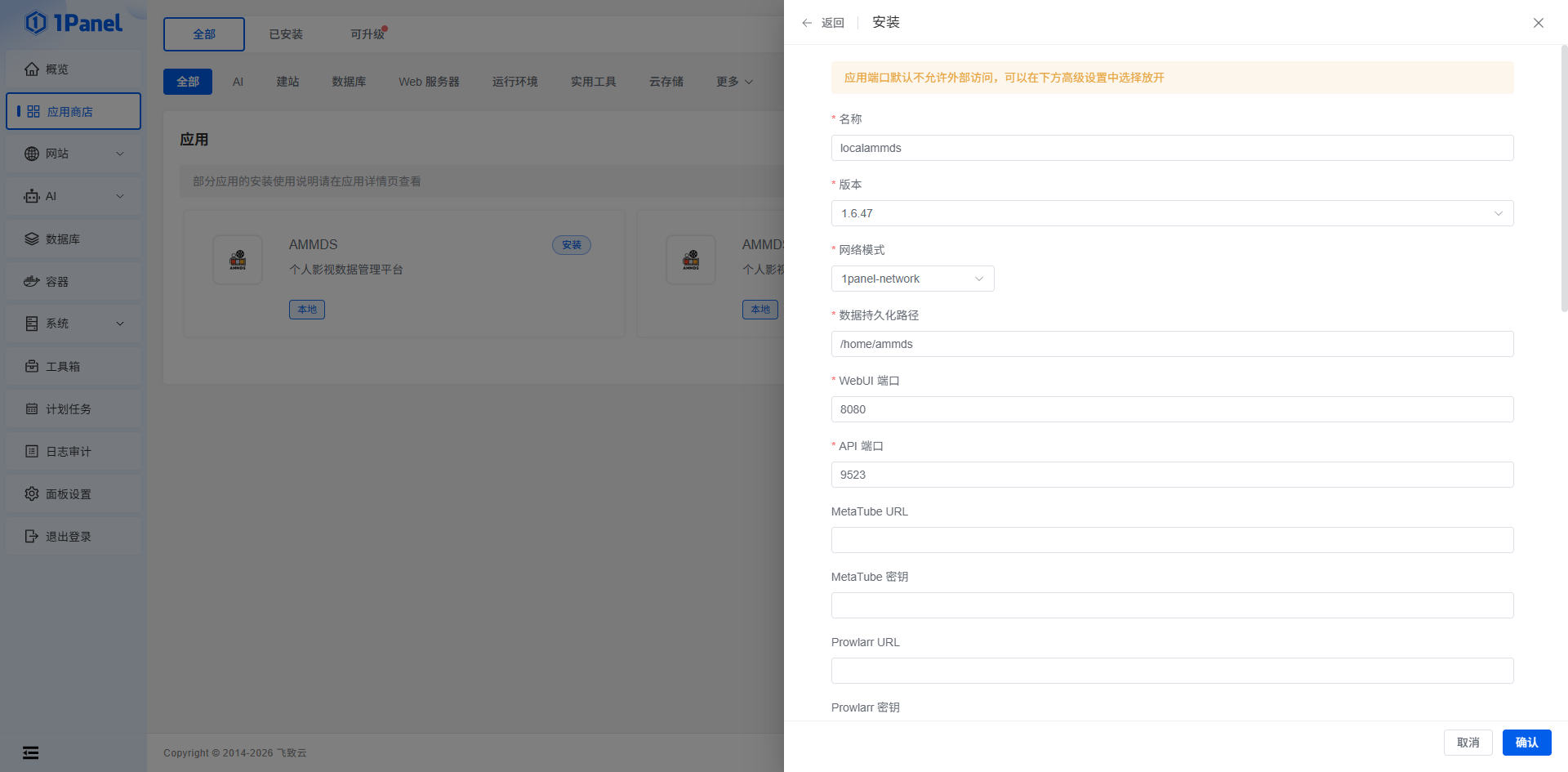
After clicking install, a configuration panel will appear.
Basic Configuration
- Name: Fill in "ammds" or customize as you like
- Version: Select "Latest Version" recommended
- Network Mode: Keep the default unless you have special needs
- Data Persistence Path: Enter an absolute path on the server for storing AMMDS data
- WebUI Port: 8080 recommended, or customize
- API Port: 8081 recommended, or customize
Other parameters are optional — fill them in as needed.
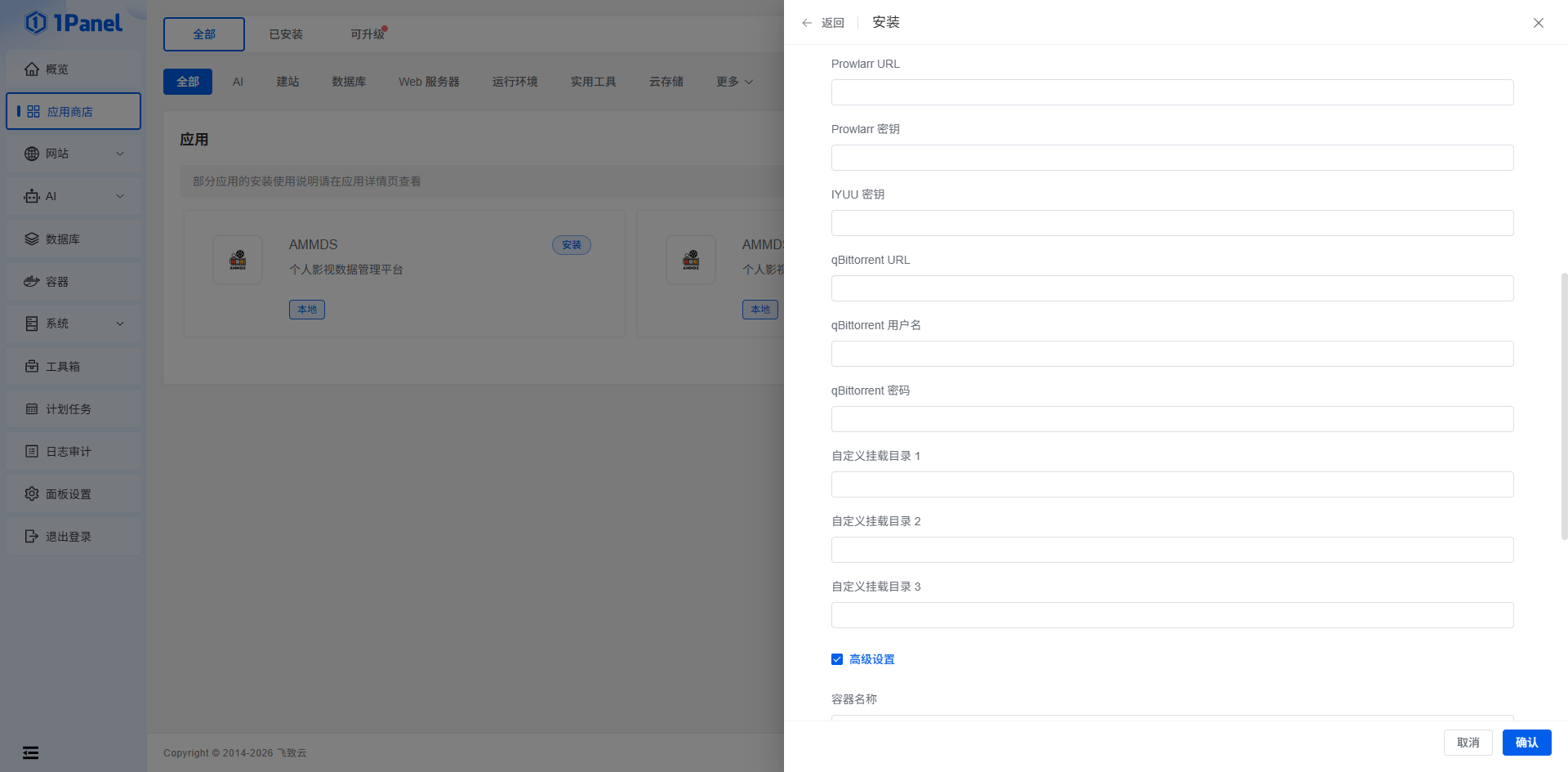
Mount Directory Settings
Custom Mount Directory: It's recommended to fill in the directory where your media files are located. Optional.
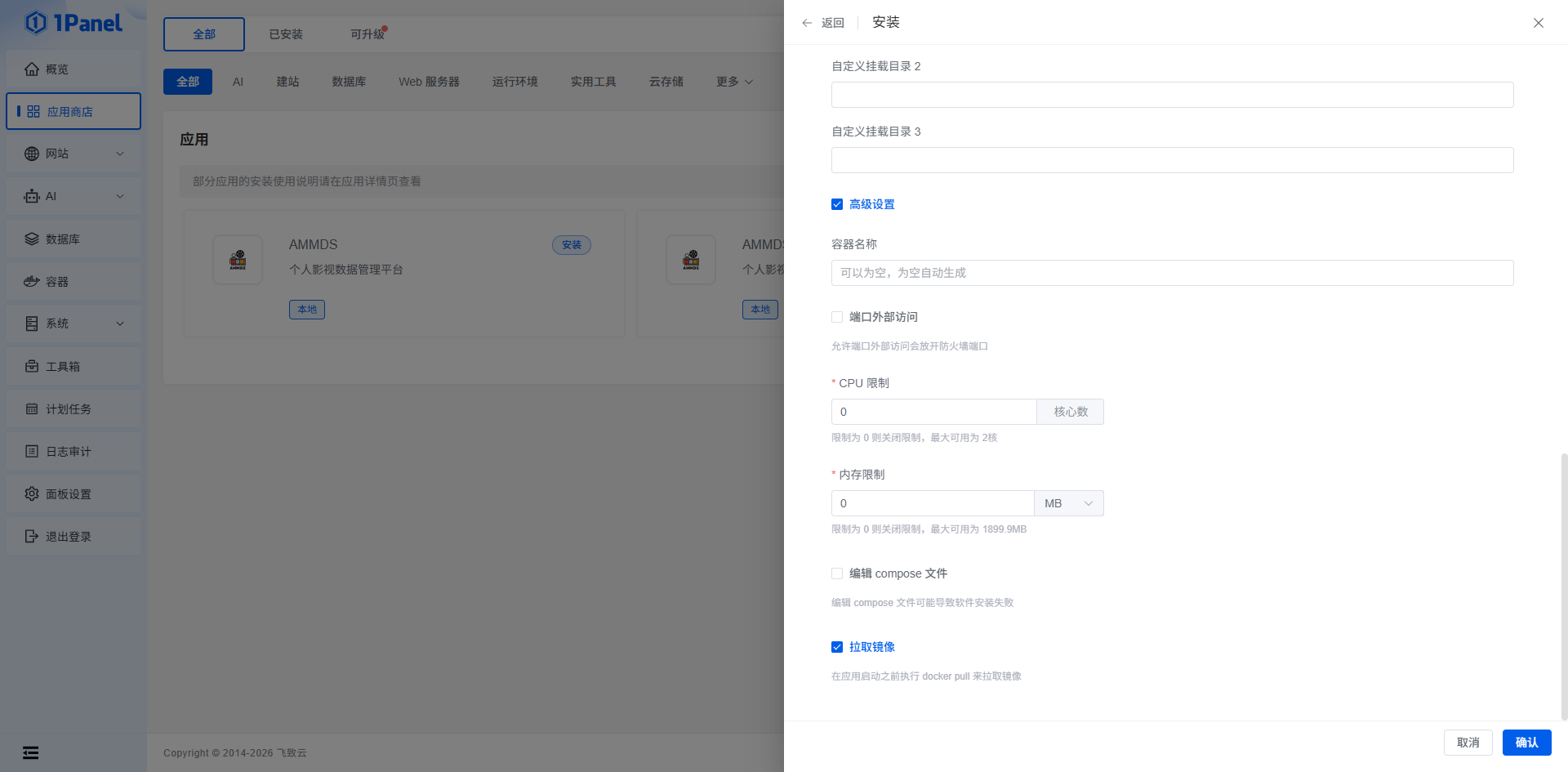
Port Access Configuration
You must check "External Port Access", otherwise you won't be able to access the WebUI and API over the network.
Click "Confirm" to start the installation.
Installation Complete
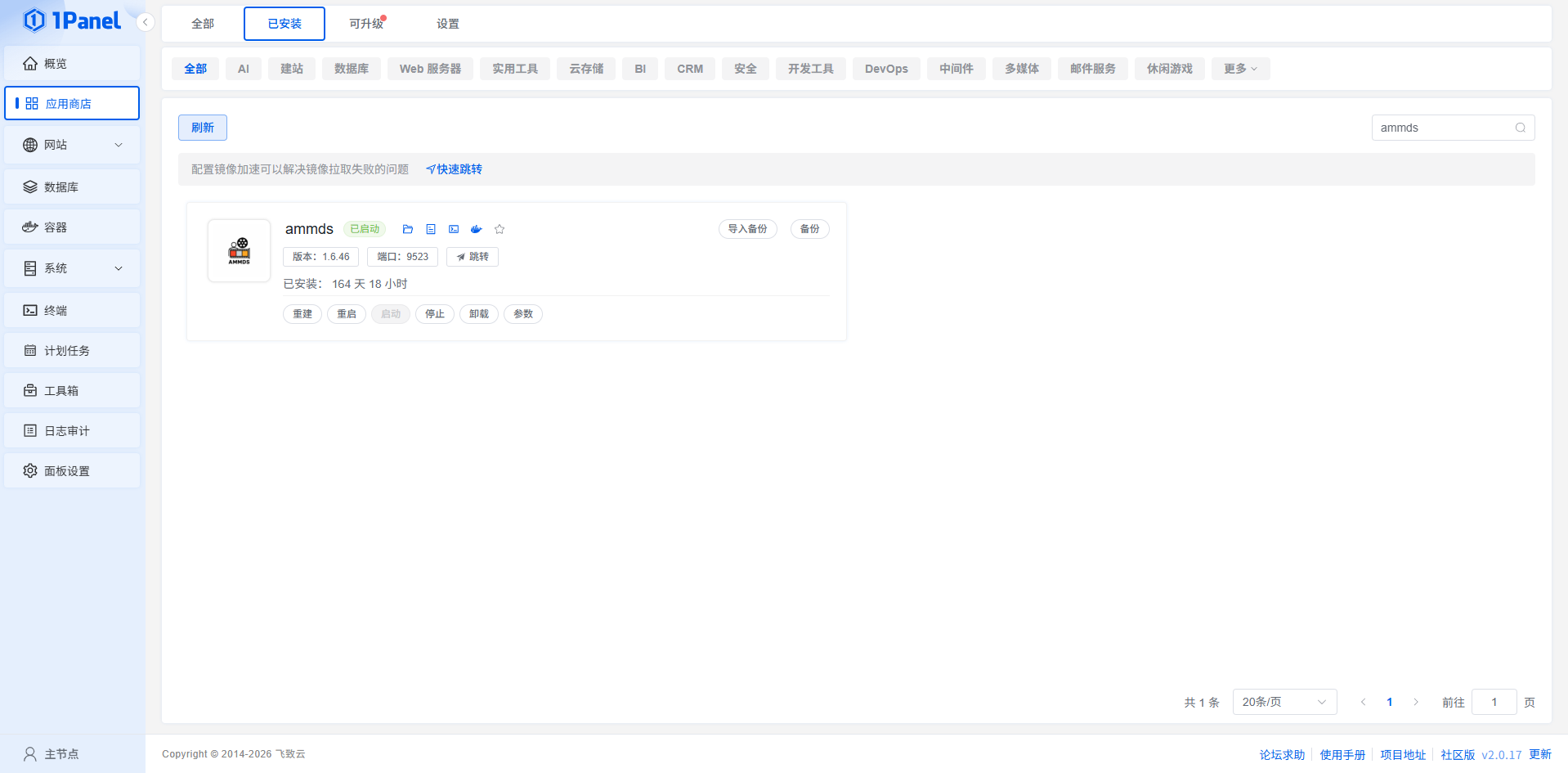
Verify Installation
After installation, you'll see AMMDS in the "Installed" tab.
Management Features
The app card provides several quick actions:
- Terminal: Enter the app container terminal
- Logs: View running logs
- Start/Stop/Restart: Manage the app service
- Uninstall: Remove the app
- Rebuild: Rebuild the app container
Access Application
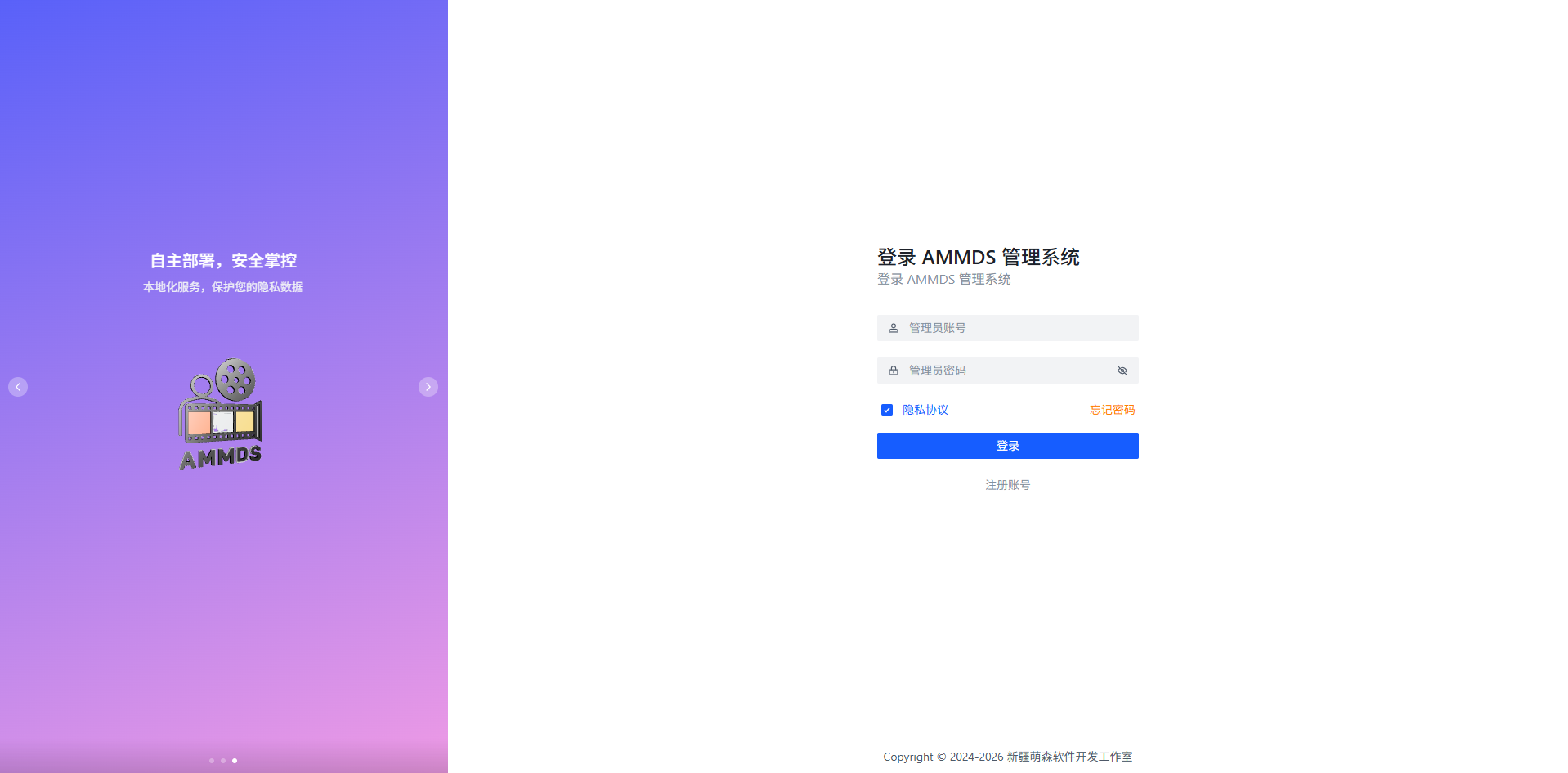
How to Access
After installation, you can access AMMDS's WebUI and API through a browser:
- WebUI Address: http://<ServerIP>:<WebUIPort>
- API Address: http://<ServerIP>:<APIPort>
Default Login
- Username: ammds
- Password: ammds
:::info Security Tip After first login, immediately change the default password for security. :::
Advanced Options
Custom Configuration
If you're familiar with Docker, you can use 1Panel's advanced settings for more detailed configuration, including:
- Resource limits (CPU, memory)
- Environment variables
- Advanced network settings
- Storage volume management
Multi-Instance Deployment
If you need to isolate different use cases, you can deploy multiple AMMDS instances in 1Panel, distinguished by different ports and data paths.
Warnings and Precautions
Security Warnings
:::danger Important Security Tips
- Official Sources: Only get installation scripts from official channels, don't use third-party sources
- Password Security: Set strong passwords and change them regularly
- Port Security: Change default ports to reduce attack risk
- External Access: Only enable external port access when necessary
:::
System Requirements
:::info System Configuration Requirements
Minimum Configuration
- Operating System: Linux distribution (supporting 1Panel)
- Processor: Intel Core i3 or equivalent
- Memory: 4GB RAM
- Disk Space: At least 10GB available
- Network: Broadband internet connection
Recommended Configuration
- Operating System: Linux distribution (supporting 1Panel)
- Processor: Intel Core i5 or equivalent
- Memory: 8GB RAM or more
- Disk Space: 20GB available
- Network: Stable broadband internet connection
:::
Usage Precautions
- Data Backup: Regularly back up configuration files and important data
- Resource Management: Keep an eye on server resource usage
- Network Connection: Ensure a stable network when downloading resources and updates
- System Maintenance: Regularly update 1Panel and related apps
Troubleshooting
Common Issues
- Installation Failure: Check network connection and disk space
- Startup Issues: Check app logs for error details
- Access Failure: Check port configuration and firewall settings
- Upgrade Failure: Try uninstalling the old version first, then install the new version
Contact Information
If you encounter issues you can't resolve, submit an Issue on the official GitHub repository.
Best Practices
Daily Maintenance
- Regular Updates: Keep 1Panel and AMMDS up to date
- Monitor Status: Regularly check app status and resource usage
- Clean Cache: Regularly clean cache to optimize storage
Optimization
- Resource Allocation: Allocate resources based on server performance
- Network Optimization: Configure network settings properly
- Storage Planning: Plan data storage paths for easy management
Security Hardening
- Regular Password Changes: Update passwords regularly
- Access Control: Configure access control as needed
- Log Auditing: Check logs regularly for anomalies
Community Participation
- Report Issues: Provide timely feedback on problems
- Share Experience: Participate in community discussions
- Contribute Code: Help with project development if you can