Execute Scrape Task
The scrape task is the second step in organizing your movies. Simply put: the system looks up movie info online (posters, descriptions, cast, etc.) based on your scrape rules, then organizes everything into the right place.
What does "scraping" mean? Scraping is when the system automatically searches online for movie information — cover images, plot summaries, cast, ratings, etc. (collectively called "metadata") — and downloads it to match up with your video files. Think of it as "tagging" your movie files.
Prerequisites
Before running a scrape task, make sure the following is ready:
Network Connection
You need internet access to look up movie info online.
Metadata Plugins
Make sure the relevant metadata plugins are enabled and configured. These are the tools that find movie info for you:
:::warning Important Without metadata plugins enabled, the system can't fetch movie info — scraping will definitely fail. :::
:::info Data Source Disclaimer This software does not provide any source data. All movie info comes from the plugin services you configure. :::
Execute Scrape Task
Step 1: Enter the Scrape Storage Page
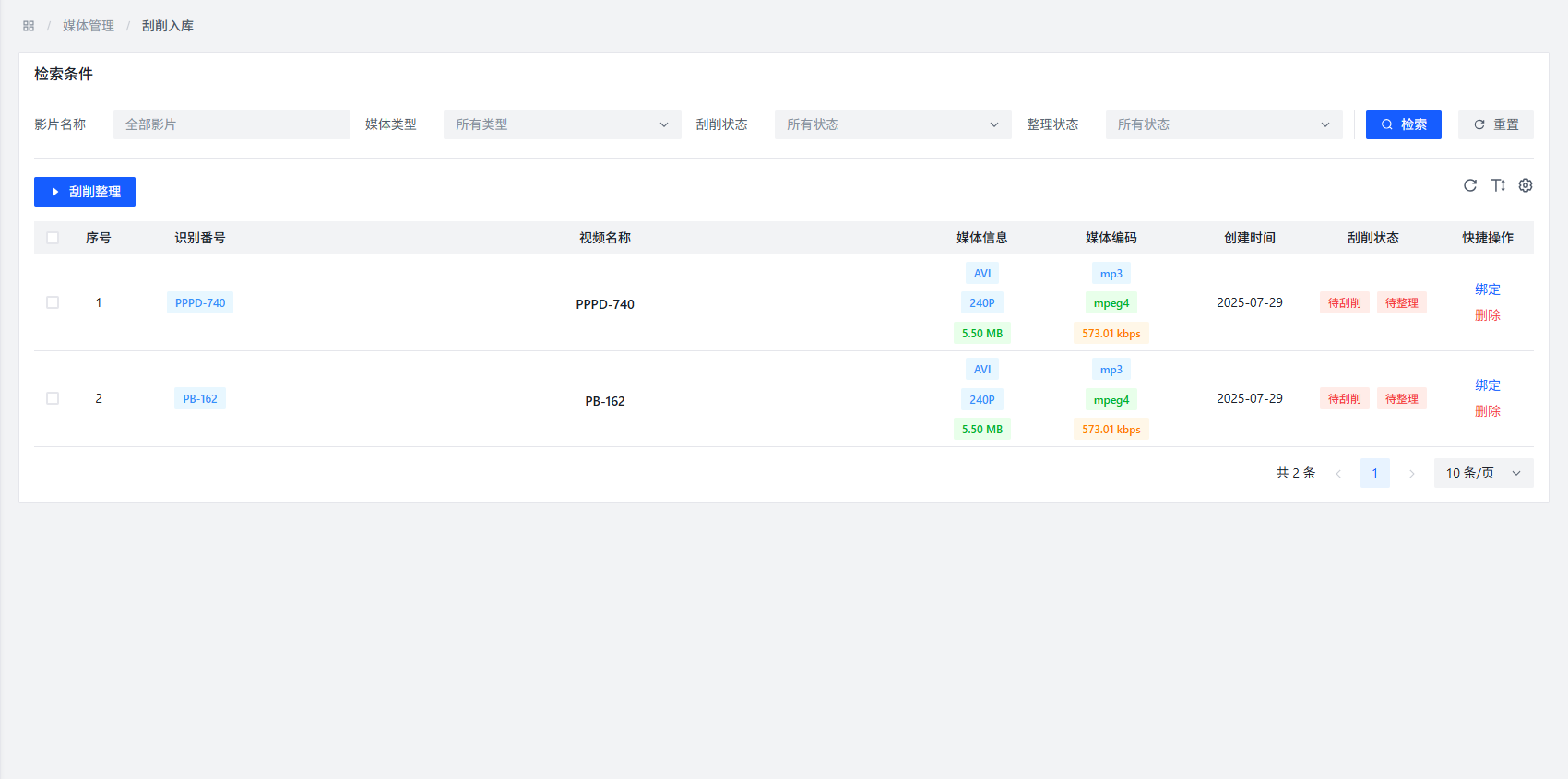
Go to Task Management from the left nav, then select Scrape Storage.
Step 2: Select Files to Scrape
On the scrape storage page, you'll see a list of all files waiting to be scraped. Check the ones you want to process.
Step 3: Start Scraping
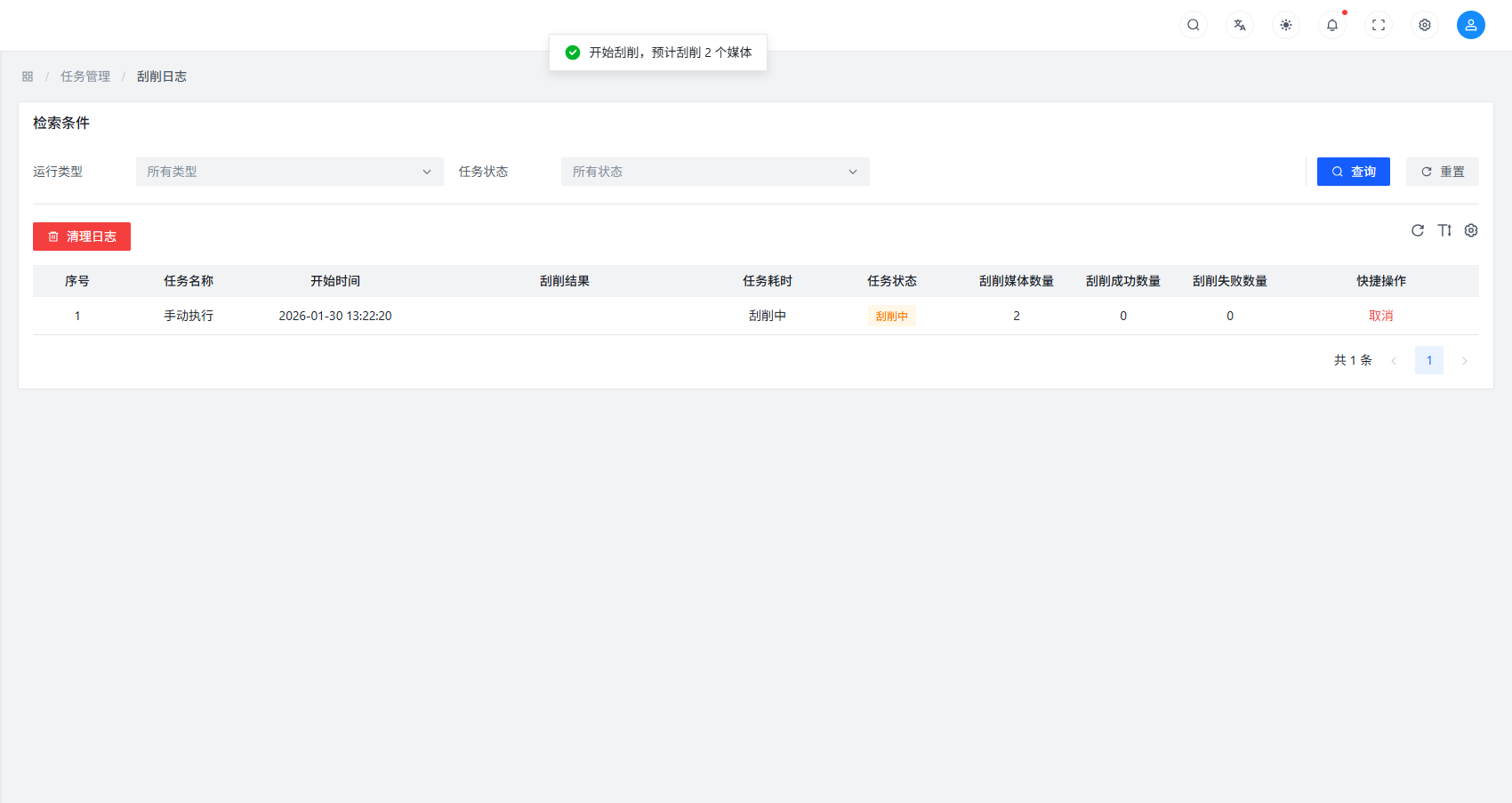
Click the Scrape and Organize button, and the system gets to work.
Step 4: Check Task Status
During execution, the page shows progress in real-time:
- Number of successfully scraped files
- Number of failed files
- Number of skipped files
Step 5: Cancel the Task (If Needed)
If you need to stop during execution, click the Cancel button at any time.
How Scraping Works
Here's the full scraping workflow:
- Read scrape rules: The system determines how to handle files based on your configured rules
- Match metadata: Using your enabled metadata plugins, it tries to find detailed movie info
- Generate media files: Based on the found info, it creates standardized media files
- Organize file structure: Files are arranged according to your preset naming rules and directory structure
Common Problems and Solutions
Problem: Scraping Failed
Possible causes:
- Network connection issues
- Metadata plugin not enabled or misconfigured
- Scrape rules set up incorrectly
- File naming doesn't match recognition rules
Solutions:
- Check if the network is working
- Confirm metadata plugins are enabled and configured correctly
- Review scrape rule settings
- Try changing the file name to make it easier to recognize
Problem: Incomplete Movie Info
Possible causes:
- Plugin service temporarily unavailable
- The movie isn't found in the plugin service
- Network is slow, causing timeouts
Solutions:
- Try again later — it might just be a temporary glitch
- Switch to a different metadata plugin
- Check network stability
Best Practices
- Batch process: If you have lots of files, scrape them in batches to avoid overloading the system
- Configure first: Make sure scrape rules and metadata plugins are all set up before scraping
- Update plugins regularly: Newer plugin versions have better matching results
- Check logs when things fail: Look at system logs for detailed error info
Notes
:::caution Note Scrape tasks may take a while, depending on file count and network speed. Just be patient. :::
:::tip Tip For better scraping results, make sure file names are as standardized as possible, including key identifying info (like video numbers, titles, etc.). :::