Create Scan Task
The scan task is the first step in organizing your movies. The system looks through your specified folders for movie files based on the scan rules you configured, and generates a list of files to process. This way, you can pick and choose which ones to scrape — no junk files get processed.
Access Task List
Go to:
Task Management >> Task Configuration >> Task List
On the task list page, click the Create Task button to create a new scan task.
Multi-task Management
You can create multiple scan tasks as needed. Each task can have its own scan directory and output directory.
Why multiple tasks are useful:
- Organize different types of media separately
- Apply different rules to different content types
- Better overall efficiency
For example:
- Create one task specifically for Japanese movies, output to a specified folder
- Create another task for Western movies, output to a different folder
Create Scan Task
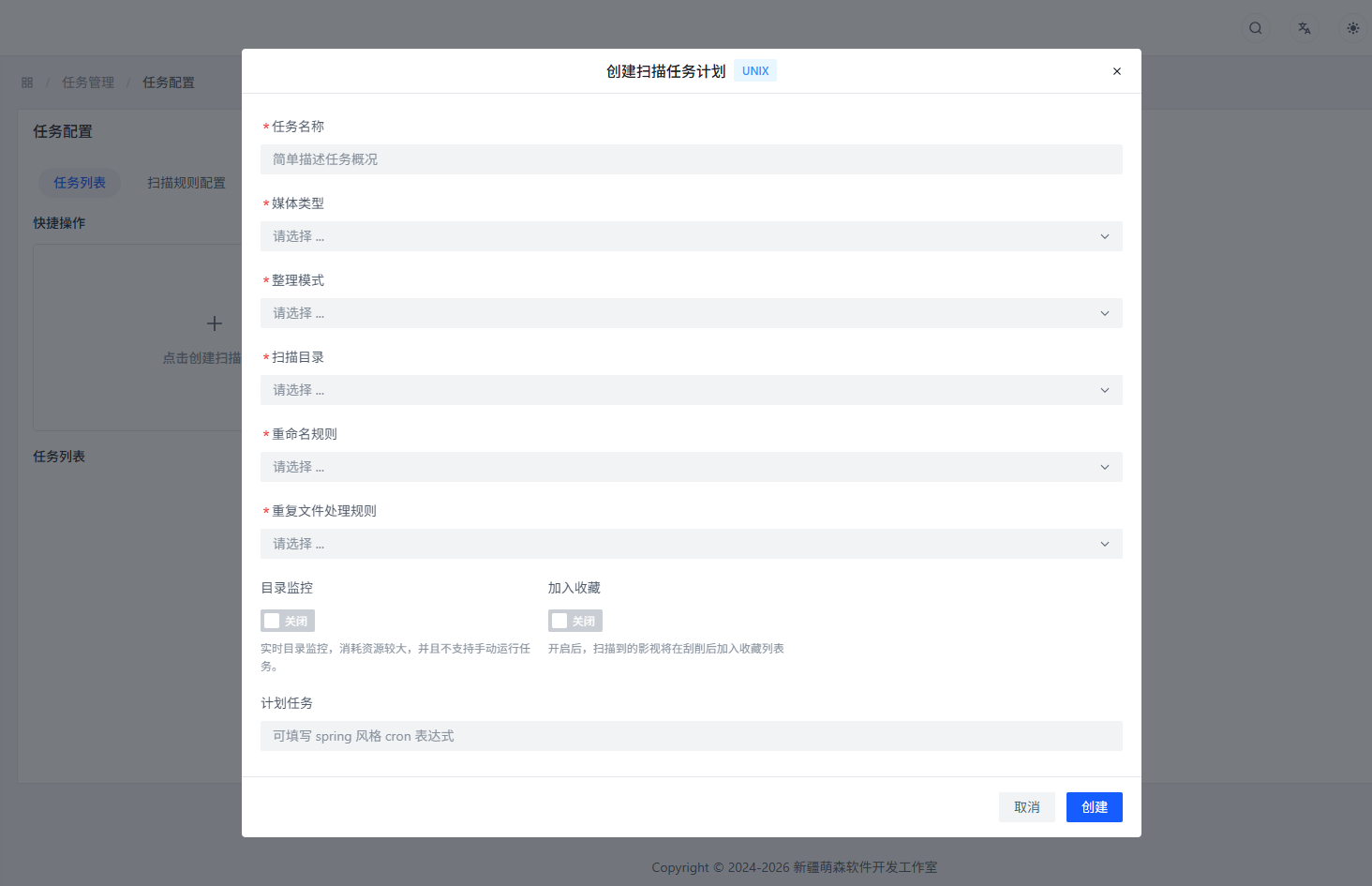
Task Name
What it does: Give your scan task a name.
Suggestion: Use something clear and descriptive for easy management. Like "Japanese Movie Scan" or "Western Movie Scan."
Media Type
What it does: Set the media type for the scan task.
Why it matters: Helps the system identify video numbers more accurately.
Suggestion: If you have mixed content types, just pick "All."
Organization Mode
What it does: Set how files should be organized.
Available modes:
In-place Organization
- What it does: Files stay where they are — organized right in their current location (renamed, metadata added, etc.)
- Best for: When you don't want to move files, just rename or organize metadata
Move Mode
- What it does: Files are moved to a target directory during organization
- Target directory: Uses the directory format from scrape config
- Best for: Centralizing files into a specific folder
Copy Mode
- What it does: Files are copied to a target directory during organization
- Target directory: Uses the directory format from scrape config
- Best for: Keeping the original files while also having organized copies in another location
Soft Link Mode
- What it does: Creates a "shortcut" pointing to the original file in the target directory
- Target directory: Uses the directory format from scrape config
- Features:
- Takes no extra disk space (it's just a shortcut)
- If the original file is deleted or moved, the shortcut breaks
- Best for: Accessing files from a specific directory without using extra space
Hard Link Mode
- What it does: Creates a "clone" of the original file in the target directory
- Target directory: Uses the directory format from scrape config
- Features:
- Takes extra disk space
- The "clone" and the original point to the same data
- Deleting the original doesn't affect the clone
- Clones can only be created on the same disk partition
- Best for: Having multiple access points to files on the same partition for safety
- Note: Has strict requirements — generally not recommended
:::info Tip Except for "In-place Organization," all other modes require specifying a target directory. :::
Scan Directory
What it does: Tell the system which folder to look for files in.
Why it matters: The system will scan through all files in this folder (including subfolders).
Suggestion: Pick the folder where you store your media files.
Organization Directory
What it does: Where to put the organized files.
When needed: All modes except "In-place Organization" require this.
Suggestion: Pick a folder with plenty of free space.
Rename Rule
What it does: Set how files should be renamed.
Available rules:
Original File Name
- What it does: Keep the original file name as-is
- Best for: When you want to preserve the original naming
Standardized File Name
- What it does: Rename files according to the naming format set in scrape config
- Naming basis: Depends on the file name format in scrape config
- Best for: Consistent, standardized file naming across all files
Duplicate File Handling
What it does: What to do if the target directory already has a file with the same name.
Suggestion: Pick based on your needs — skip, overwrite, rename, etc.
Directory Monitoring
What it does: When enabled, the system watches this folder after the first scan. If new files are added, it automatically scans and adds them to the results list.
Best for: Having the system automatically handle newly downloaded files without manual scanning
Add to Favorites
What it does: When enabled, organized movies are automatically added to favorites.
Best for: Quickly marking and finding important movies
Scheduled Task
What it does: Set the scan task to run automatically on a schedule.
Note: This conflicts with directory monitoring — you can only use one.
Format: Uses Spring-style cron expressions
Example: To scan every hour, enter 0 0 * * * ?
Execute Scan Task
Once created, click Scan Now to start.
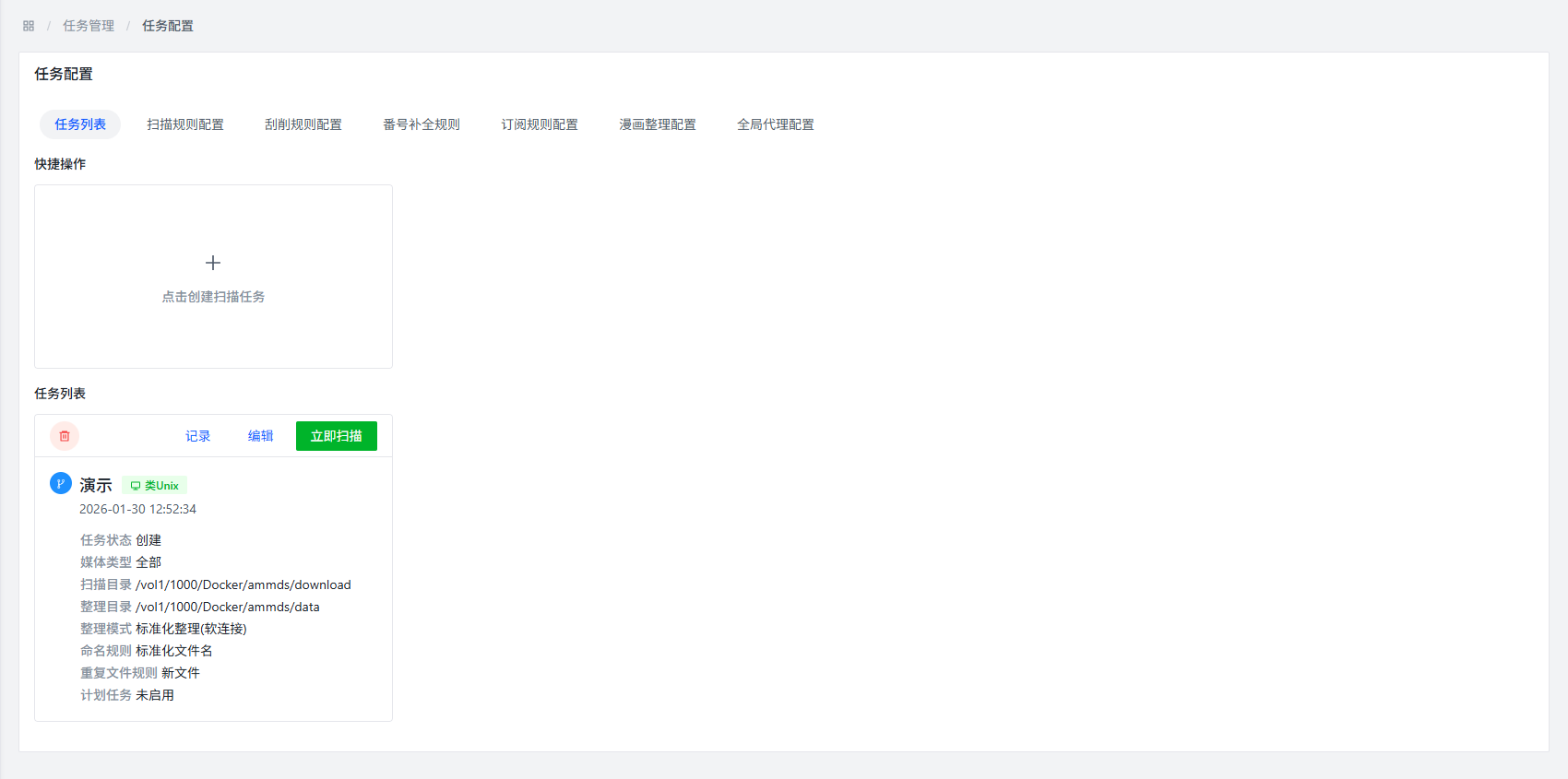
Task Management Operations
- Edit: Click Edit to modify the task config
- Record: Click Record to view scan history
- Delete: Click Delete to remove unwanted tasks
Scan Result View
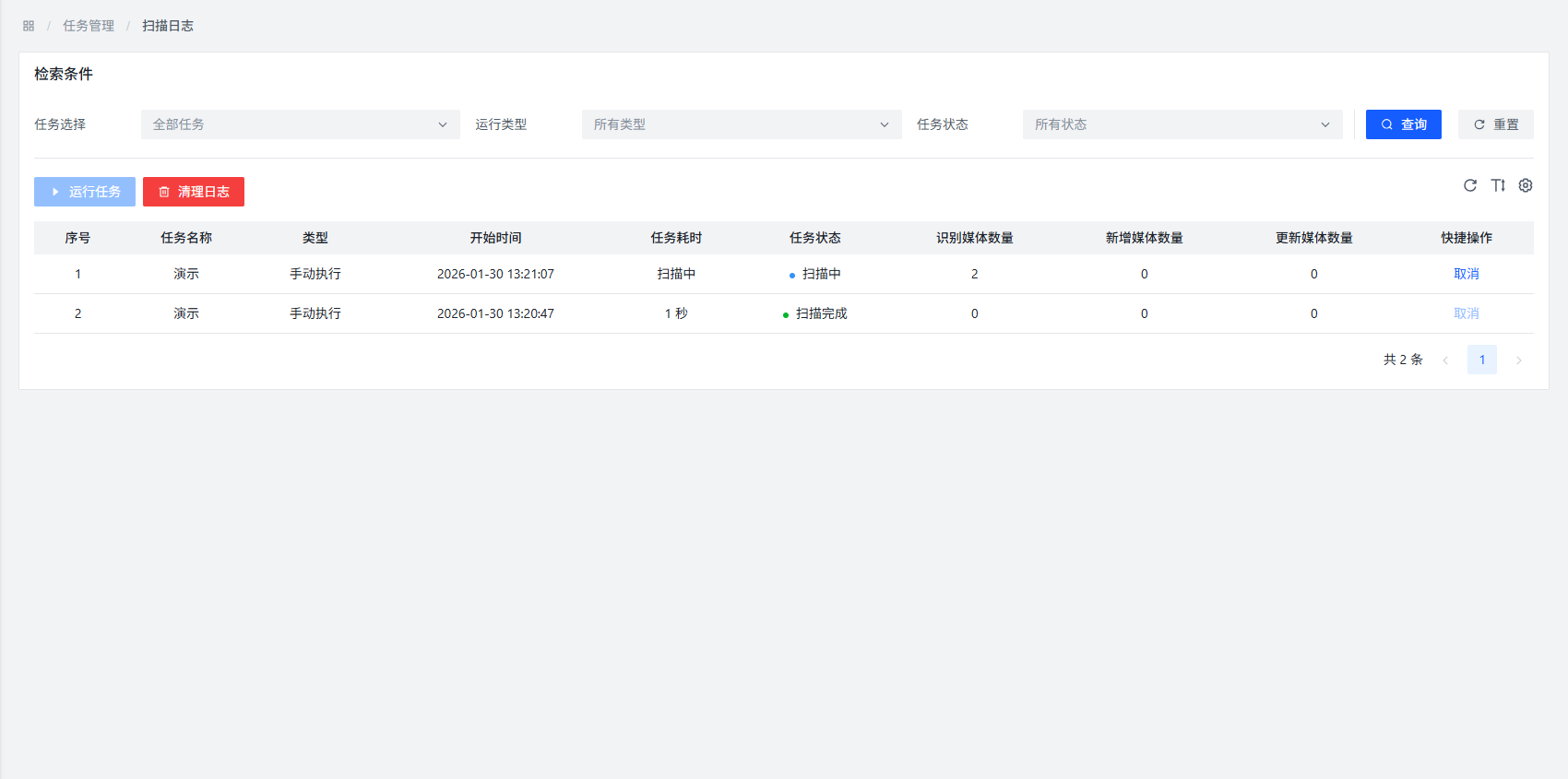
After scanning, newly discovered scrapable files can be viewed and processed in Task Management >> Scrape Storage.
Scheduled Tasks
The system uses Spring-style cron expressions for scheduled tasks.
Common Expressions
| Expression | Description |
|---|---|
0 0 * * * ? | Every hour |
0 0 0 * * ? | Every day at midnight |
0 0 0 * * 1 | Every Monday at midnight |
0 0 0 1 * ? | Every 1st of the month at midnight |
Configuration Example
Here's a typical scan task config:
| Configuration Item | Setting Value |
|---|---|
| Task Name | Japanese Movie Scan |
| Media Type | Japanese |
| Organization Mode | Move Mode |
| Scan Directory | D:\Downloads\NewMovies |
| Organization Directory | E:\Media\Movies\Japanese |
| Rename Rule | Standardized File Name |
| Duplicate File Handling | Skip |
| Directory Monitoring | Enabled |
| Add to Favorites | Disabled |
| Scheduled Task | - |
FAQ
Q: What if the scan task fails?
A: Possible reasons:
- Scan directory doesn't exist or isn't accessible
- Organization directory doesn't exist or isn't writable
- Configuration is wrong
- Not enough system resources
Solutions:
- Check directory paths and permissions
- Review configuration parameters
- Make sure system resources are sufficient
- Check execution records for error details
Q: What's the difference between directory monitoring and scheduled tasks?
A:
- Directory Monitoring: Watches the folder in real-time — new files get processed immediately
- Scheduled Task: Runs at set times, regardless of file changes
Q: What's the difference between soft links and hard links?
A:
- Soft Link: Like a Windows shortcut — takes no space, but breaks if the original file is gone
- Hard Link: Like a "clone" of the file — takes space, but survives the original being deleted
Q: Why don't some files show up in the scan results?
A: Possible reasons:
- The file format isn't in the format restrictions list
- The file's directory is in the ignore list
- The file name contains ignored strings
- The file is smaller than the minimum video size threshold
Q: How can I improve scan efficiency?
A: Try this:
- Set up ignore directories and ignore files properly so you're not scanning junk
- Create dedicated scan tasks for different content types
- Use directory monitoring to avoid re-scanning
- Adjust system resource allocation as needed
Best Practices
- Categorize tasks: Create different scan tasks by media type for better efficiency
- Name clearly: Use descriptive task names for easy management
- Maintain regularly: Check and clean up unnecessary scan tasks periodically
- Backup config: Note down current configuration before making important changes
- Monitor execution: Check scan task execution records regularly to catch issues early