Scan Configuration
Scan configuration tells the system what to process, what to skip, and how to identify media files when scanning.
Access Scan Configuration
You can find the scan rule config page here:
Task Management >> Scan Rule Configuration
:::info Tip Remember to click Save after changing the config, or it won't take effect. :::
Configuration Interface
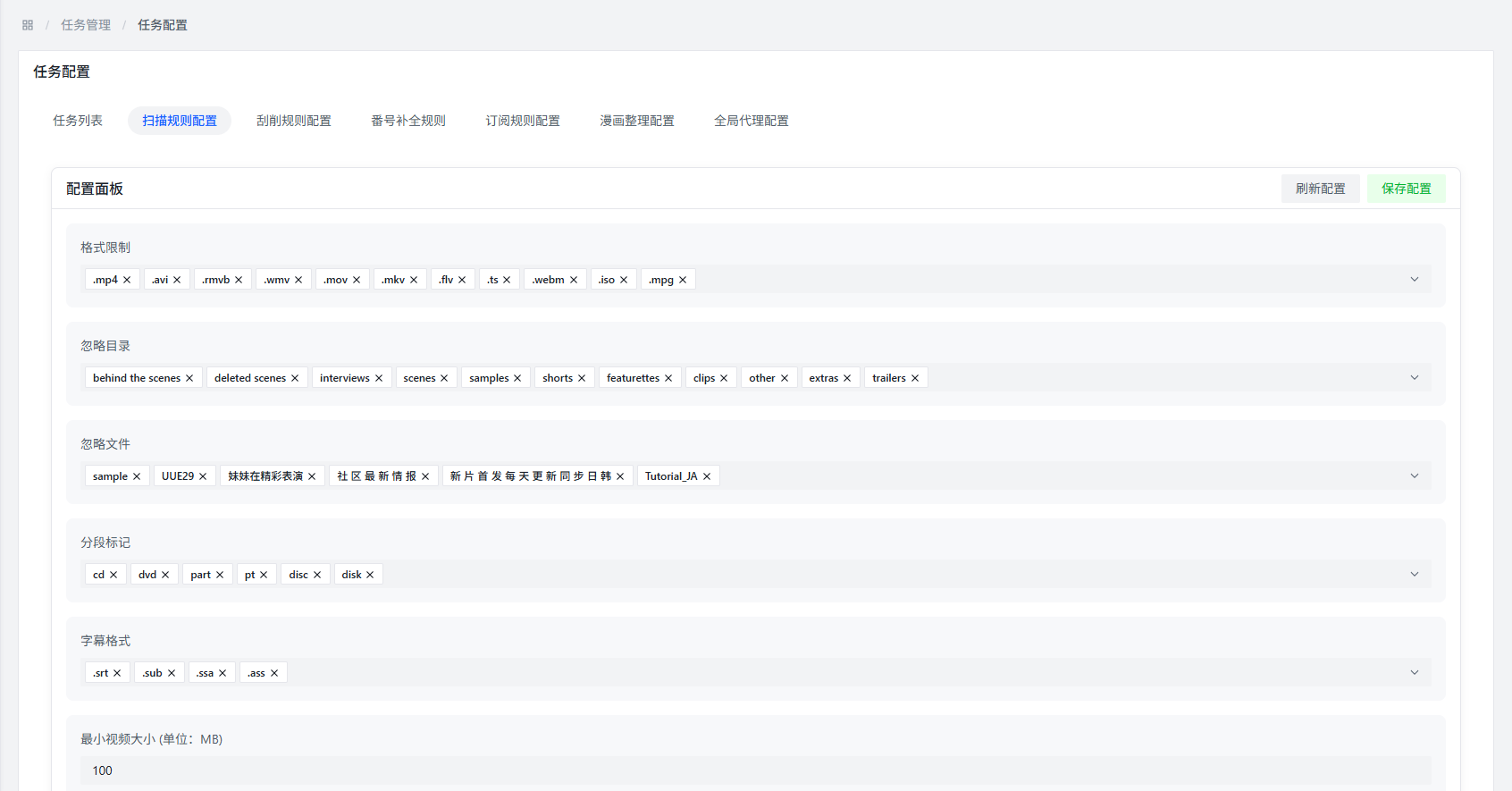
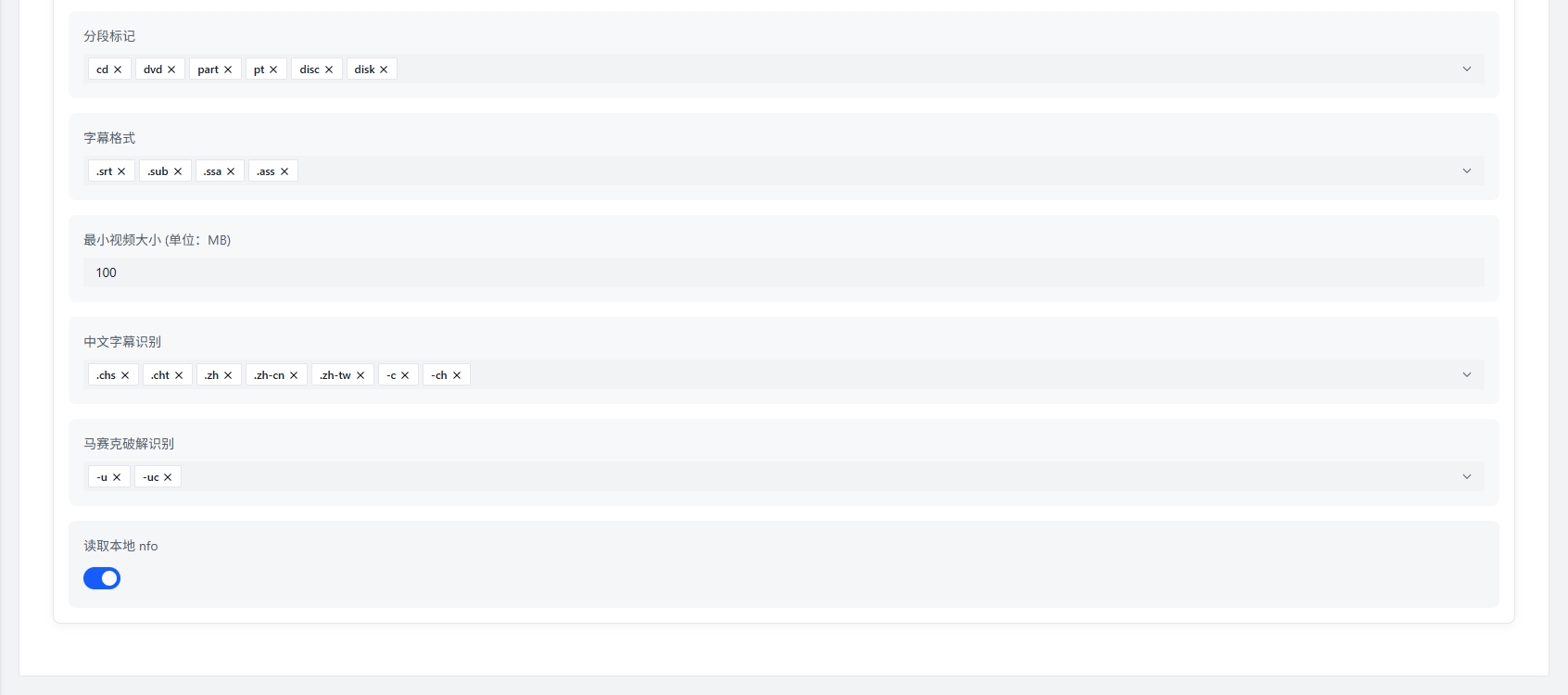
Configuration Item Description
Format Restrictions
What it does: Tell the system which file types count as media files — it will only recognize these.
Default support: The system comes with common formats like .mp4, .mkv, .avi, .mov, etc.
Add your own: Enter a file extension (e.g., .strm) and press Enter to add it.
Ignore Directories
What it does: Skip certain directories during scanning (e.g., folders with samples or temp files).
How to configure: Enter a relative path (e.g., sample, tmp). Case-insensitive.
When to use: Say your download folder has a sample directory with preview clips — you can add it here to skip it.
Ignore Files
What it does: Skip files whose names contain specific keywords (e.g., sample).
How to configure: Enter strings found in file names (e.g., sample, hh800.com@). Case-insensitive.
When to use: Some files have ad markings in their names that you want to filter out.
Segment Markers
What it does: Some videos are split into multiple parts (e.g., CD1, CD2). Segment markers help the system recognize they belong together and not treat them as separate movies.
How to configure: Enter segment markers (e.g., part, cd). Case-insensitive.
When to use: Movies split into multiple files or multi-part content.
Subtitle Formats
What it does: Set which subtitle file formats the system can recognize.
How to configure: Enter subtitle file extensions (e.g., .srt, .ass, .idx) and press Enter to confirm.
Minimum Video Size
What it does: Set a size threshold. Files smaller than this will be ignored (tiny files are usually not real movies).
Unit: MB
Default value: 100MB
Special case: If you use .strm files (which are just links and take no space), set this to 0MB, or they won't be detected.
Chinese Subtitle Recognition
What it does: If file names contain certain keywords, the system will automatically tag them as "Chinese subtitles."
Example: -C, .chs, etc. Case-insensitive.
Mosaic Uncensored Recognition
What it does: If file names contain certain keywords, the system will automatically add an "uncensored" tag.
Example: -u, .uc, etc. Case-insensitive.
Read Local NFO
What it does: When enabled, the system will automatically read .nfo files next to the video files and parse the info inside.
Why it matters: The parsed info is automatically stored in the database, saving you from manually entering movie metadata.
Configuration Example
Here's a typical scan config:
| Configuration Item | Setting Value |
|---|---|
| Format Restrictions | .mp4, .mkv, .avi, .mov, .strm |
| Ignore Directories | sample, tmp, Extras |
| Ignore Files | sample, trailer, preview |
| Segment Markers | part, cd, disc |
| Subtitle Formats | .srt, .ass, .idx, .sub |
| Minimum Video Size | 100MB |
| Chinese Subtitle Recognition | -C, .chs, .zh |
| Mosaic Uncensored Recognition | -u, .uc, uncensored |
| Read Local NFO | Enabled |
FAQ
Q: Why aren't some video files being scanned?
A: Possible reasons:
- The file format isn't in your format restrictions list
- The file's directory is in your ignore directories list
- The file name contains ignored strings
- The file is smaller than the minimum video size threshold
Q: How do I add custom file formats correctly?
A: A few things to note:
- Include the dot in the extension (e.g.,
.strm, notstrm) - Add each format individually and press Enter to confirm
- Make sure the format is one the system can handle
Q: What are segment markers for?
A: They help the system recognize that multiple file segments belong to the same movie, so they're processed as a whole rather than as unrelated files.