Network Proxy Configuration
Network proxy configuration lets you set which proxy server the program uses when accessing the internet. Some network resources need a proxy to be accessible — this is exactly what it's for.
Access Network Proxy Configuration
You can get to the proxy config page through either of these:
- Task Management >> Network Proxy
- System Management >> System Configuration >> Network Configuration
Configuration Interface
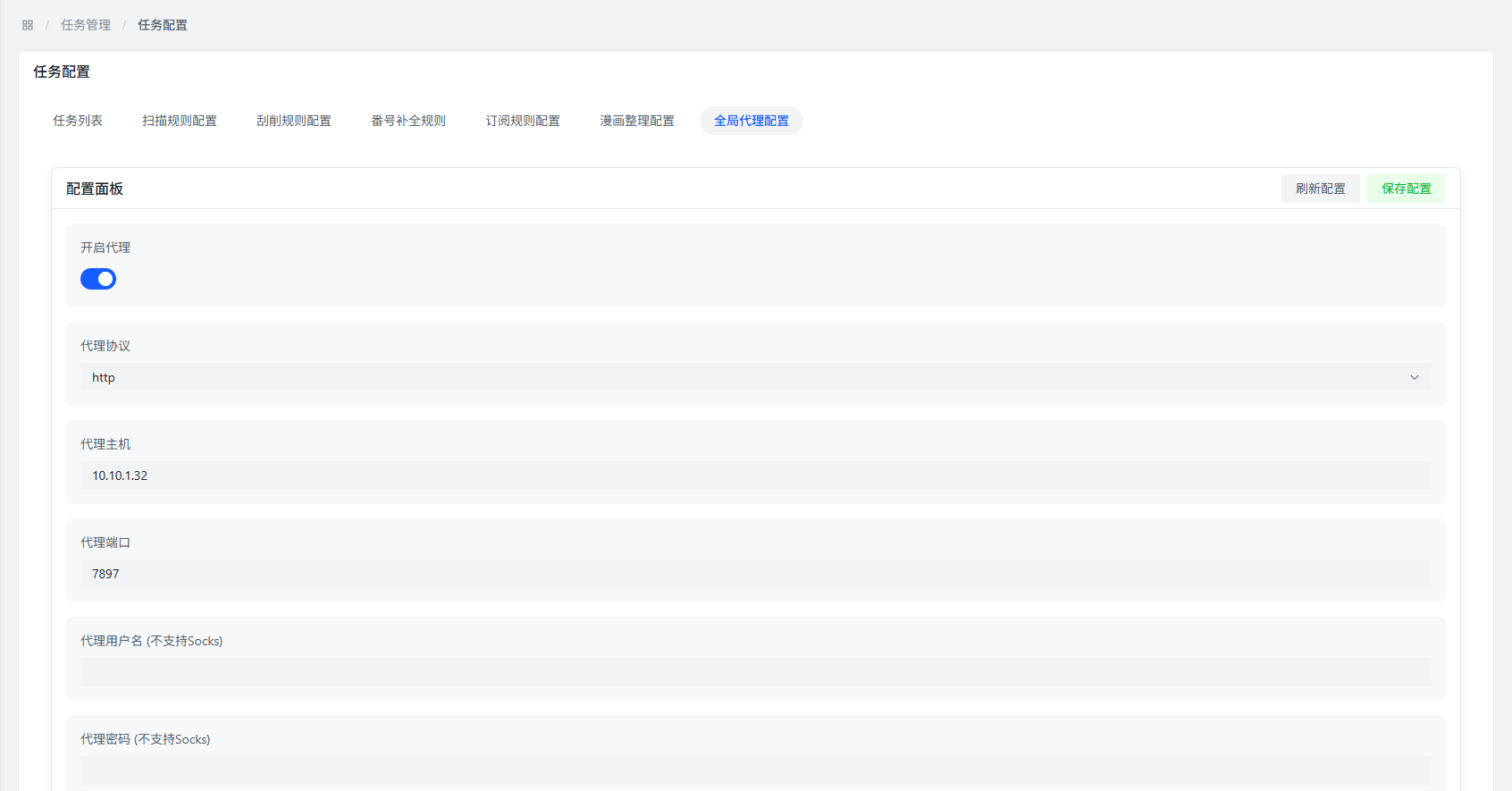
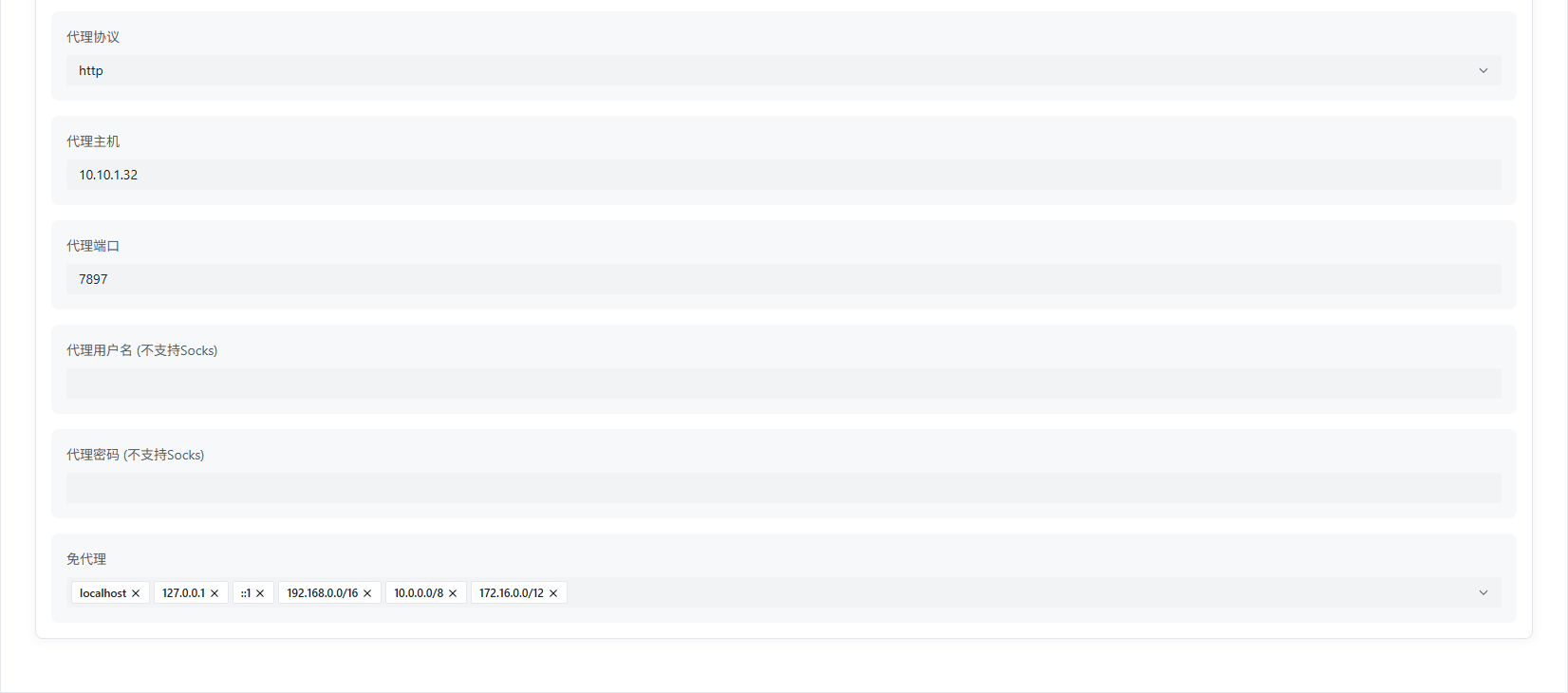
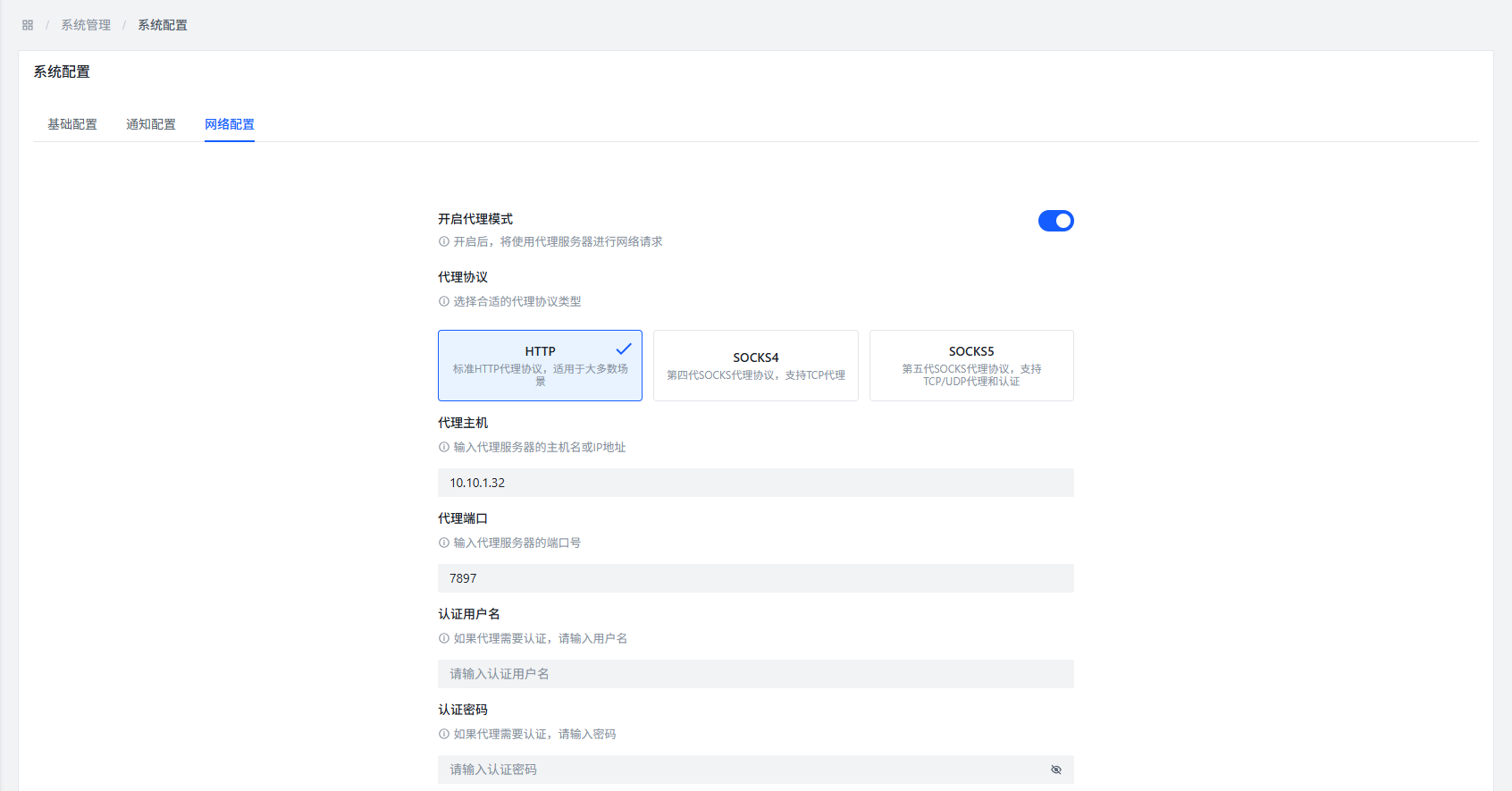
Configuration Item Description
Enable Proxy
What it does: Whether to turn on the proxy feature.
Why it matters: When enabled, the program will access the network through the configured proxy server.
Proxy Protocol
What it does: Select the proxy type.
Available protocols:
- HTTP
- SOCKS4
- SOCKS5
Suggestion: Choose based on what your proxy provider supports.
Proxy Host
What it does: Enter the proxy server address.
Format: Can be an IP address (e.g., 192.168.1.1) or a domain name (e.g., proxy.example.com).
Proxy Port
What it does: Enter the proxy server port number.
Common ports:
- HTTP proxy: 8080, 3128
- SOCKS proxy: 1080
Username
What it does: If the proxy server requires login authentication, enter the username here.
Password
What it does: If the proxy server requires login authentication, enter the password here.
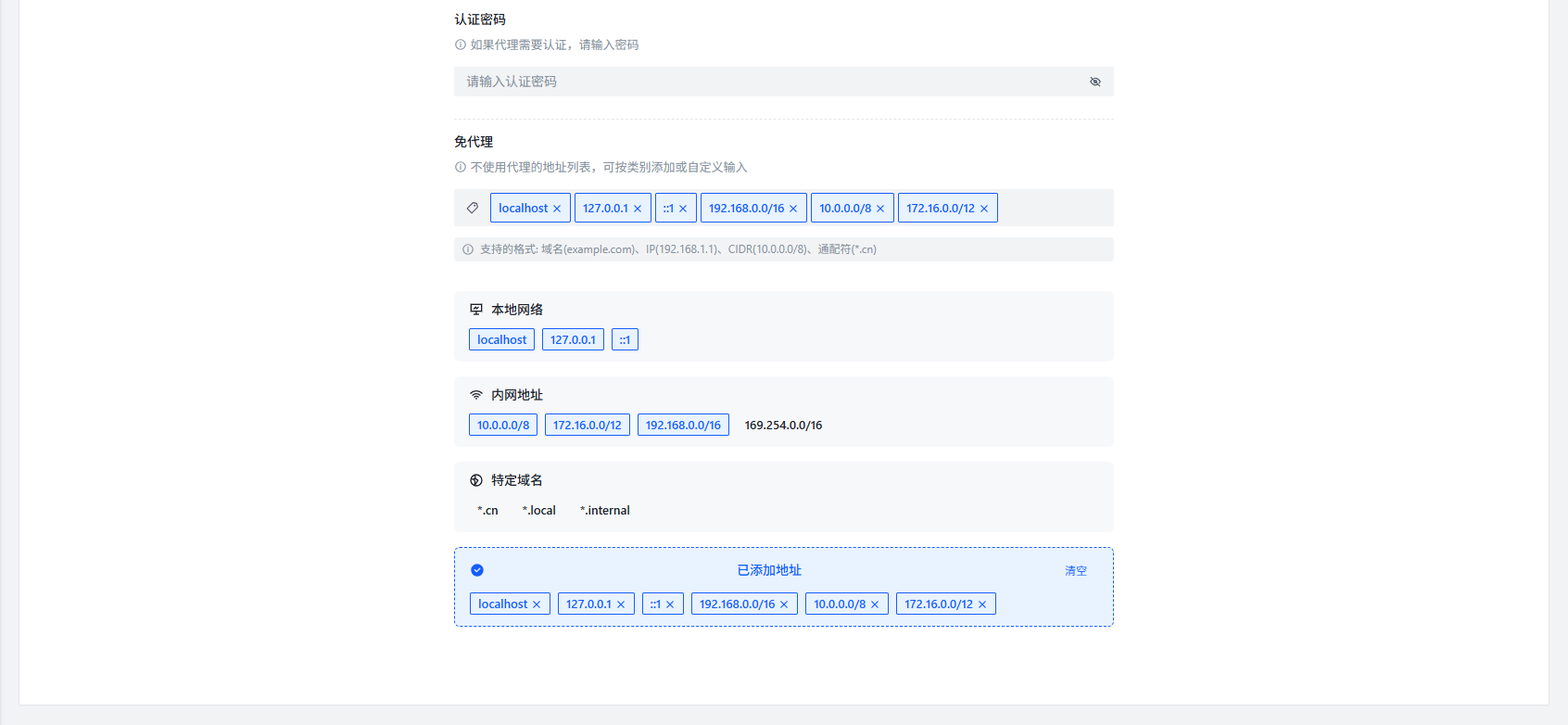
Bypass Proxy Hosts
What it does: Set which addresses should connect directly instead of going through the proxy.
How to add: Type the address and press Enter to confirm.
When to use:
- Accessing internal network resources (e.g., local NAS)
- Websites that don't need a proxy
Configuration Examples
Example 1: HTTP Proxy
| Configuration Item | Setting Value |
|---|---|
| Enable Proxy | Enabled |
| Proxy Protocol | HTTP |
| Proxy Host | 192.168.1.100 |
| Proxy Port | 8080 |
| Username | user |
| Password | password |
| Bypass Proxy Hosts | localhost, 127.0.0.1 |
Example 2: SOCKS5 Proxy
| Configuration Item | Setting Value |
|---|---|
| Enable Proxy | Enabled |
| Proxy Protocol | SOCKS5 |
| Proxy Host | proxy.example.com |
| Proxy Port | 1080 |
| Username | - |
| Password | - |
| Bypass Proxy Hosts | localhost, 192.168.1.* |
Notes
:::warning Important
- You need to restart the program after changing proxy config for it to take effect
- Wrong config may prevent the program from running properly
- Make sure the proxy address and port are correct
- Make sure the proxy server is actually accessible
- For proxies that need authentication, make sure username and password are correct :::
FAQ
Q: Why do I need to configure a proxy?
A: Some network resources require a specific network environment. For example:
- Some scrapers need to access resources in specific regions
- Some plugins need to call external APIs
Q: How do I test if the proxy is set up correctly?
A: Give this a try:
- Set up the proxy
- Restart the program
- Try something that needs internet access (like scraping)
- See if it succeeds
Q: Once the proxy is on, do all requests go through it?
A: No, only specific network-dependent operations use it. Plus, you can set "Bypass Proxy Hosts" to exclude certain addresses.
Q: I set bypass hosts but it still goes through the proxy — why?
A: Possible reasons:
- The bypass host format is wrong
- Config hasn't taken effect yet (restart needed)
- The program internally prioritizes using the proxy
Q: What happens if the proxy server is unreachable?
A: This could cause:
- Scraping failures
- Plugins not working
- Inability to fetch online resources
Best Practices
- Use a stable proxy: Don't use one that drops connections frequently, or things will break constantly
- Set bypass hosts wisely: Add local resources and directly-accessible addresses to the bypass list for better speed
- Check periodically: When your network environment changes, update the proxy config
- Backup your config: Note down the current config before making changes, so you can restore if something goes wrong