Metatube
MetaTube is an open-source tool designed for Jellyfin, Emby, and Plex media servers to scrape video metadata. It automatically fetches posters, synopses, cast, studios, ratings, and more. This plugin is especially good at recognizing Chinese-language content, and with its self-hosted API, it helps you turn your media library into a beautiful "poster wall."
Features
MetaTube offers these core features:
- 🎯 High-precision Recognition: Optimized for Chinese content, giving you much better recognition rates.
- 🌍 Multi-platform Support: Works with Jellyfin, Emby, and Plex.
- 📦 Dual Service Modes: Supports both remote deployment and built-in service.
- 🔐 Secure Authentication: Uses a TOKEN mechanism to keep service access secure.
- 🌐 Multiple Deployment Options: Supports Docker local deployment and Koyeb cloud deployment.
- 📝 Auto Translation: Built-in multiple translation services for automatic metadata translation.
- 🎭 Rich Data Sources: Integrates multiple actor and video data providers.
Deployment Options
MetaTube has several deployment methods — pick what works best for you.
Self-deployment Options
:::info Official Documentation For detailed deployment instructions, check the MetaTube Official Documentation. :::
Docker Deployment
Deployment command:
docker run -d -p 8080:8080 -v $PWD/config:/config --name metatube ghcr.io/metatube-community/metatube-server:latest -dsn /config/metatube.db
Upgrade:
docker stop metatube
docker rm metatube
docker run -d -p 8080:8080 -v $PWD/config:/config --name metatube ghcr.io/metatube-community/metatube-server:latest -dsn /config/metatube.db
Docker Compose Deployment
Create config file:
vi docker-compose.yml
Config content:
services:
  metatube-server:
    image: ghcr.io/metatube-community/metatube-server:latest
    container_name: metatube
    restart: always
    network_mode: bridge
    ports:
      - 8080:8080
    environment:
      - HTTP_PROXY=${HTTP_PROXY:-}
      - HTTPS_PROXY=${HTTPS_PROXY:-}
      - DB_AUTO_MIGRATE=true
      - PORT=8080
Start service:
docker-compose up -d
Upgrade service:
docker-compose up -d --force-recreate
Configure Access Token
After deployment, make note of the following for later configuration:
- Access Address: Usually the deployment host's IP plus port 8080, e.g.,
http://192.168.1.100:8080. - TOKEN: A 32-character string for authentication — it's best to generate one randomly.
Generate random TOKEN:
openssl rand -hex 16
Configure TOKEN:
Docker Command
docker run -d -p 8080:8080 -v $PWD/config:/config --name metatube -e TOKEN=your_token ghcr.io/metatube-community/metatube-server:latest -dsn /config/metatube.db
Docker Compose
services:
  metatube-server:
    environment:
      - TOKEN=your_token
Koyeb Deployment
Koyeb is a cloud platform for online deployment — great if you don't have your own server.
:::info Account Preparation You'll need to register a Koyeb account first. A free account is enough for basic use. :::
Quick Deploy
Click the button below for one-click deployment:

Steps:
- Log into your Koyeb account
- Click the button above to create an app
- Add
TOKENin environment variables (use a randomly generated 32-character string) - Click "Deploy" and wait for it to finish
Manual Deployment
Step 1: Create Service
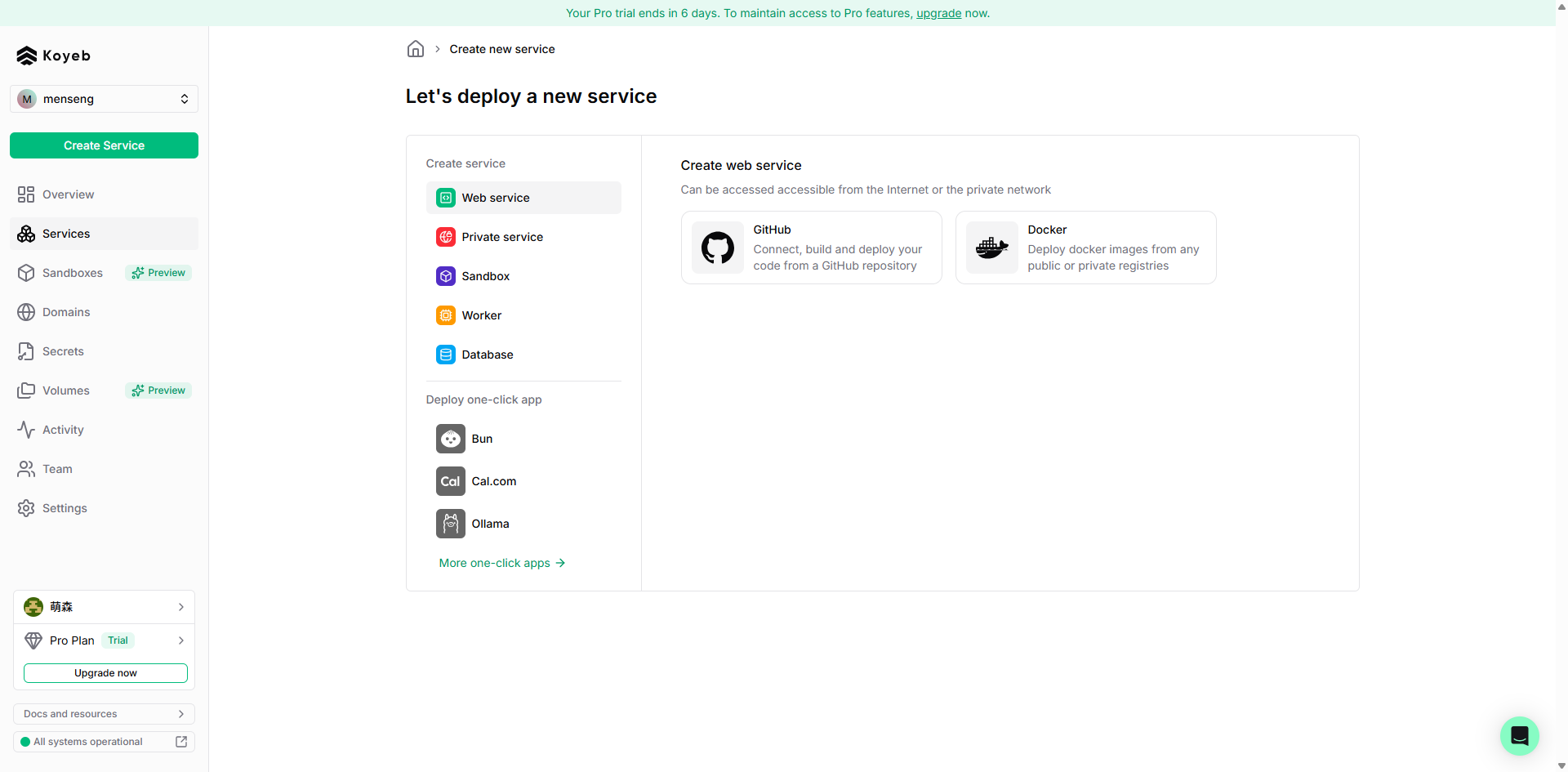
- Log into the Koyeb console and click "Create service" on the left
- Service type: "Web service"
- Deployment method: "Docker"
Step 2: Configure Image
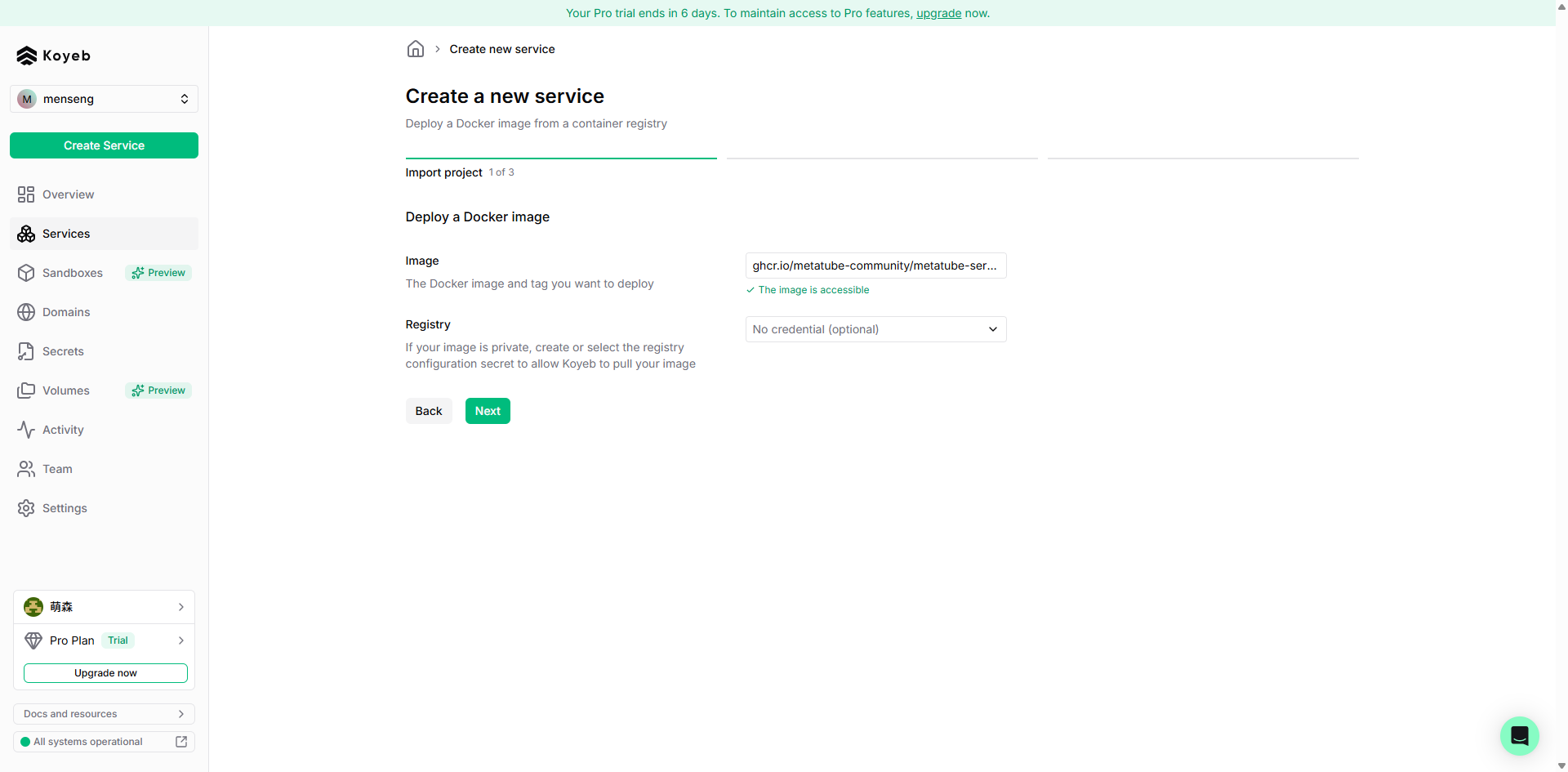
- Image address:
ghcr.io/metatube-community/metatube-server:latest
Step 3: Select Region
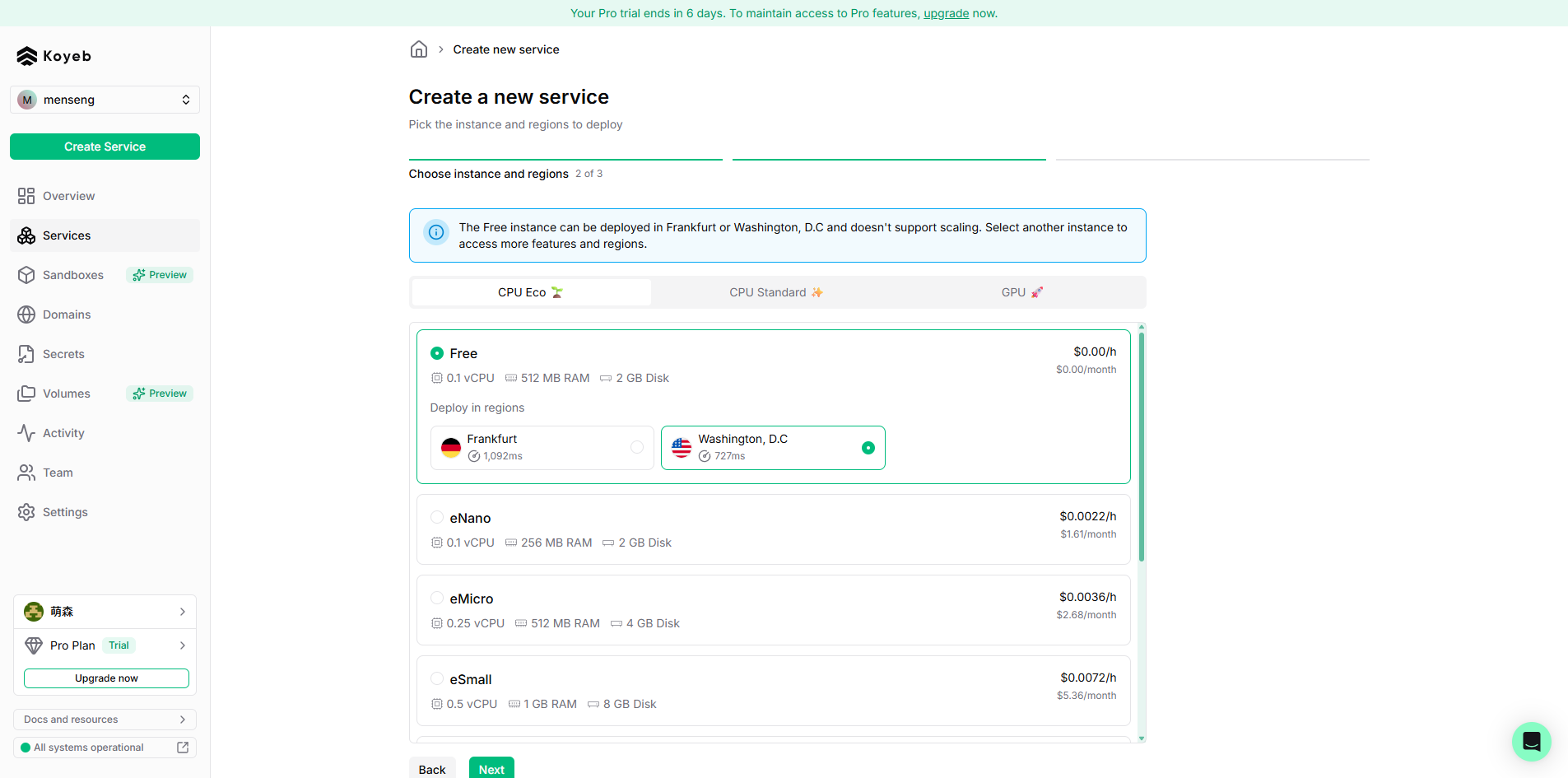
- Free accounts only support the Washington, DC region
- Japan or US regions are recommended for better access (paid accounts only)
Step 4: Configure Environment Variables
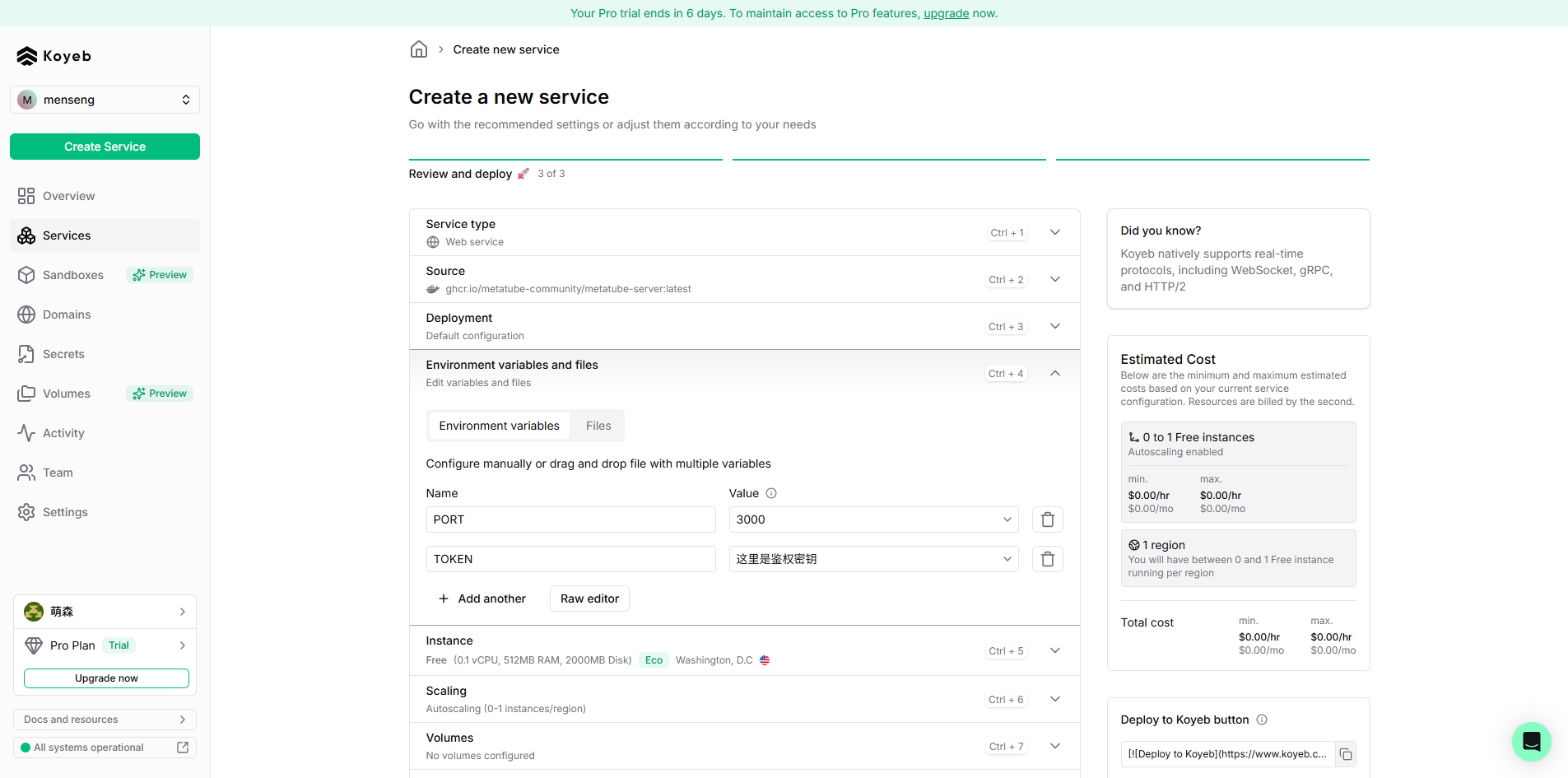
- Set
PORTto3000 - Set
TOKENas the auth key to prevent unauthorized access
Step 5: Configure Port Mapping
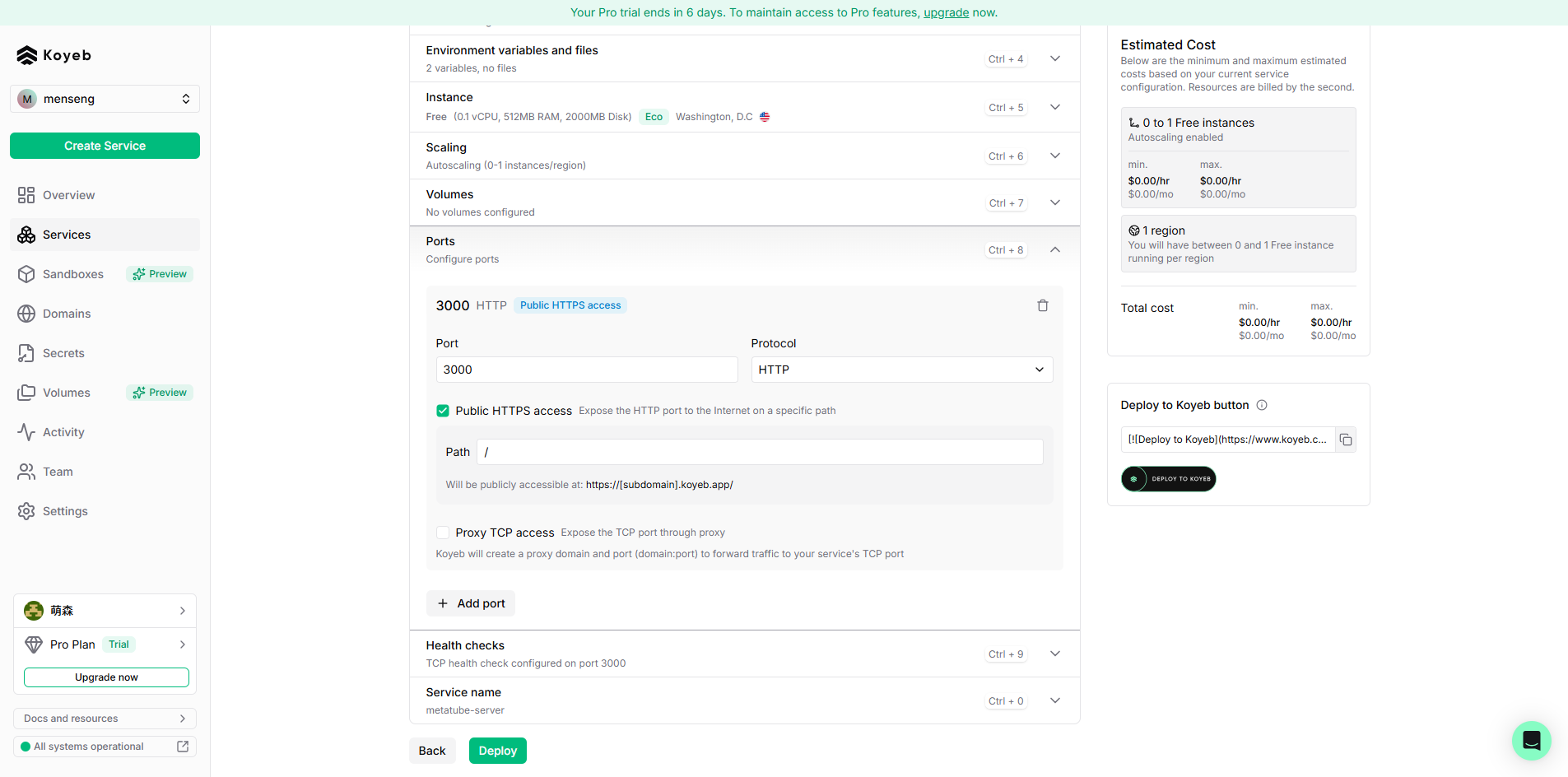
- Port:
3000(must match thePORTenv variable) - Protocol:
http - Check "Public HTTPS access" and set path to
/
Step 6: Configure Health Check
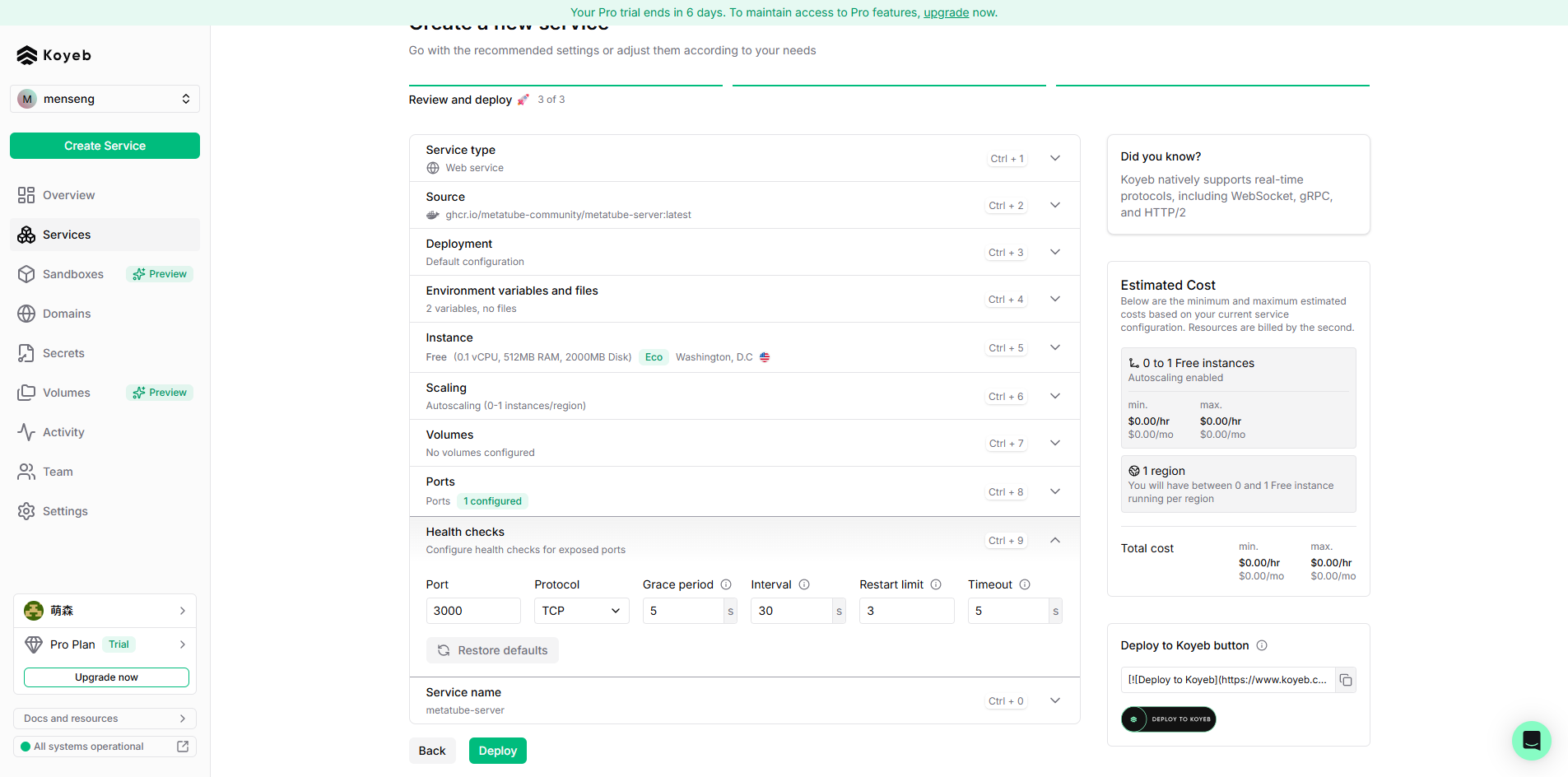
- Protocol:
tcp - Port:
3000(must match thePORTenv variable) - Keep other settings as default
Step 7: Complete Deployment Click "Deploy" and wait for it to finish.
Deployment Complete
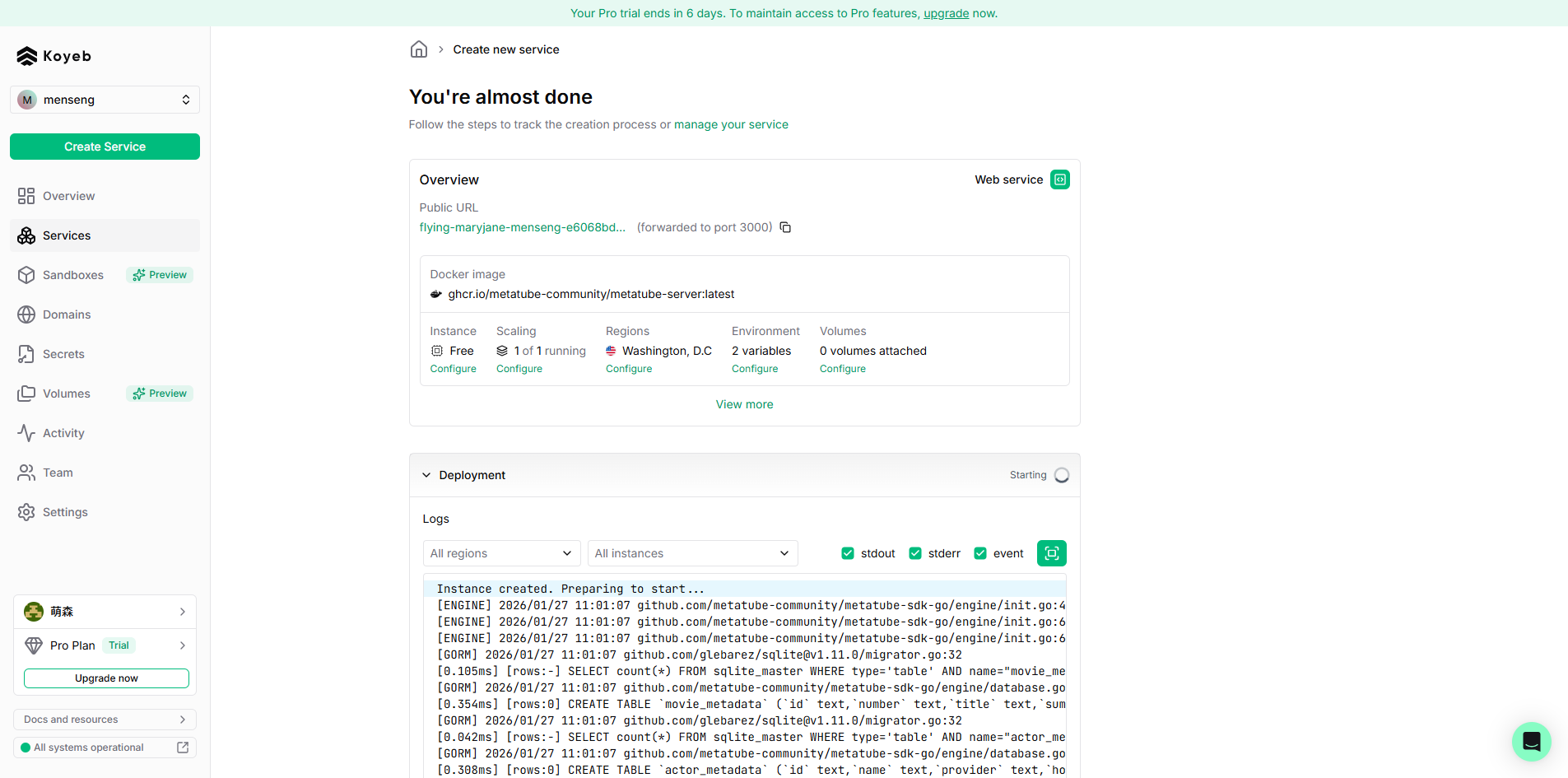
- You can find the app access address on the Koyeb console's "Overview" page.
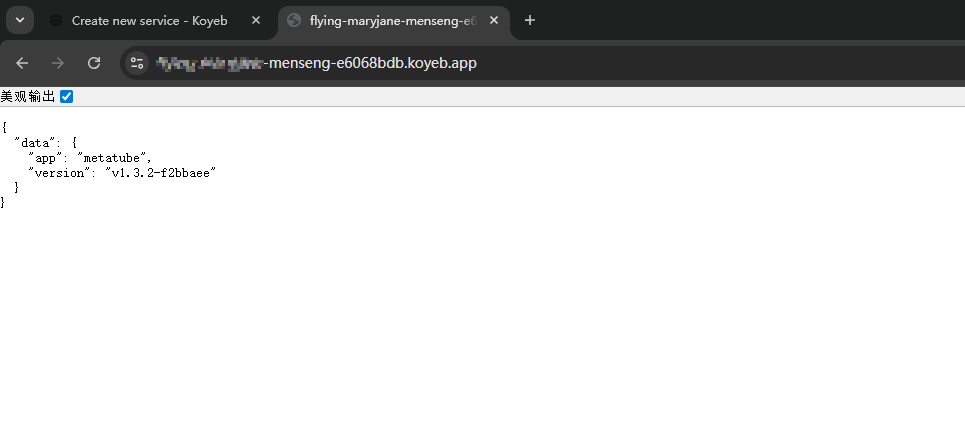
- Visit this address to verify the Metatube service is running.
- Service address format:
https://xxxx-xxx-xxx.koyeb.app/(where xxxx-xxx-xxx is the app name Koyeb assigned).
:::tip Important Make note of the access address and TOKEN — you'll need them for the AMMDS plugin configuration later. :::
Plugin Configuration
In the AMMDS management interface, go to "Integrated Applications" → "Metadata" → "Metatube."
Service Modes
MetaTube supports two service modes:
- Remote Service: Uses an externally deployed MetaTube service.
- Built-in Service: Uses the MetaTube service built into AMMDS.
:::note Priority Only one mode can be active at a time. The built-in service takes priority over the remote one. :::
Quick Operations
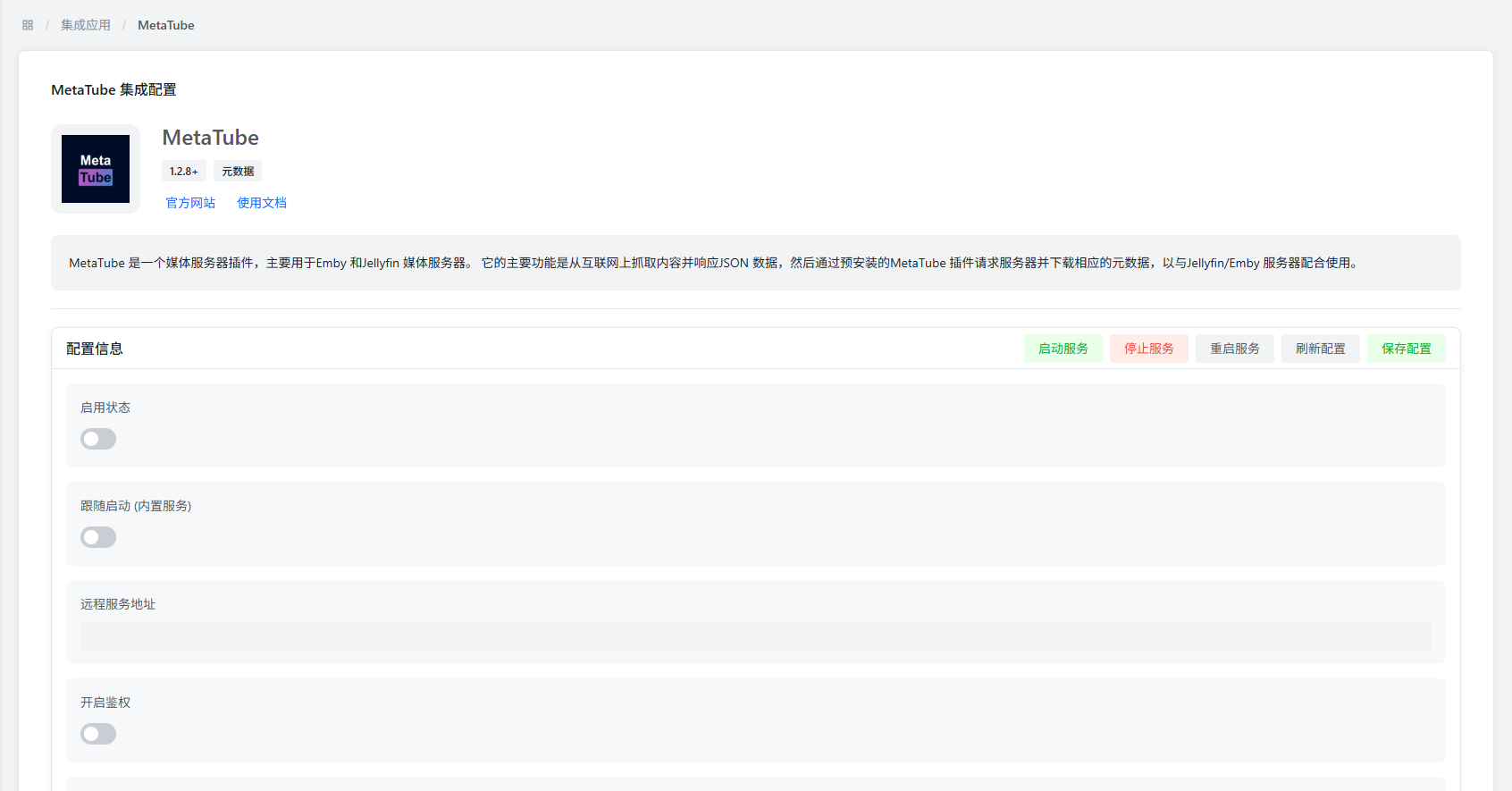
These quick actions are available at the top-right of the config page:
- Start Service: Starts the built-in Metatube service.
- Stop Service: Stops the built-in Metatube service.
- Restart Service: Restarts the built-in Metatube service.
- Refresh Configuration: Refreshes config options.
- Save Configuration: Saves current config (all changes need this button to take effect).
Configuration Parameters
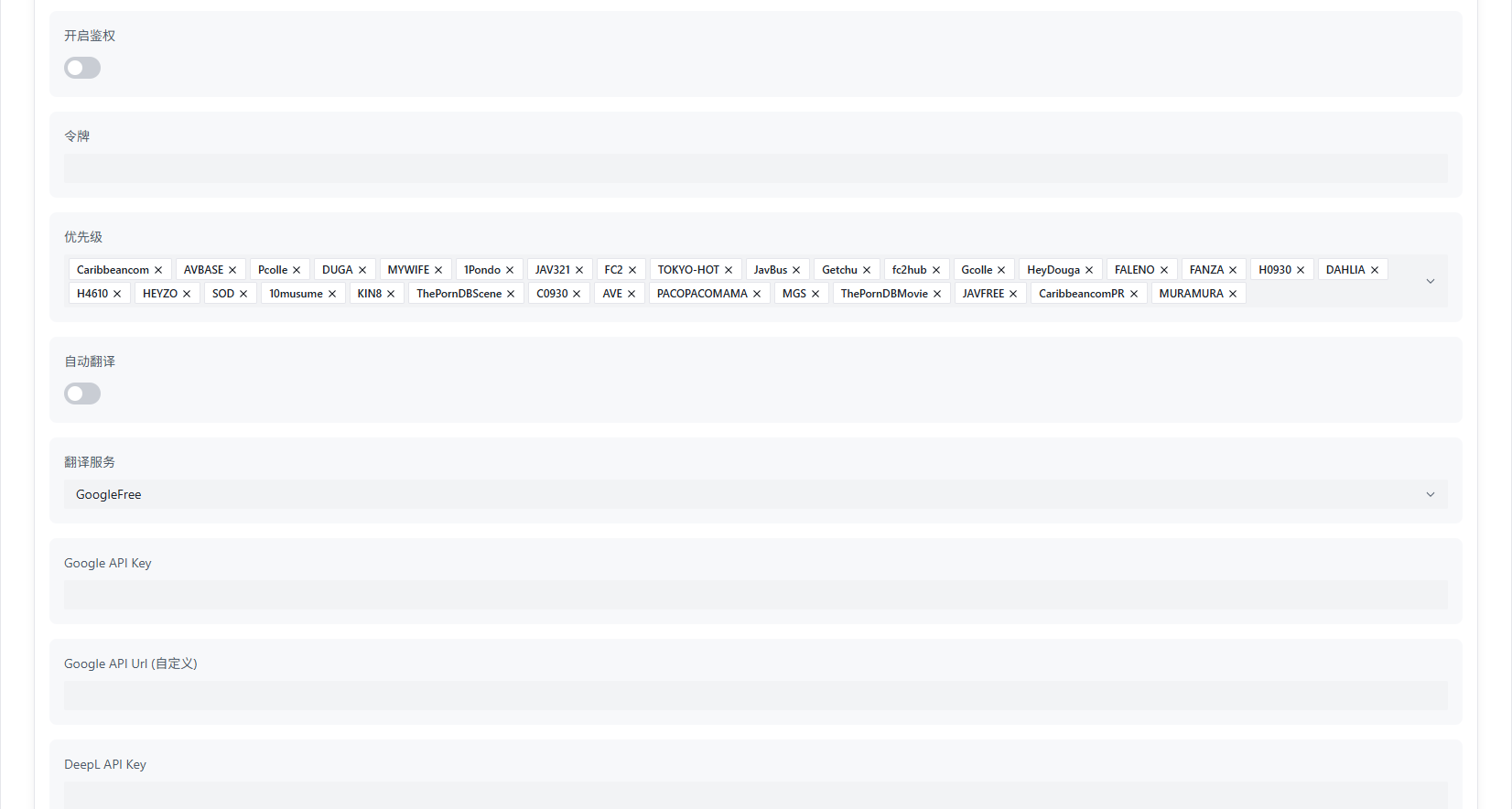
Basic Configuration
| Parameter | Description | Default Value |
|---|---|---|
| Enable Status | Controls whether to enable the Metatube plugin | Off |
| Auto-start | Controls whether to auto-start the built-in Metatube service when AMMDS starts | Off |
| Remote Service Address | Access address of the Metatube service | - |
Remote Service Address Examples:
https://xxxx-xxx-xxx.koyeb.apphttp://192.168.1.100:3000
:::info Note
The remote service address must not end with /, or it will cause access path errors.
:::
Authentication Configuration
| Parameter | Description | Default Value |
|---|---|---|
| Enable Authentication | Whether to enable Metatube service authentication | Off |
| Token | Metatube service access token | - |
:::warning Authentication Note If you configured a TOKEN when deploying the Metatube service, you must enable authentication here and enter the correct token. :::
Data Source Configuration
- Priority: Set the order of data sources — higher-priority ones are used first.
Translation Configuration
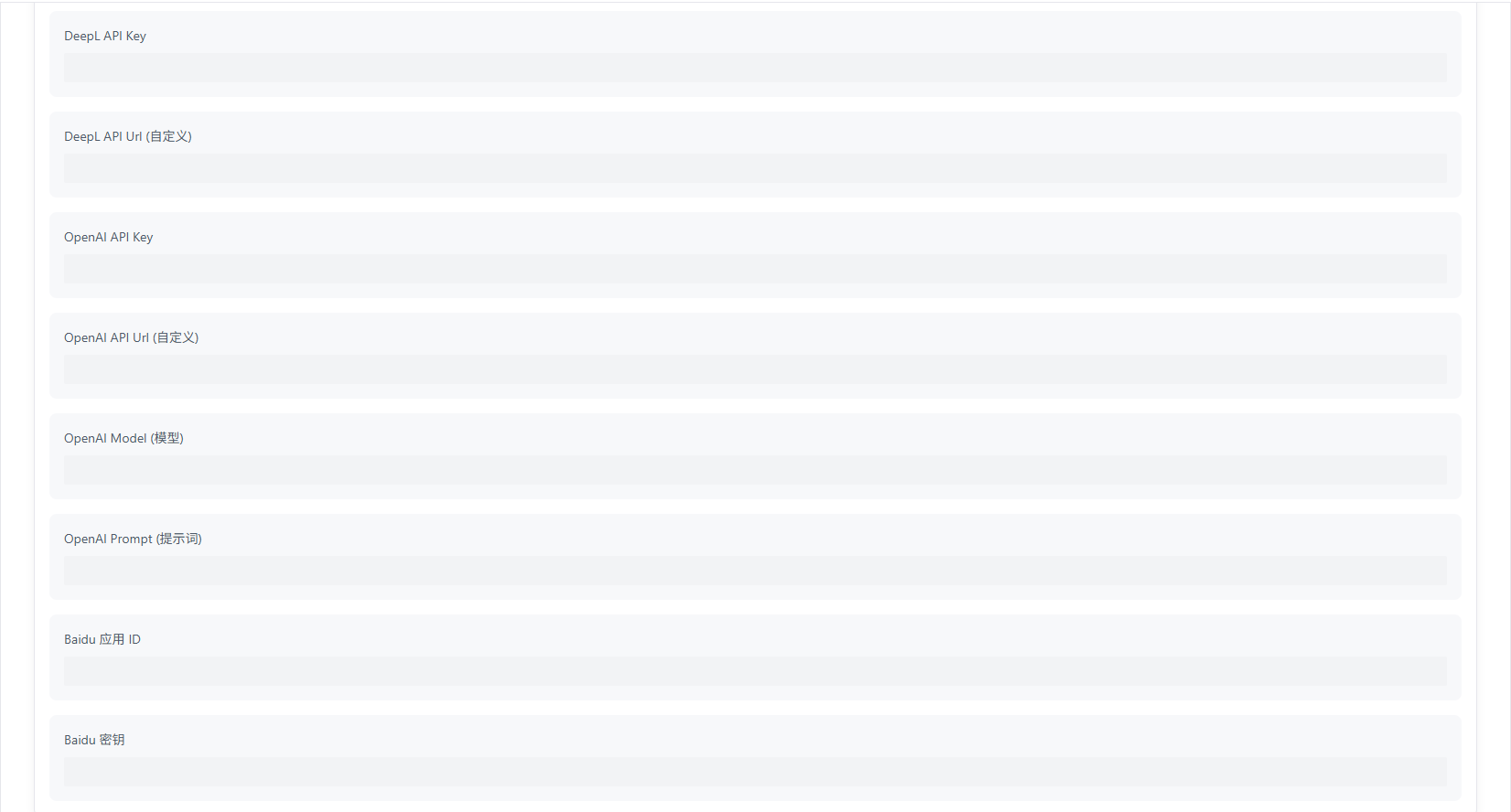
| Parameter | Description | Default Value |
|---|---|---|
| Auto-translation | Whether to enable auto translation | Off |
| Translation Service | Select translation service provider | - |
| API Key | Required by some translation services | - |
:::info Translation Note When auto-translation is enabled, titles, descriptions, and other fields will be automatically translated. This also applies to other plugins' data sources. :::
Testing Module

Quick actions:
- Test Connection: Tests if the remote service address is reachable (only checks network, not service status).
- Built-in App Info: Shows app info (version, config, etc.) of the built-in Metatube service.
- Remote App Info: Shows app info (version, config, etc.) of the remote Metatube service.
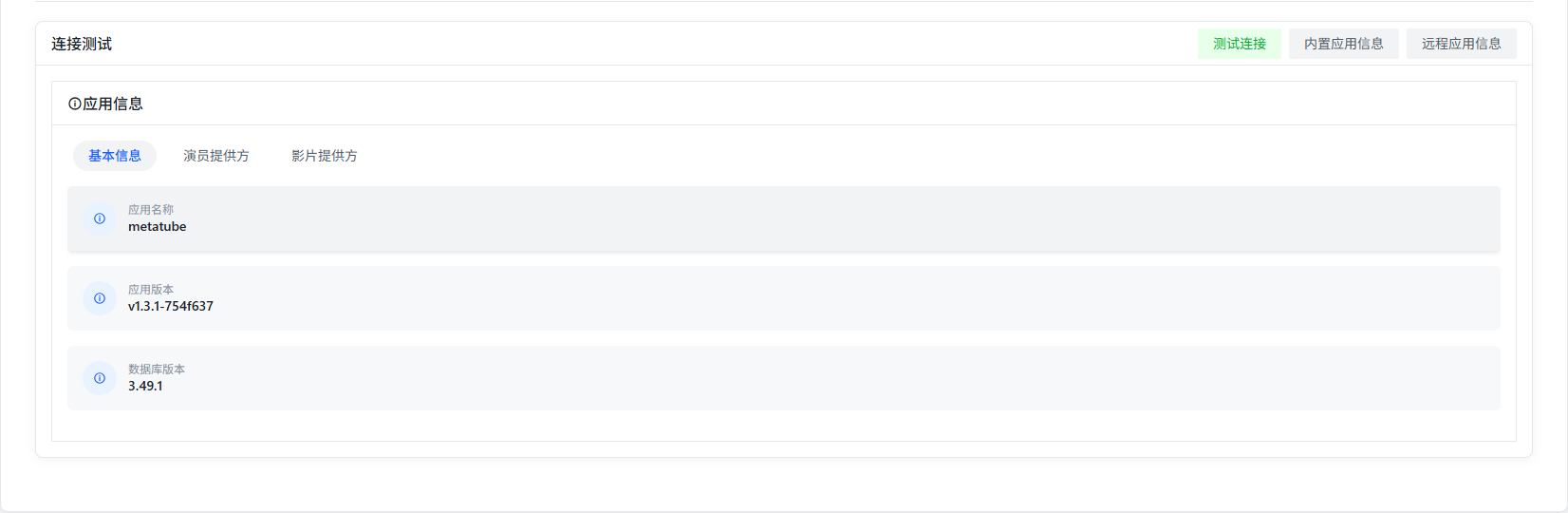
App info display:
- Basic Info: Version, database version, etc.
- Actor Providers: Data sources providing actor data (avatars, basic info, etc.).
- Video Providers: Data sources providing video metadata (titles, descriptions, actors, directors, release dates, etc.).
Notes
Regional Restrictions
Some provider sites (like DMM) have strict regional access restrictions, which may cause data retrieval failures.
:::tip Suggestion Deploy in Japan or US regions for the best access results. :::
Proxy Configuration
- Built-in Service: Automatically uses AMMDS's proxy settings.
- Remote Service: You need to handle network access yourself to ensure the service can reach provider sites.
:::note Proxy Activation If the proxy isn't working, try restarting the AMMDS service after configuring the proxy. :::
FAQ
Service Unreachable
Troubleshooting:
- Check if the service is running.
- Verify network connectivity.
- Confirm firewall allows the port.
- Check if the TOKEN is configured correctly.
Data Retrieval Failure
Possible causes:
- Network restrictions (like regional blocks).
- Data source site temporarily unavailable.
- Service configuration error.
Solutions:
- Try a different deployment region.
- Check network proxy settings.
- Verify data source configuration.
Translation Not Working
Troubleshooting:
- Confirm auto-translation is enabled.
- Check the translation service API key.
- Verify network connectivity.
- Try a different translation provider.