Windows Deployment Guide
Windows (Microsoft Windows) is a desktop operating system developed by Microsoft, widely used on personal computers and servers. Here's how to deploy AMMDS on Windows.
Download
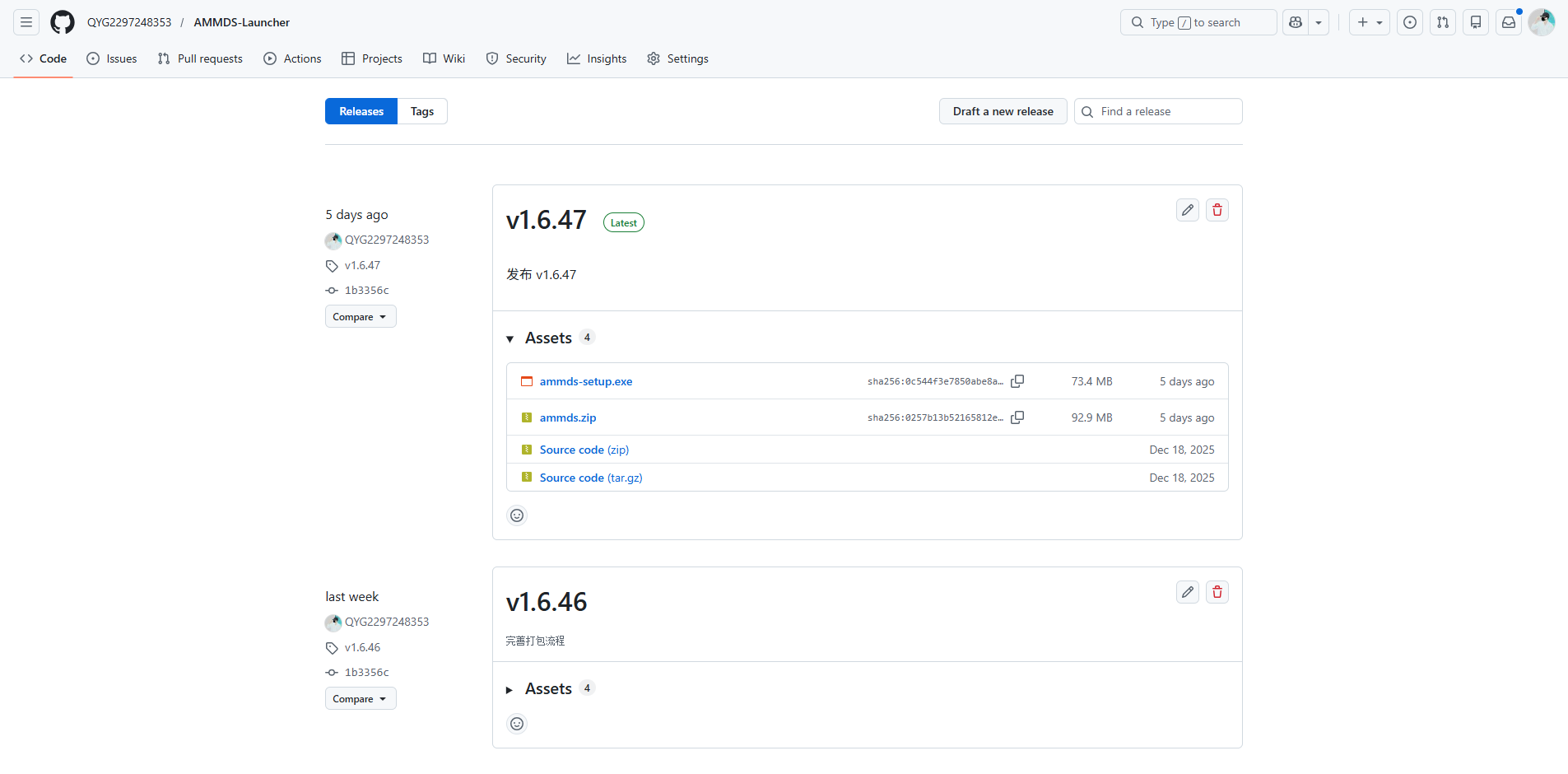
Official Release Address
AMMDS Launcher GitHub Releases
Available Installation Package Types
| File Name | Type | Description |
|---|---|---|
ammds-setup.exe | Installer | Complete AMMDS Launcher installation package with auto-installation wizard and all necessary components |
ammds.zip | Portable Version | Green, no-install version — just extract and run, great for temporary use or environments without admin privileges |
Recommended Download
Recommended Download: ammds-setup.exe
Using the installer automatically sets up all dependencies, making things much easier.
Installation
Prerequisites
- Operating System: Windows 10 or higher
- Permissions: Administrator privileges required for installation
- Network: Internet connection needed on first launch to download necessary resources
Installation Steps
-
Launch the Installer
Double-click the downloaded
ammds-setup.exefile to start the installation wizard. -
Select Installation Language

In the language selection interface, select Simplified Chinese as the installation language, then click "OK".
-
Select Additional Components
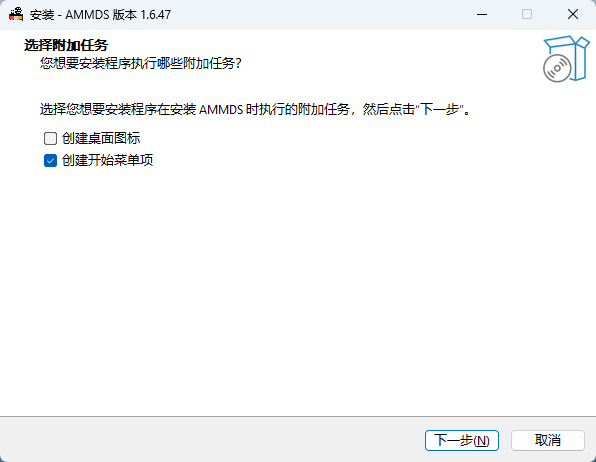
In the component selection interface, it is recommended to select all components for the most complete functionality:
- Core Components: AMMDS Launcher main program
- Dependencies: Required runtime environment
- System Integration: Tray icon and auto-start functionality
-
Start Installation
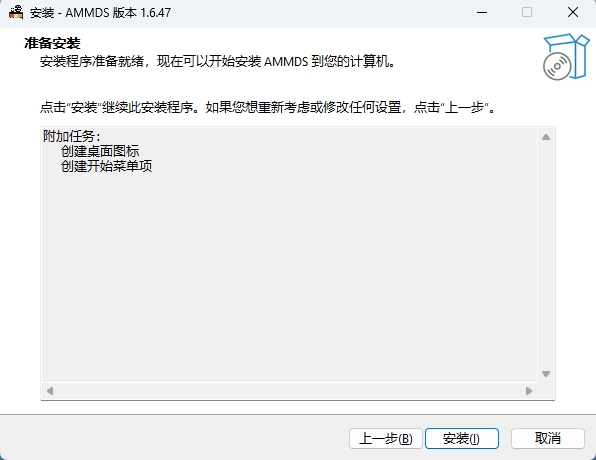
After confirming the installation configuration, click the "Install" button to start the installation process.
-
Installation Progress
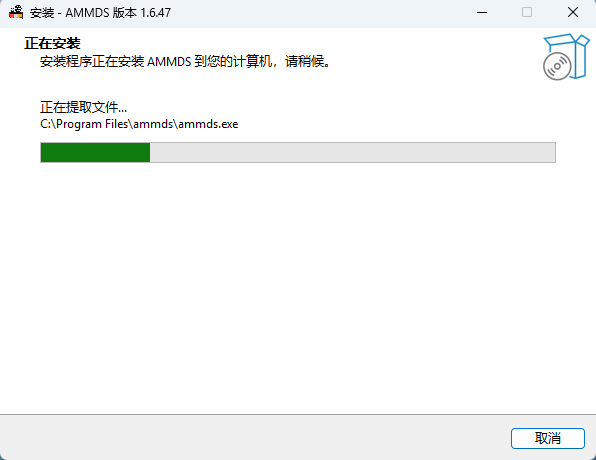
The installer will show the current installation progress — just wait a moment.
-
Complete Installation
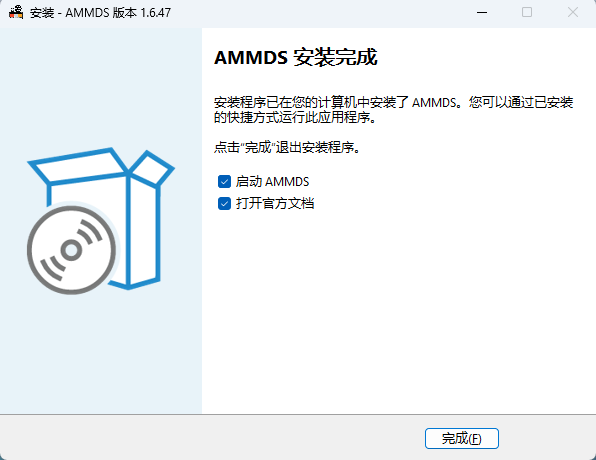
After installation is complete, click the "Finish" button to exit the installation wizard.
First Launch
After installation is complete, the system will automatically start AMMDS Launcher and display the official documentation homepage.
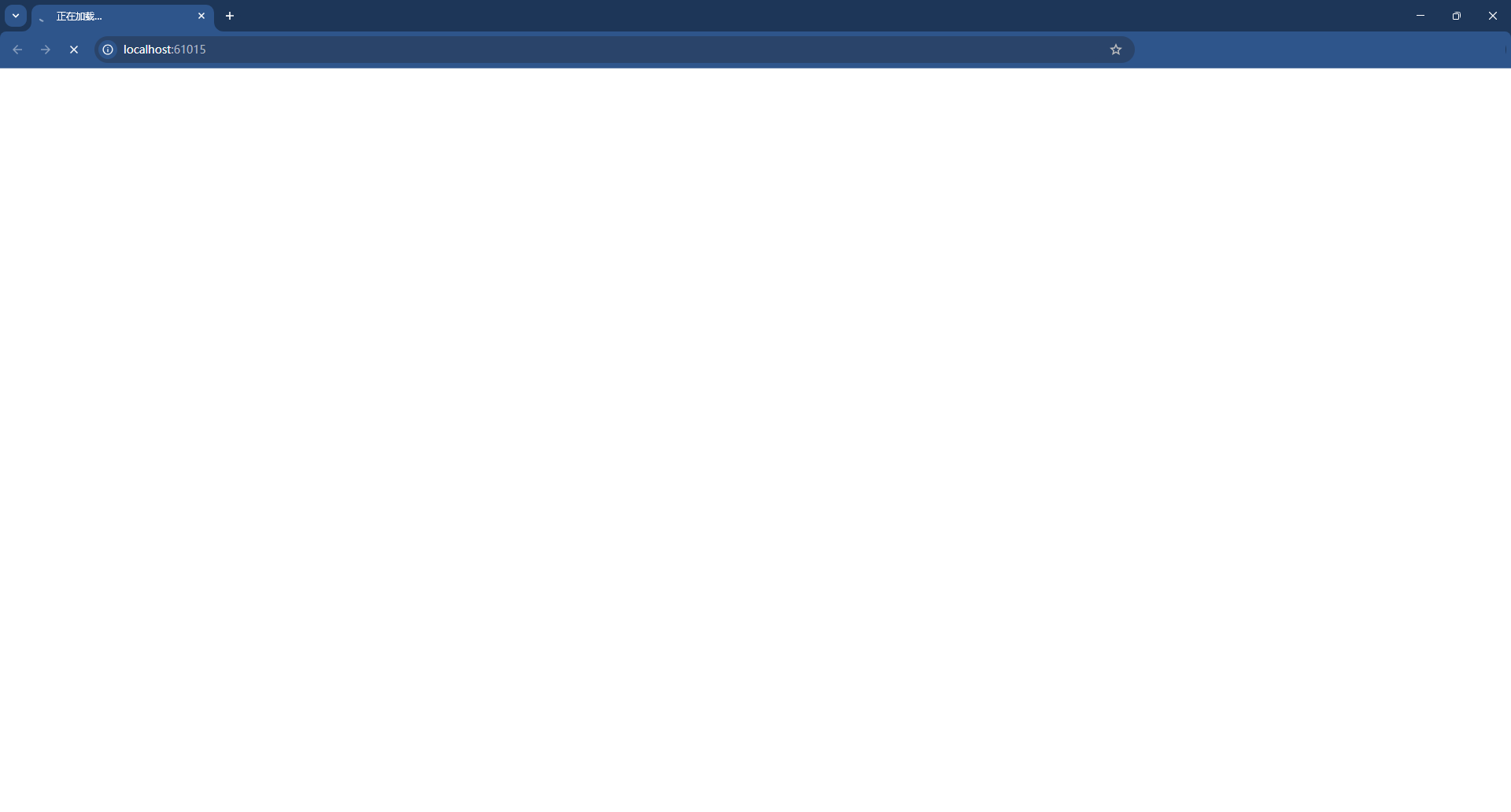
Note: If a white screen appears on first launch, don't panic — this is normal. The system is downloading necessary resource files in the background. The page will refresh automatically once the download is complete.

After the resource download is complete, the system will automatically enter the AMMDS Launcher main interface, and you can start using it.
Installation Notes
- Don't close the installation window during installation
- Make sure you have a stable internet connection on first launch
- If installation fails, check your disk space and make sure you have administrator privileges
Upgrade
Pre-upgrade Preparation
- Backup Data: It's a good idea to back up your configuration files and important data before upgrading
- Close Program: Make sure AMMDS Launcher is completely closed, including the tray icon
- Download New Version: Download the latest
ammds-setup.exefrom the official GitHub Releases page
Upgrade Steps
-
Launch the Upgrade Program
Double-click the downloaded new version of
ammds-setup.exeto start the upgrade wizard. -
Follow the Upgrade Wizard
The upgrade wizard will automatically detect the installed version and prompt you for an overwrite upgrade. Just follow the wizard.
-
Complete the Upgrade
After the upgrade is complete, click the "Finish" button to exit the wizard. The system will automatically start the new version of AMMDS Launcher.
Upgrade Mechanism
AMMDS Launcher uses an overwrite upgrade with these characteristics:
- Preserves user configuration and data: Won't touch your existing configuration files and data
- Updates core components: Automatically replaces old program files
- Maintains system integration: Tray icon, auto-start, and other settings are preserved
Post-upgrade Verification
After the upgrade, it's recommended to check:
- AMMDS Launcher starts normally
- Version number is up to date (check on the About page)
- All features work correctly
- Data and configurations are preserved
Upgrade Notes
- Don't close the upgrade window during the upgrade process
- If the upgrade fails, try uninstalling the old version first, then install the new version
- Major version upgrades might need to re-download some resource files
System Tray Management
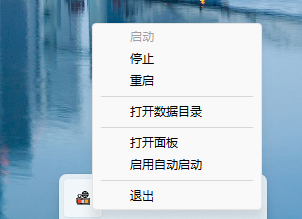
Tray Function Overview
After installation, an AMMDS icon will appear in the Windows system tray area (bottom right). Right-click to open the function menu.
Tray Menu Functions
| Menu Item | Function | Description |
|---|---|---|
| Open Data Directory | Open AMMDS resource directory | Goes directly to %APPDATA%\AMMDS, which contains data, configuration, and log files |
| Start | Start AMMDS Launcher service | Starts the background service process |
| Restart | Restart AMMDS Launcher | Stops then starts again, used to apply configuration changes |
| Stop | Stop AMMDS Launcher service | Stops the background service and releases system resources |
| Exit | Completely exit AMMDS Launcher | Stops the service and removes the tray icon, completely releasing all resources |
| Open Panel | Open AMMDS Launcher main interface | Launches and displays the web management interface |
| Start Auto-start | Toggle auto-start on system boot | Adds or removes AMMDS Launcher from Windows startup items |
Tray Icon Status
- Color Icon: AMMDS Launcher service is running
- Gray Icon: AMMDS Launcher service has stopped
- Blinking Icon: AMMDS Launcher is starting or restarting
Usage Suggestions
- Daily Management: Use the tray menu for quick start, stop, and restart
- Troubleshooting: Try the restart function when you run into issues
- Long Periods of Inactivity: Use the exit function to fully release resources
- Auto-start: If you need it running all the time, it's recommended to enable auto-start
Run Logs and Data Management
Data Directory Structure
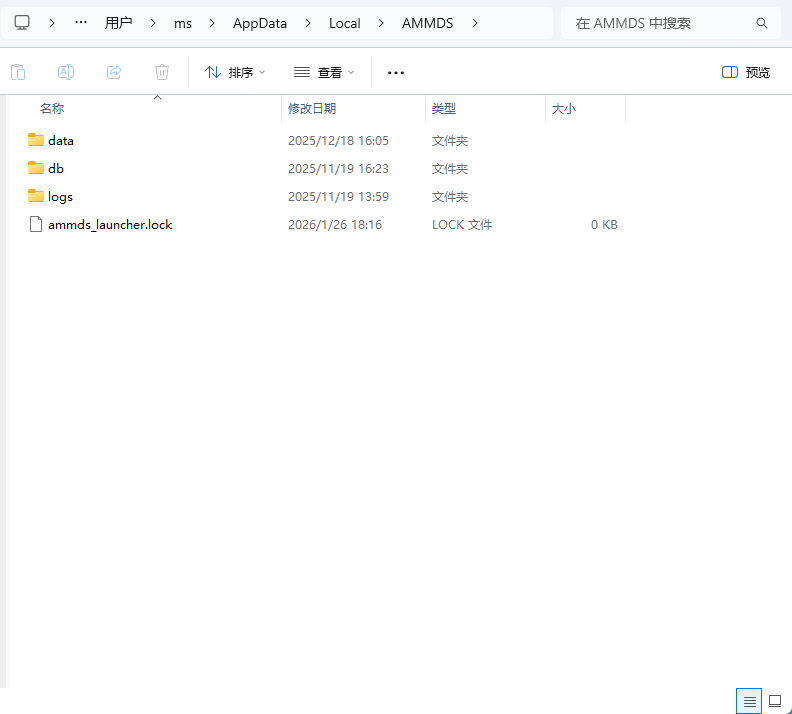
All data and configuration files are stored at: %APPDATA%\AMMDS
Directory Explanation:
| Directory | Function | Description |
|---|---|---|
data | Store AMMDS resource files | Contains model files, configuration templates, etc. — automatically downloaded on first startup |
db | Store AMMDS database files | Contains user configurations, operation history, etc. |
logs | Store AMMDS running logs | Contains system logs, error records, etc. |
Log File Description
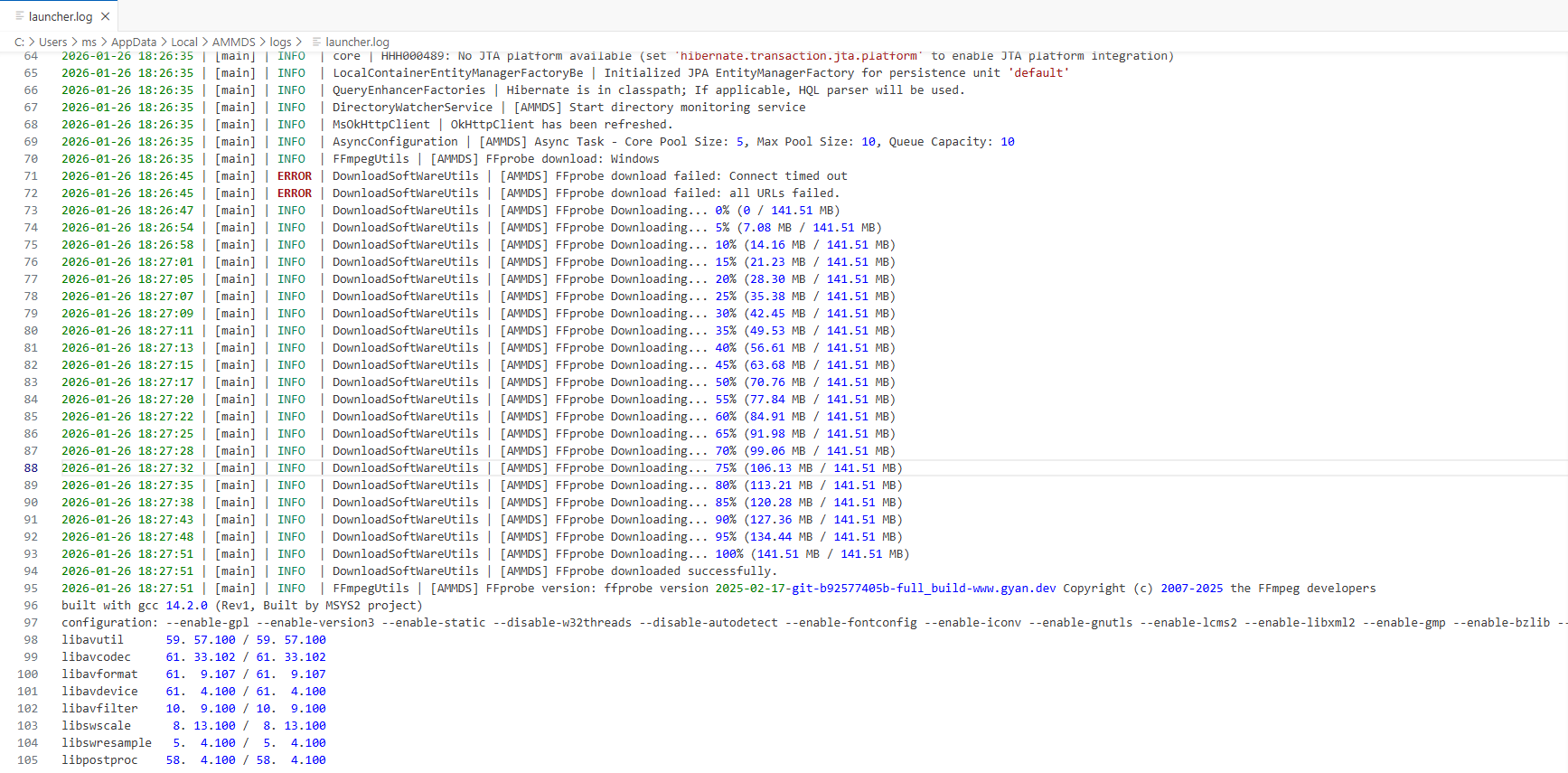
Log files are mainly stored in two locations:
1. AMMDS Core Logs (data/logs directory)
| Log File | Description |
|---|---|
data/logs/ammds.log | System running log, records startup, stop, errors, etc. |
data/logs/ammds-202x-xx-xx.log | Date-named running log, records detailed running status |
data/logs/ammds-error.log | Error log, specifically records error information |
2. Windows Launcher Logs (logs directory)
| Log File | Description |
|---|---|
logs/launcher.log | Launcher log, records startup process, configuration, and system integration status |
:::info Progress Indicator When the log shows the progress has reached 100%, it means all necessary resource files have been downloaded. :::
Log Usage
Troubleshooting:
- First check
data/logs/ammds-error.logfor error details - Check
data/logs/ammds.logto understand startup and initialization status - For launcher issues, check
logs/launcher.log
Resource Management:
- Check logs to see which resources failed to download
- Regularly clean up old logs to save disk space
Performance Analysis:
- Use log timestamps to see how long operations take
- Analyze startup time to optimize configuration
Log Management:
- AMMDS automatically rotates logs by date, old logs are cleaned up automatically
- You can adjust the log level in configuration (use detailed logs for debugging, standard logs for normal use)
First Launch Notes
:::warning First Launch Reminder When launching AMMDS for the first time, the system will automatically download necessary resource files. Please be patient:
- Time Estimate: Depending on your network speed, first launch may take 5-30 minutes
- Network Requirements: Make sure you have a stable internet connection, don't disconnect during download
- Disk Space: It's recommended to have at least 10GB of free space :::
Warnings and Notes
Security Warnings
:::danger Important Security Tips
- Official Source: Only download AMMDS from the official GitHub Releases page, don't use third-party sources
- Antivirus Software: If your antivirus alerts during installation, confirm it's a false positive and add an exception
- Administrator Privileges: Installation and upgrades require admin privileges, make sure to run as administrator :::
System Requirements
:::info System Configuration Requirements
Minimum Configuration
- Operating System: Windows 10 64-bit
- Processor: Intel Core i3 or equivalent
- Memory: 4GB RAM
- Disk Space: At least 10GB available
- Network: Broadband internet connection
Recommended Configuration
- Operating System: Windows 10/11 64-bit
- Processor: Intel Core i5 or equivalent
- Memory: 8GB RAM or more
- Disk Space: 20GB available
- Network: Stable broadband internet connection
:::
Usage Notes
- Data Backup: Regularly back up the AMMDS data directory, especially configuration and model files
- Resource Management: Keep an eye on disk space and clean up unnecessary files in time
- Network Connection: Make sure your network is stable when downloading resources and updates
- System Maintenance: Regularly update Windows and drivers
Troubleshooting
Common Issues
- Installation Failure: Check admin privileges and disk space
- White Screen on Startup: Wait for resources to download, or check your network connection
- Feature Issues: Check logs to find the problem, or restart AMMDS Launcher
- Upgrade Failure: Try uninstalling the old version first, then install the new version
Contact Information
If you encounter issues you can't resolve, submit an Issue on the official GitHub repository.
Best Practices
- Regular Updates: Keep AMMDS Launcher up to date
- Reasonable Configuration: Set parameters based on your computer's performance
- Safe Usage: Follow the official documentation and don't modify core configuration files