FnOS Deployment Guide
FnOS is a NAS (home storage server) system built by a team of veteran enthusiasts, featuring built-in local AI models for easy data management at home or in the office. Here's how to deploy AMMDS on FnOS.
Deployment Methods
AMMDS offers two installation methods on FnOS:
- FPK Offline App Installation: Manual installation through the FnOS App Center, suitable for most users
- Docker Installation: Deployment via Docker containers, suitable for users familiar with containers
FPK Offline App Installation
Download
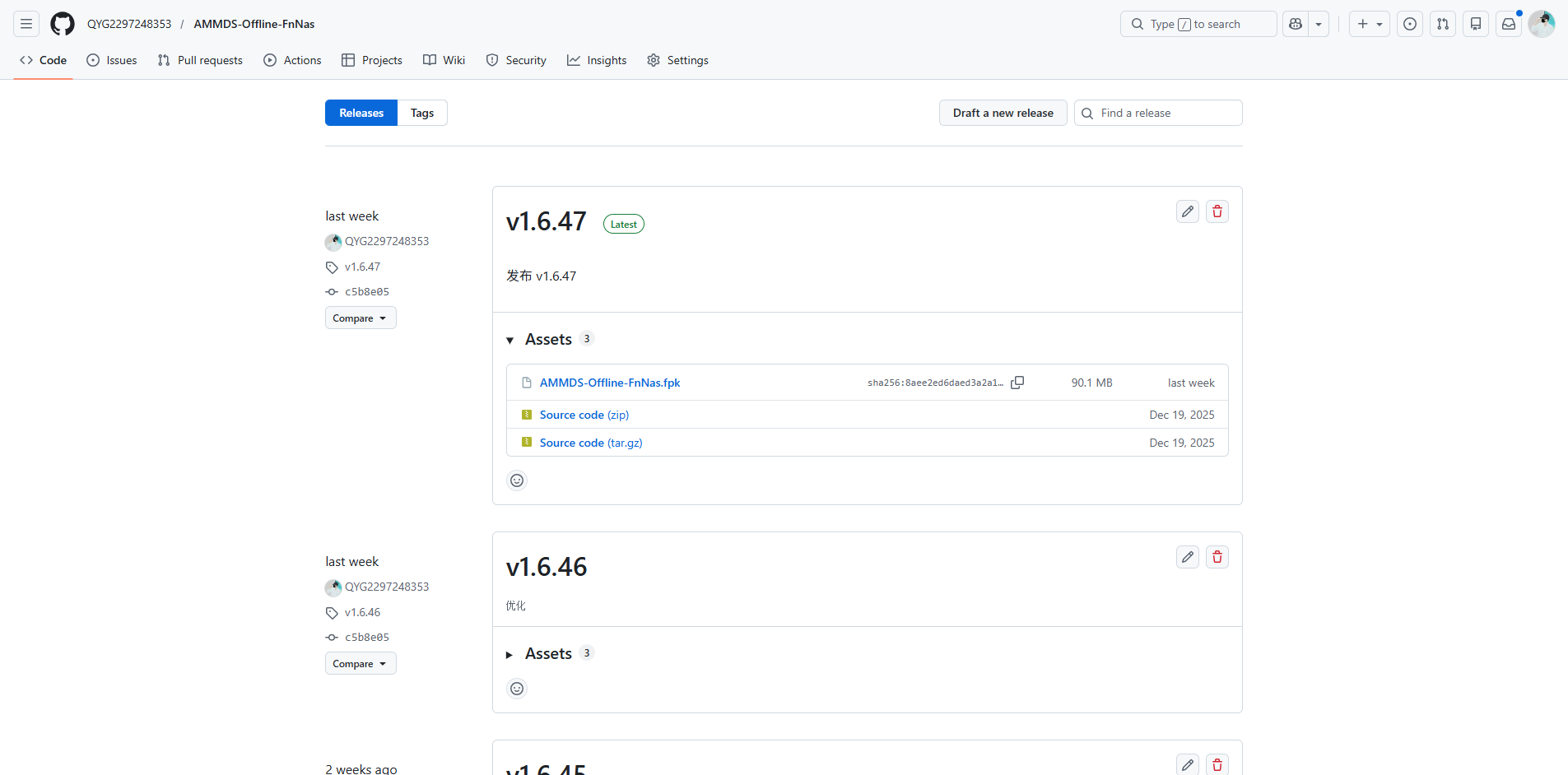
Official Release Address
AMMDS Offline FnNas GitHub Releases
Available Installation Packages
| File Name | Type | Description |
|---|---|---|
AMMDS-Offline-FnNas.fpk | FPK | AMMDS offline installation package for FnOS system |
Download Methods
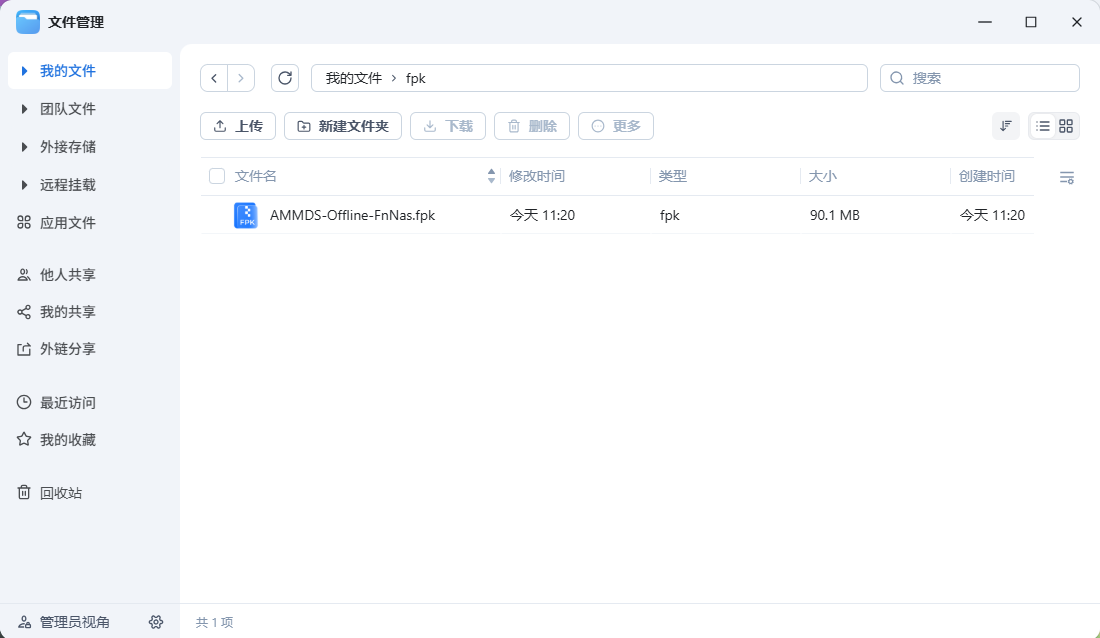
You can download the package to your local computer or directly on your FnOS device.
Installation Steps
-
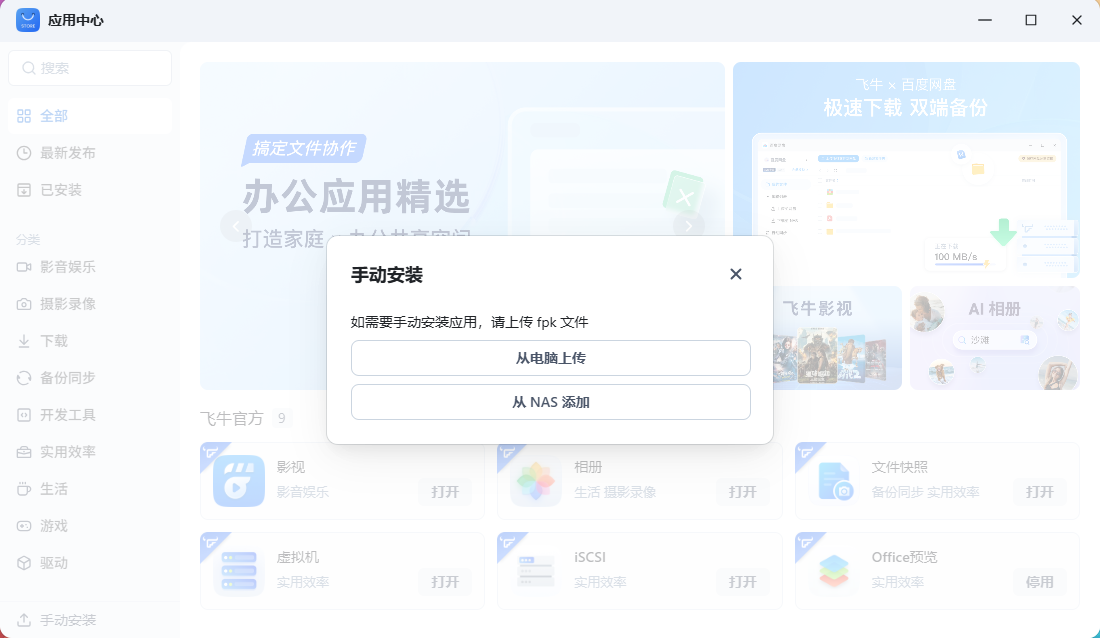
Start Installation
Open the App Center, click Manual Install in the bottom left corner, select the downloaded FPK file, and click Install.
-
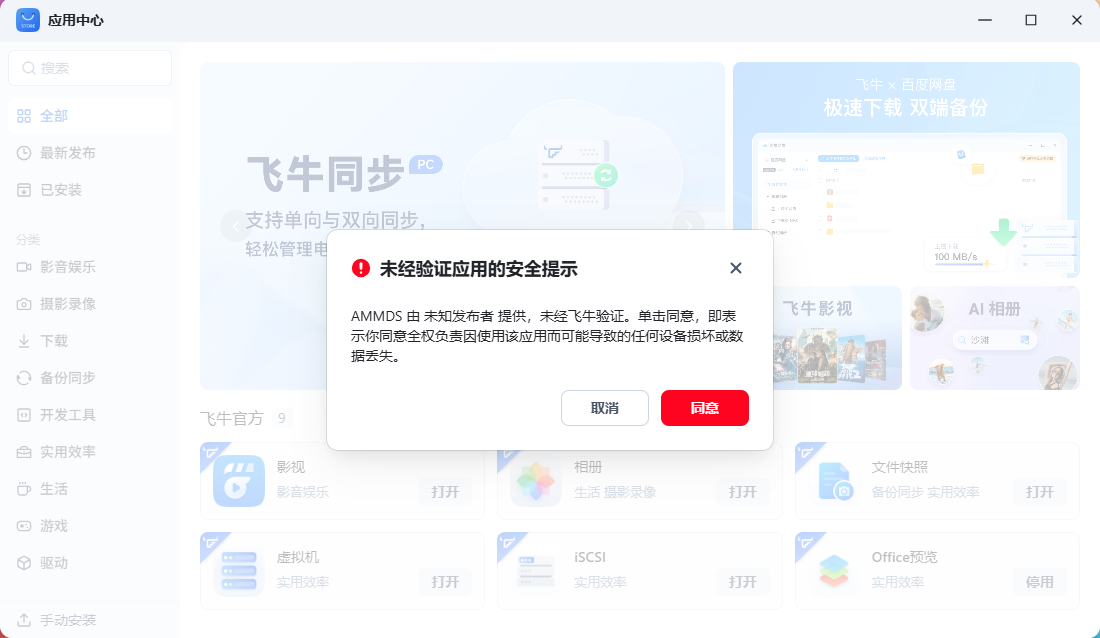
Confirm Installation
On the installation prompt, click Agree to proceed.
-
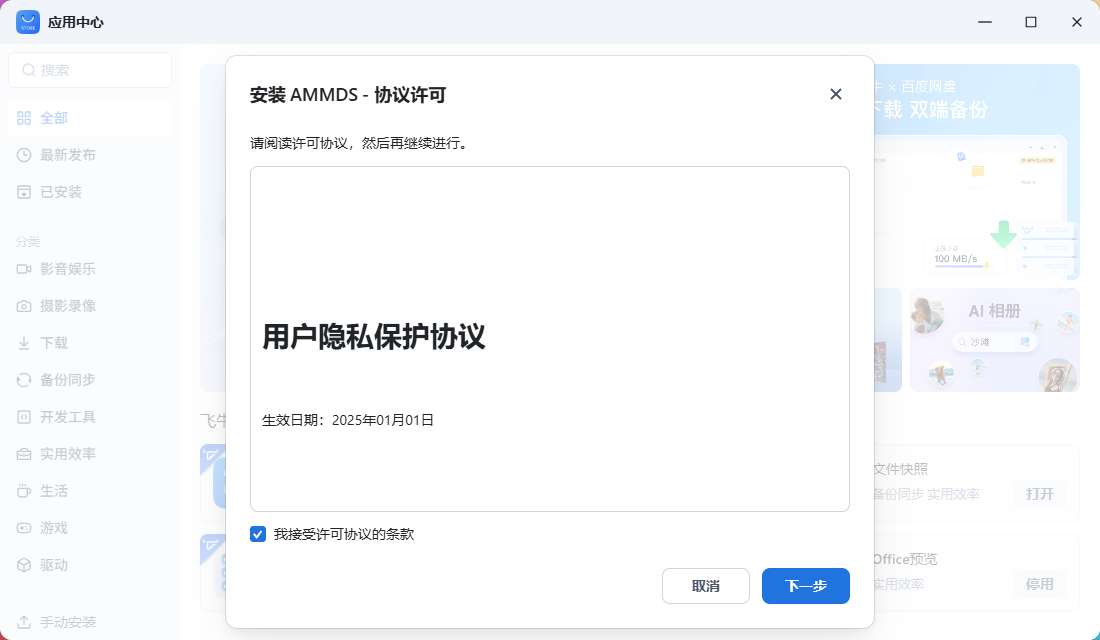
Read License
Read the installation license to understand the terms.
-
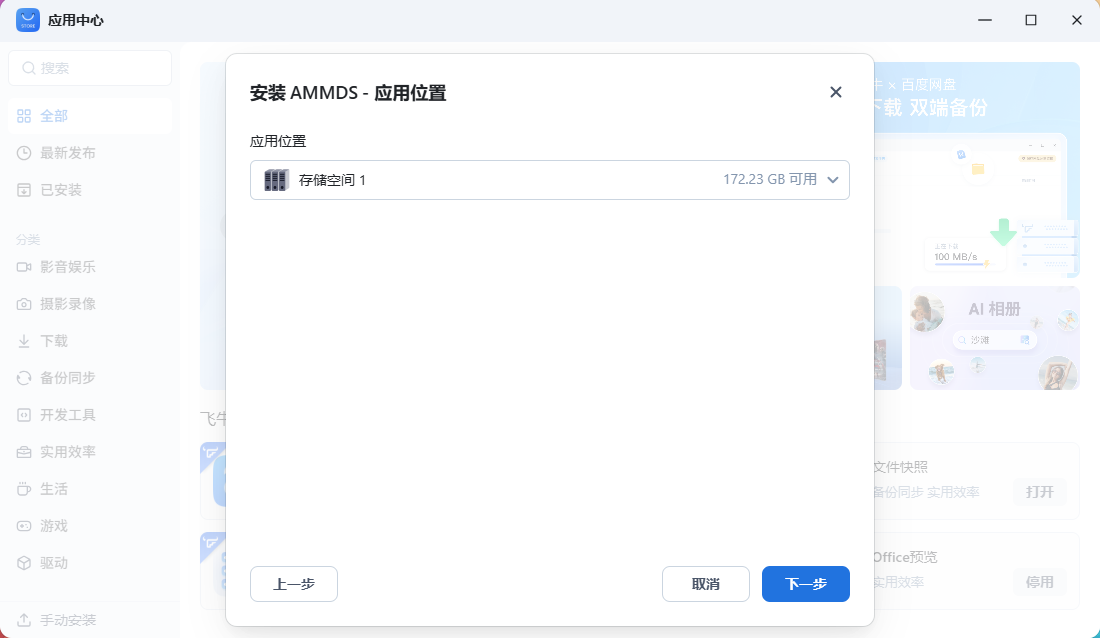
Select Installation Location
Choose a disk with enough space.
-
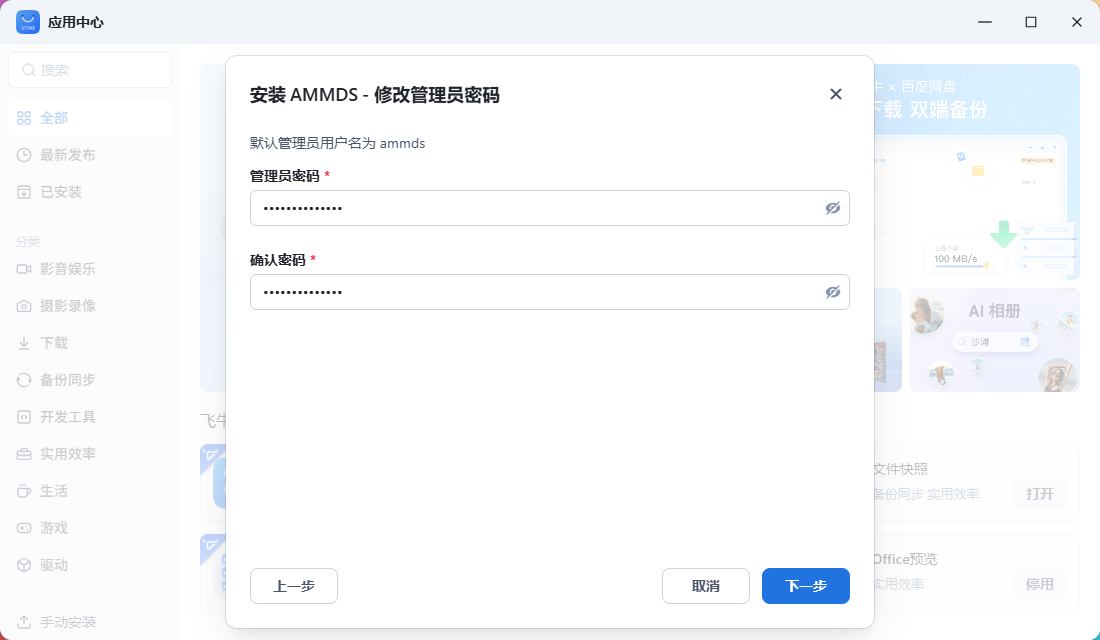
Set Admin Password
Set the login password for the AMMDS management interface. A strong password is recommended.
-
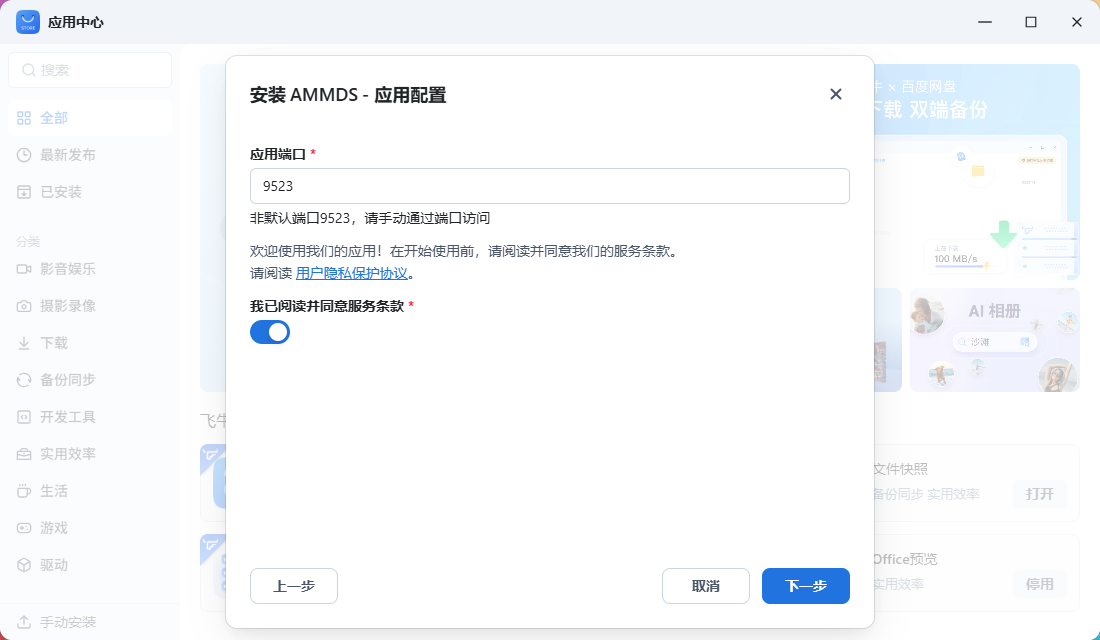
Set Access Port
Set the access port for AMMDS, default is 9523. Read the service terms and click Agree.
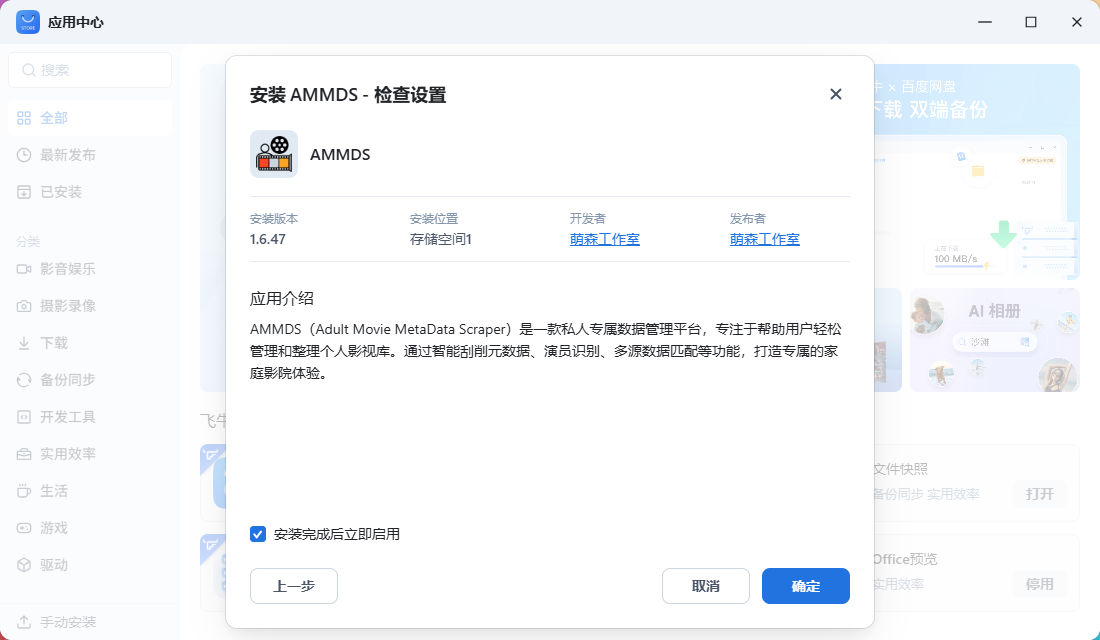
-
Start Installation
On the final prompt, click Confirm to start the installation.
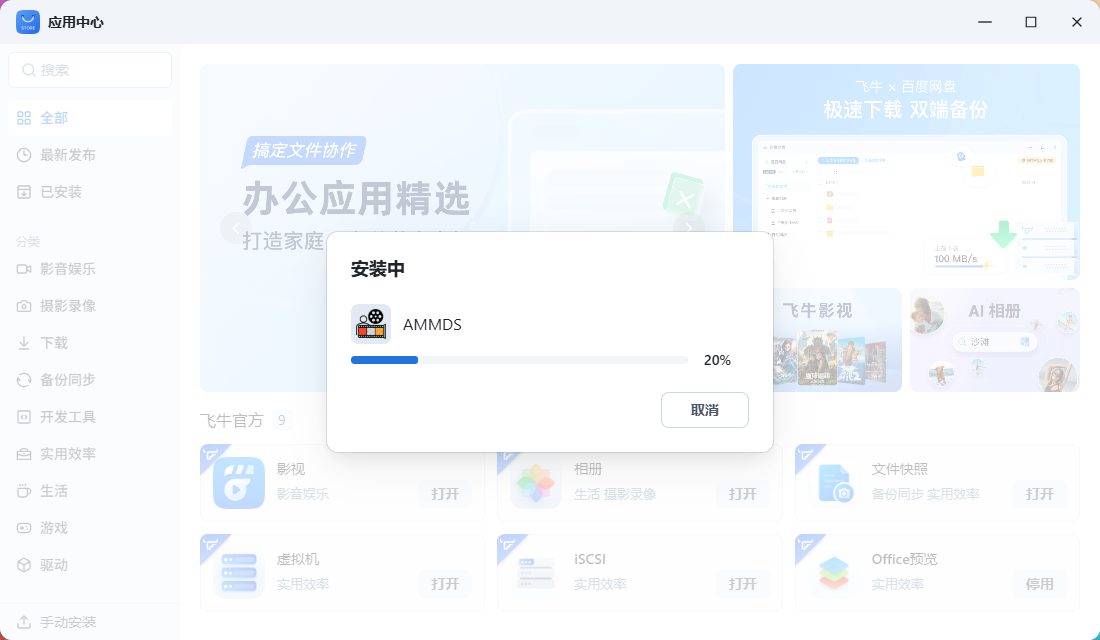
-
Wait for Installation to Complete
A progress bar will be shown — just wait a bit. If an error appears, follow the prompts, or try an older version of the FPK package.
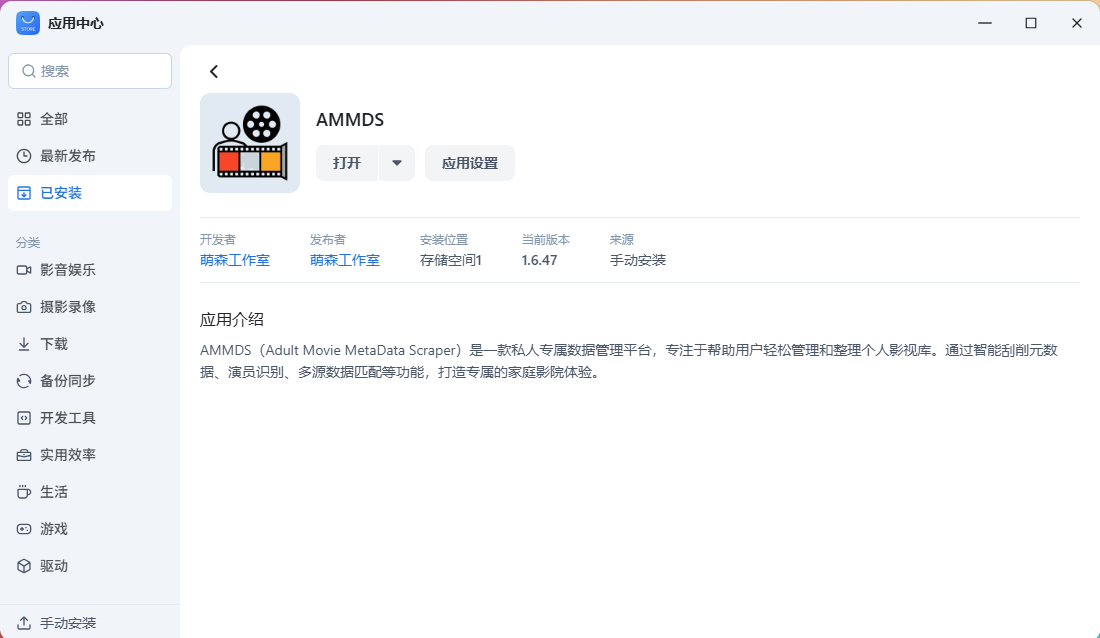
-
Confirm Success
After installation, you'll find AMMDS in the installed apps list.
Installation Directory
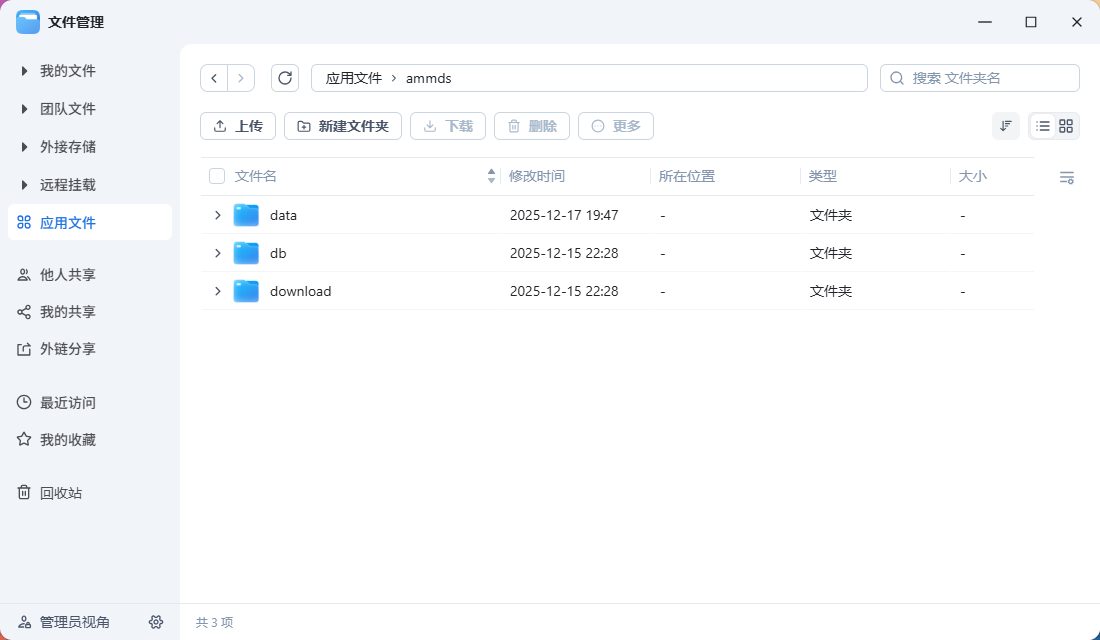
In File Management → App Files, you can find the AMMDS installation directory.
Docker Installation
Image Download
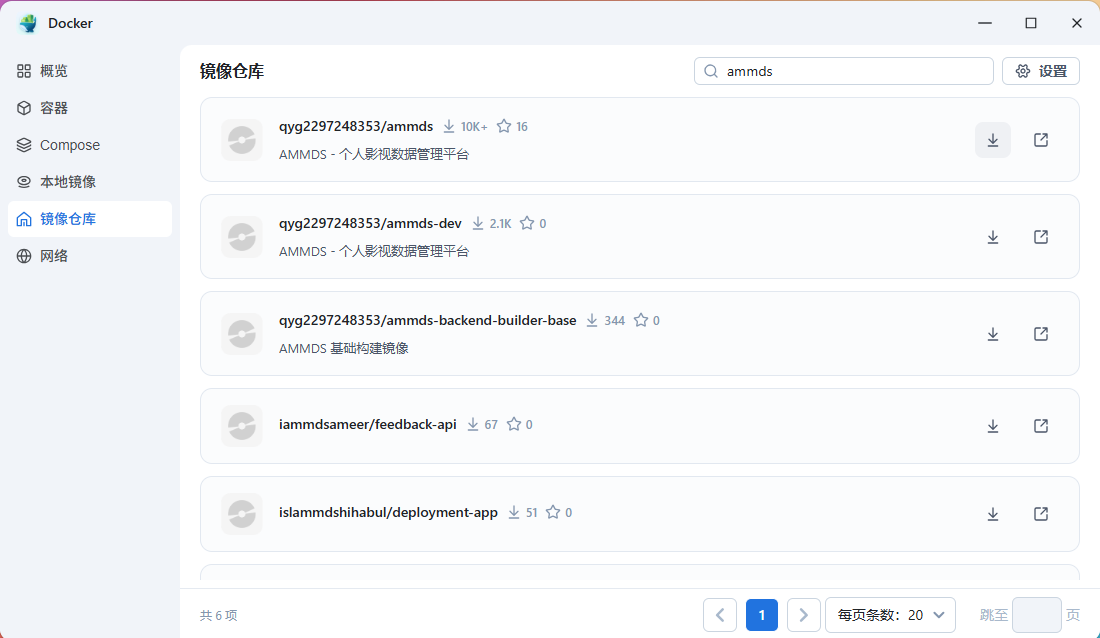
-
Search for Image
Open the Docker app, complete initialization, click Image Repository in the left menu, and search for the AMMDS image.
-
Select Image
Pick the one with the most downloads. The full image name is
qyg2297248353/ammds.
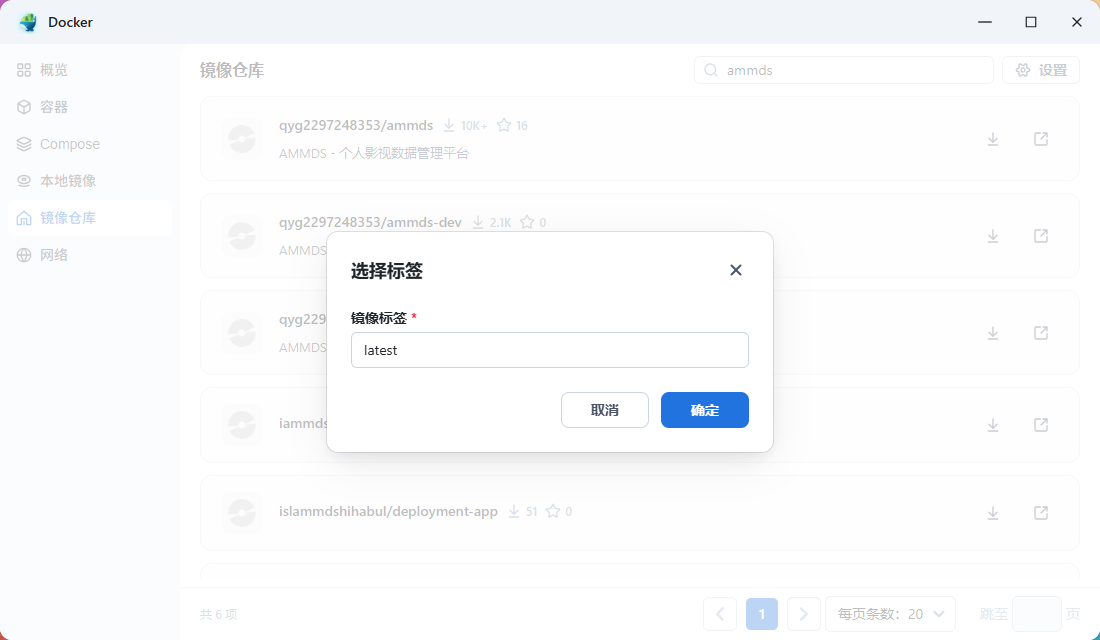
-
Select Version
The default version is
latest. If your device is older and doesn't support thelatestversion, choose a version with the tag ending inol8.
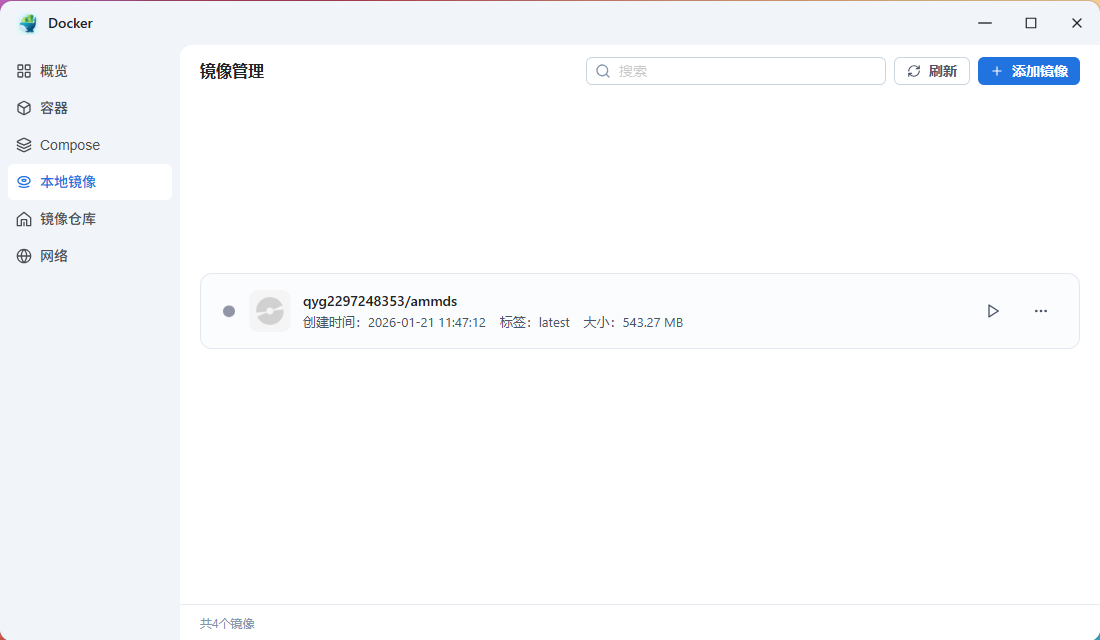
-
Wait for Download to Complete
Check the download progress in Local Images. After it's done, you'll see the Run button.
Container Creation and Configuration
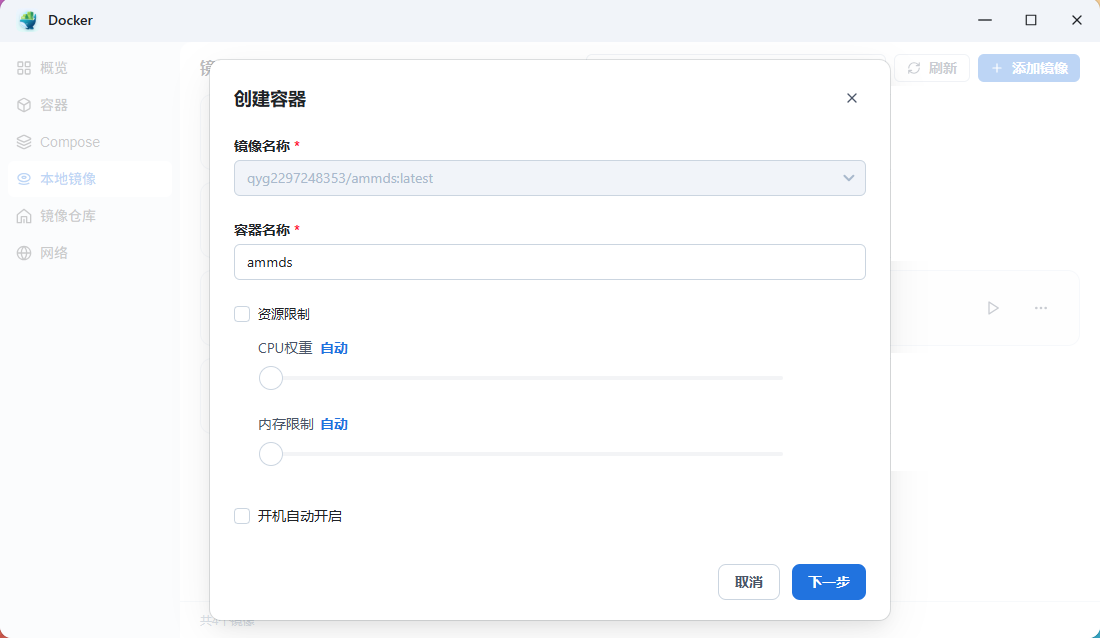
-
Create Container
Click the Run button to start deployment. Customize the container name, e.g.,
ammds. Allocate resources based on your device's performance. You can enable Auto-start on boot.
-
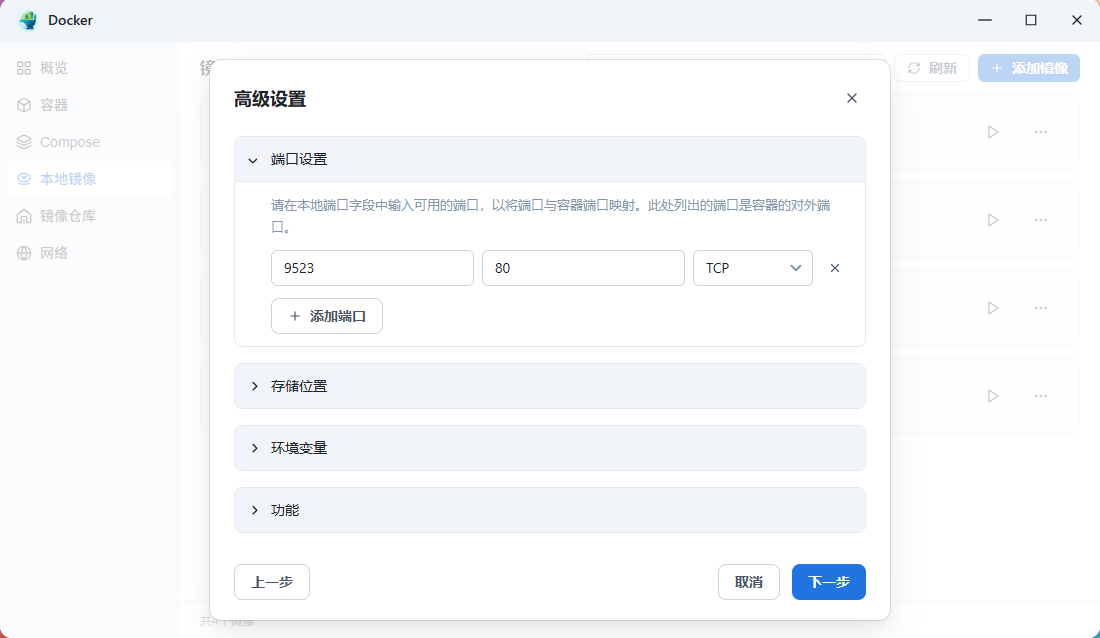
Port Settings
In Advanced Settings, configure port mapping:
- Default container port is 80 (TCP)
- Change the access port to 9523 (or another available port)
-
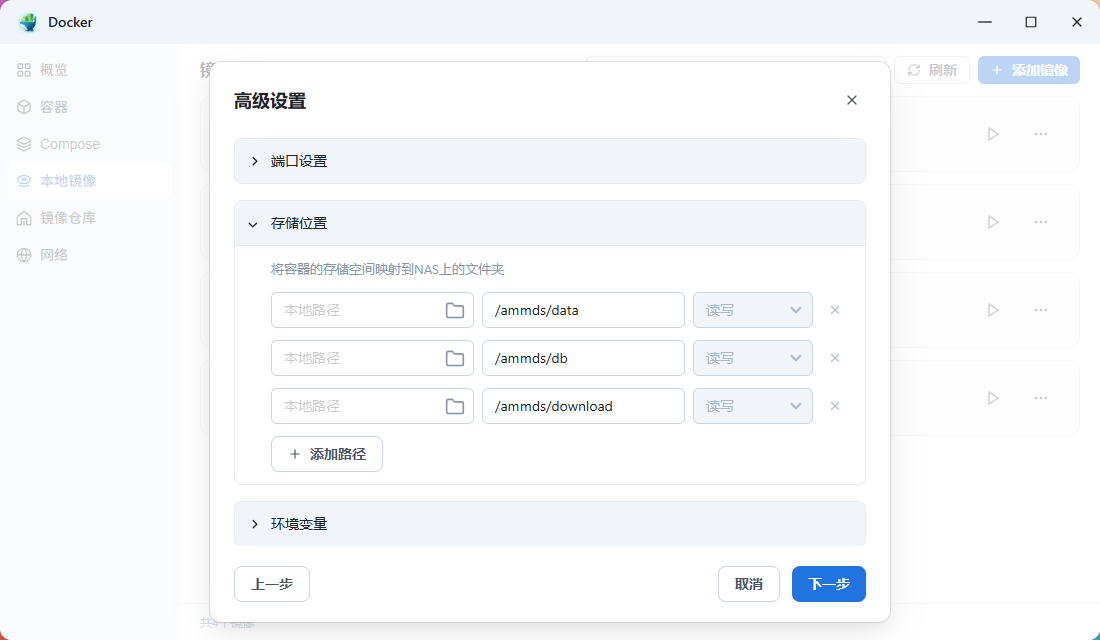
Storage Settings
It's recommended to mount local directories to the container so data isn't lost:
- By default, FnOS creates a temporary storage directory, but this can be cleaned up by the system
- It's better to manually create the corresponding directories and mount them to the container
-
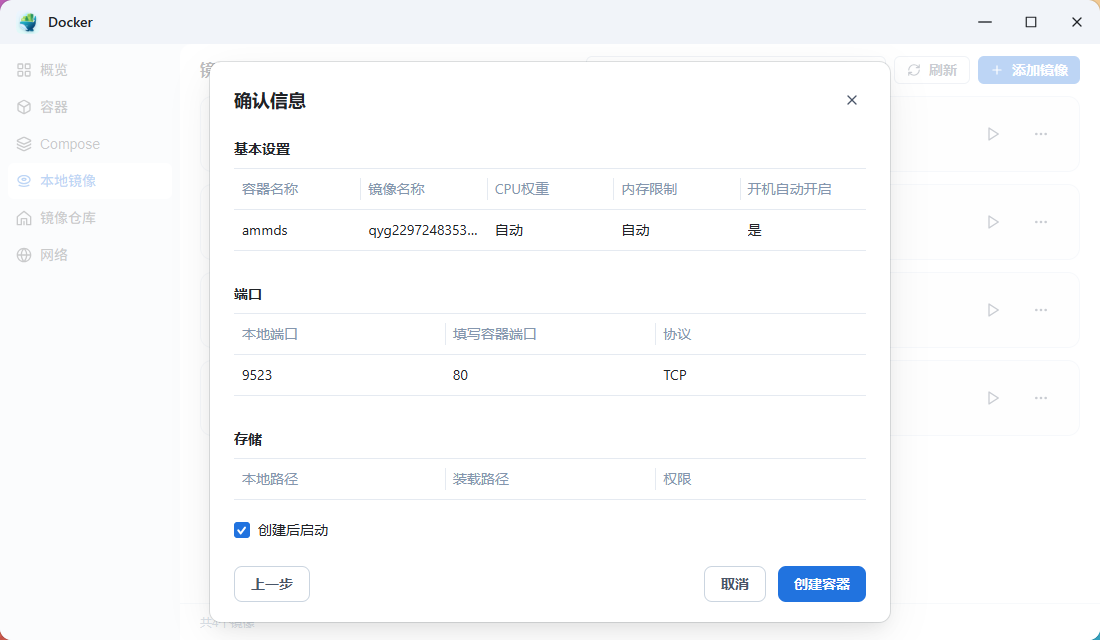
Confirm Configuration
After confirming everything is correct, check Start after creation.
Running and Management
-
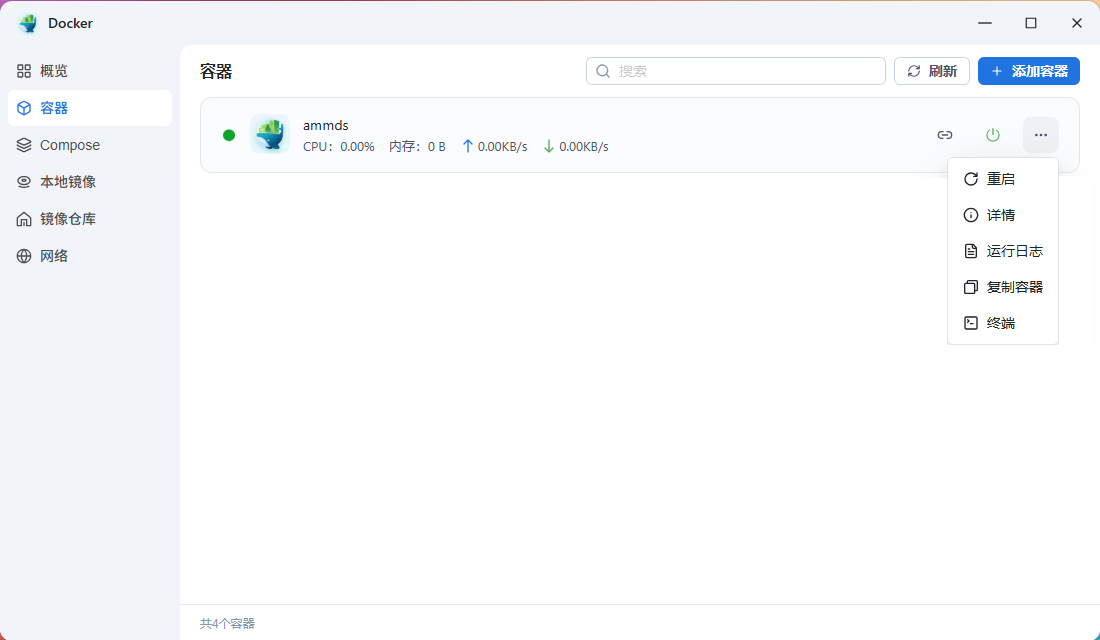
Check Running Status
You can see AMMDS running in the container list. The three dots on the right provide quick actions.
-
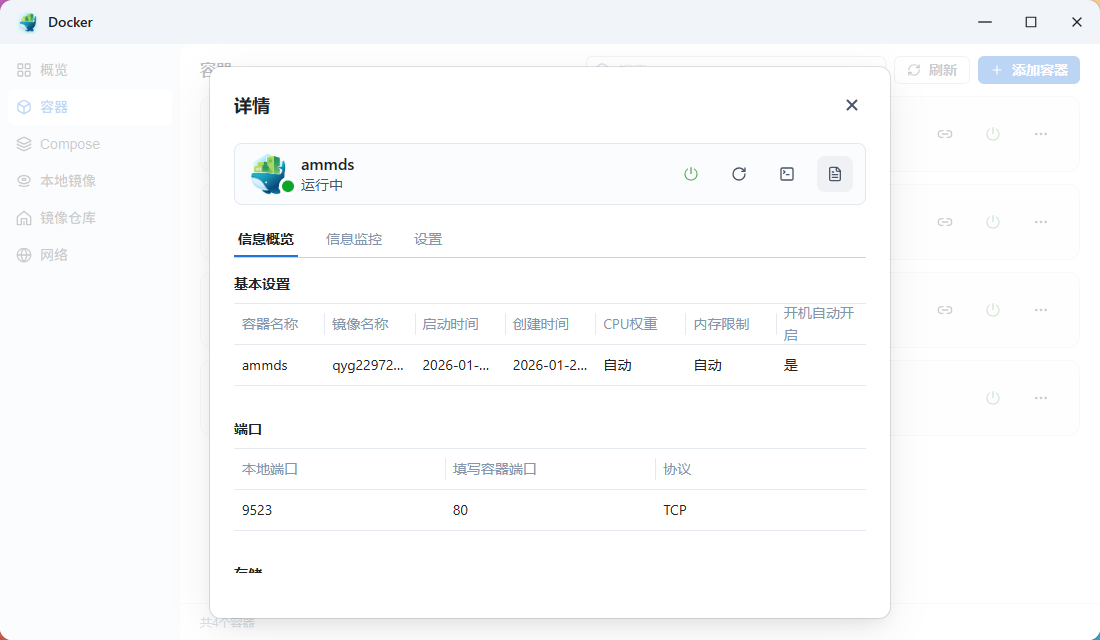
View App Details
Click on the container to see detailed information.
-
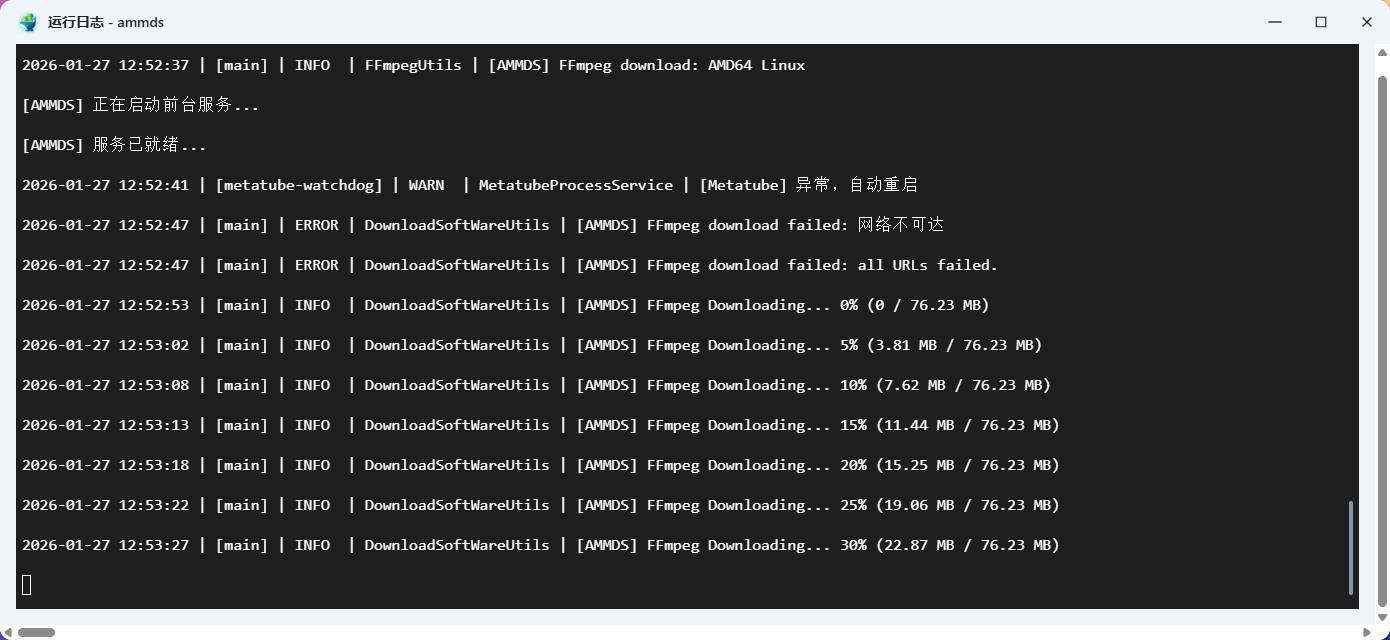
View Running Logs
Click View Logs to check the running status and download progress.
:::info First Startup Note On the first install, the system will automatically download necessary resource files, which takes a bit of time. Download progress will be shown in the logs. :::
Installation Complete
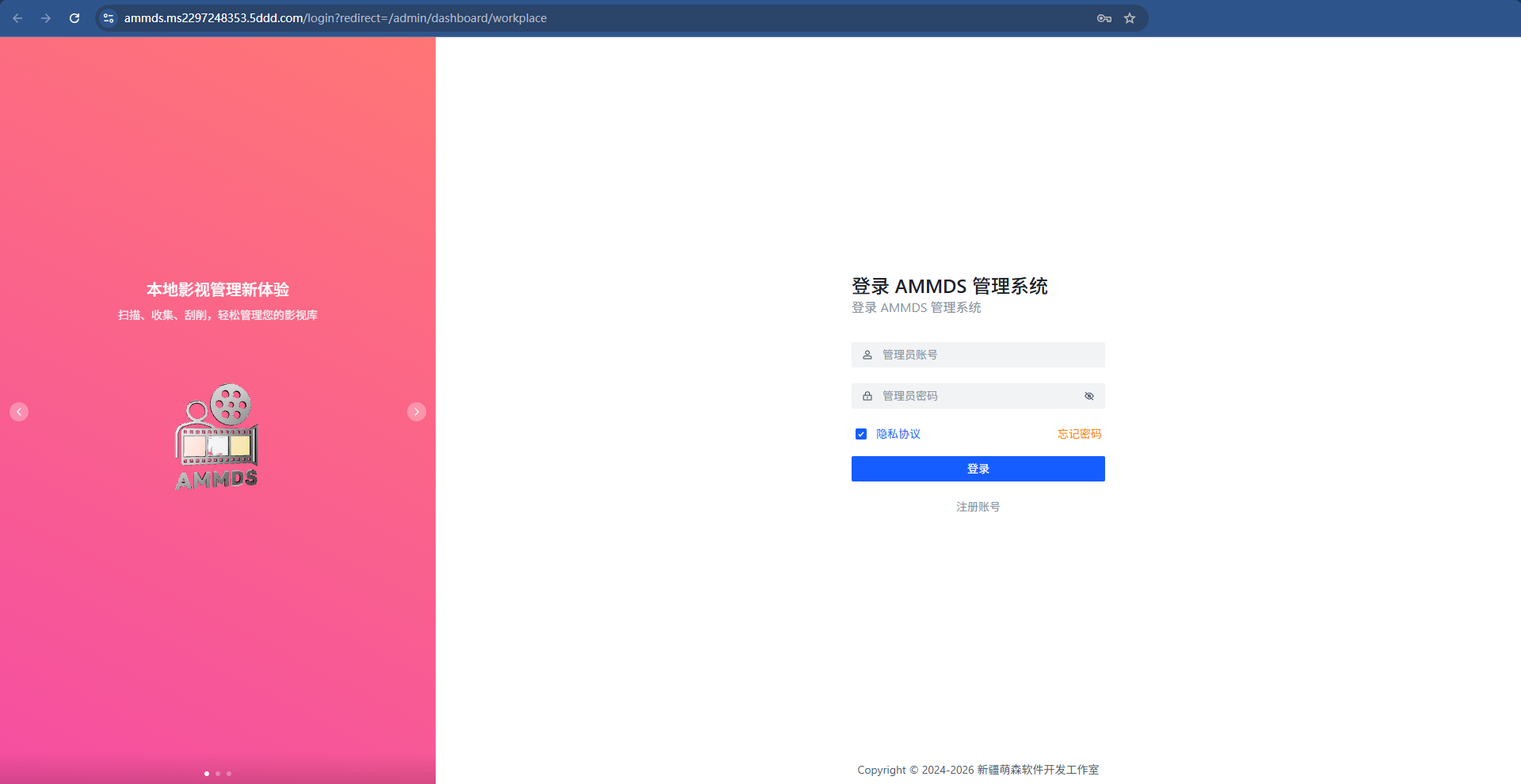
After installation, you can access the AMMDS management interface through a browser and start using it.
Advanced Attempts
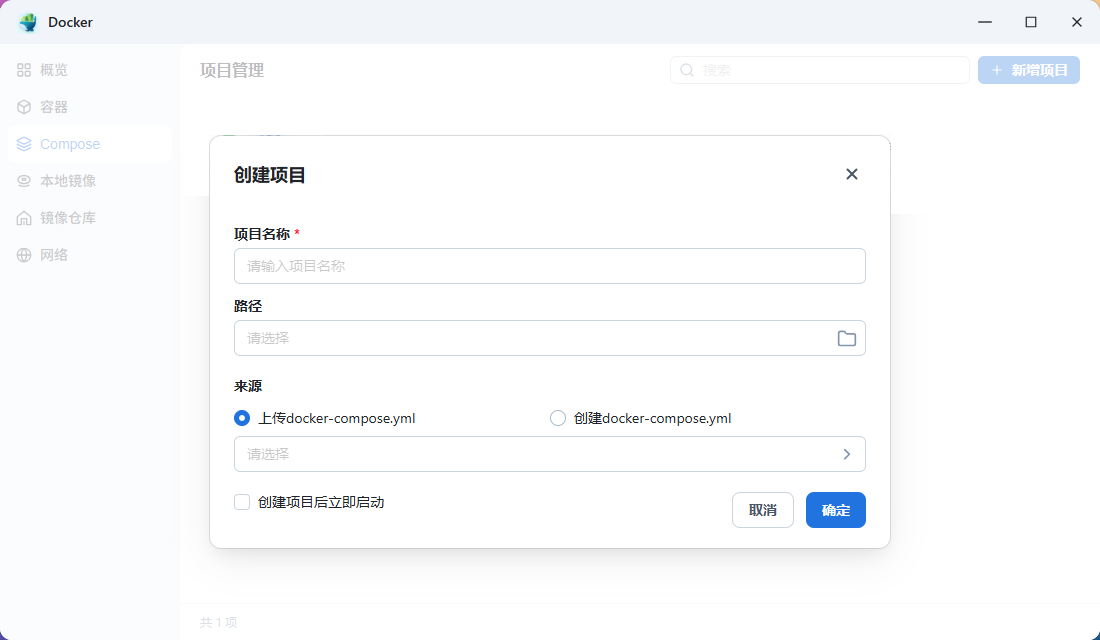
If you're familiar with Docker Compose (container orchestration tool), you can use a Compose file to deploy AMMDS for more flexible configuration.
Warnings and Precautions
Security Warnings
:::danger Important Security Tips
- Official Sources: Only download AMMDS packages from the official GitHub Releases page, don't use third-party sources
- Password Security: Set strong passwords and change them regularly
- Port Security: Change the default port to reduce the risk of attacks
:::
System Requirements
:::info System Configuration Requirements
Minimum Configuration
- Operating System: Latest version of FnOS
- Processor: Intel Core i3 or equivalent
- Memory: 4GB RAM
- Disk Space: At least 10GB available
- Network: Broadband internet connection
Recommended Configuration
- Operating System: Latest version of FnOS
- Processor: Intel Core i5 or equivalent
- Memory: 8GB RAM or more
- Disk Space: 20GB available
- Network: Stable broadband internet connection
:::
Usage Precautions
- Data Backup: Regularly back up configuration files and important data
- Resource Management: Keep an eye on disk space and clean up unnecessary files
- Network Connection: Ensure a stable network when downloading resources and updates
- System Maintenance: Regularly update FnOS
Troubleshooting
Common Issues
- Installation Failure: Check disk space and network connection
- Startup Issues: Check running logs for error information
- Access Failure: Check port configuration and firewall settings
- Upgrade Failure: Try uninstalling the old version first, then install the new version
Contact Information
If you encounter issues you can't resolve, submit an Issue on the official GitHub repository.
Best Practices
- Regular Updates: Keep AMMDS up to date
- Reasonable Configuration: Set parameters based on your device's performance
- Safe Usage: Follow the official documentation and don't modify core configuration files
- Community Participation: Join the community, share experiences, and report issues