Version: v1.6.49

Windows Deployment Guide

Microsoft Windows (referred to as Windows) is a series of proprietary commercial operating systems developed by Microsoft Corporation, featuring a graphical user interface as its core characteristic. It is widely used on personal computers, servers, and other devices. This guide will detail the deployment process of AMMDS in a Windows environment.

Download

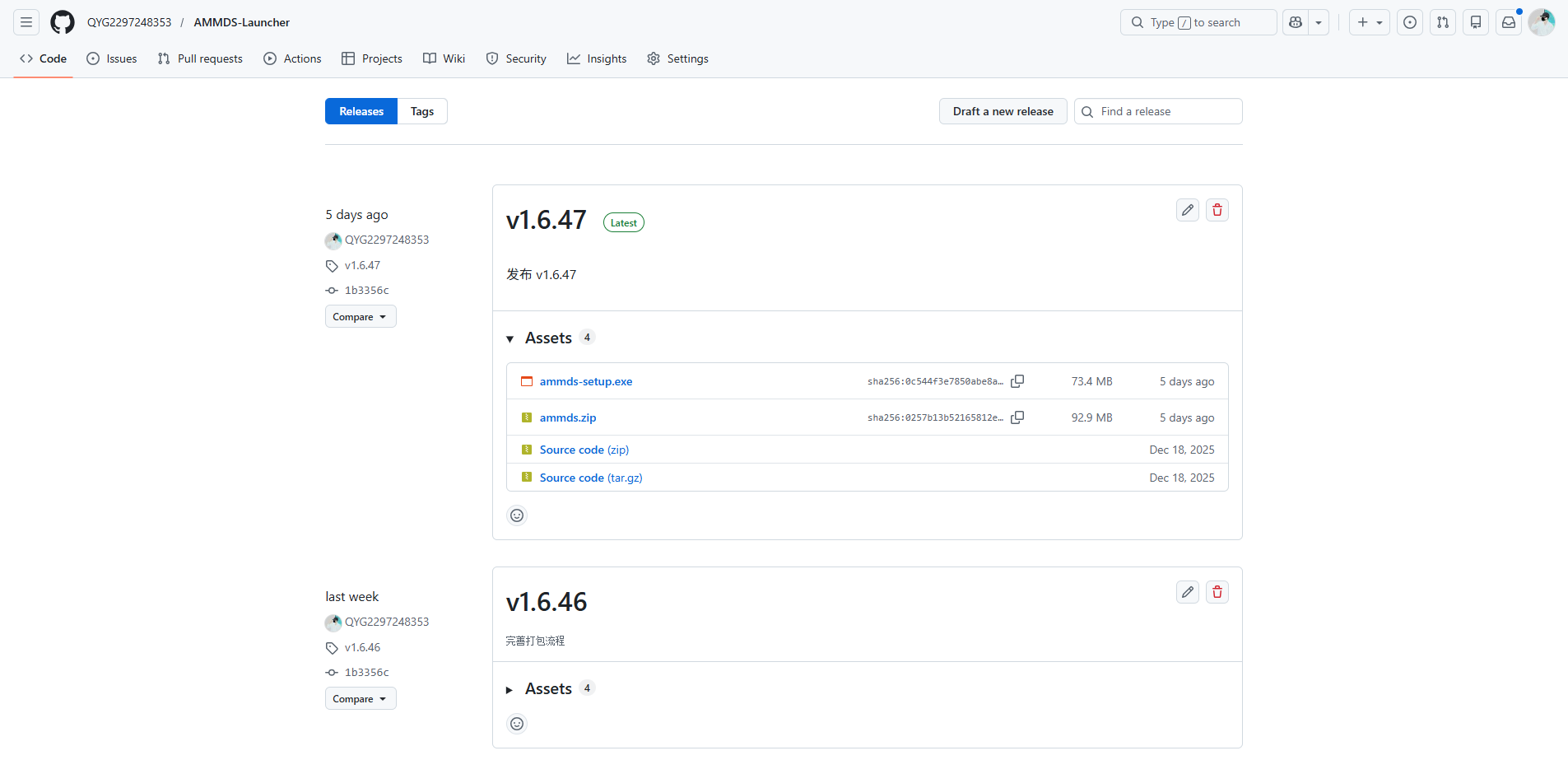
AMMDS Launcher Download Page

Official Release Address

AMMDS Launcher GitHub Releases

Available Installation Package Types

File NameTypeDescription
ammds-setup.exeInstallerComplete AMMDS Launcher installation package, including automatic installation wizard and all necessary components
ammds.zipPortable VersionGreen, no-install version that can be run directly after extraction, suitable for temporary use or environments without administrator privileges

Recommended Download: ammds-setup.exe

Using the installer ensures all dependent components are correctly installed and provides a better system integration experience.

Installation

Preconditions

  • Operating System: Windows 10 or higher
  • Permissions: Administrator privileges required for installation
  • Network: Internet connection required for first launch to download necessary resources

Installation Steps

  1. Launch the Installer

    Double-click the downloaded ammds-setup.exe file to start the installation wizard.

  2. Select Installation Language

    Installation Language Selection Interface

    In the language selection interface, select Simplified Chinese as the installation language, then click "OK".

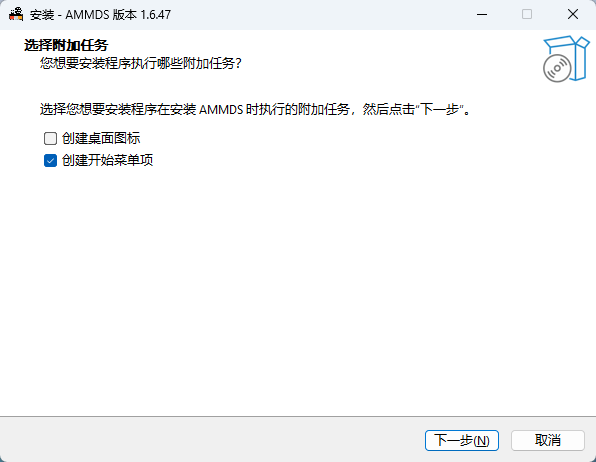
  3. Select Additional Components

    Additional Components Selection Interface

    In the component selection interface, the system will list all available additional components. It is recommended to select all components to get complete functionality:

    • Core Components: AMMDS Launcher main program
    • Dependencies: Required runtime environment
    • System Integration: Tray icon and auto-start functionality
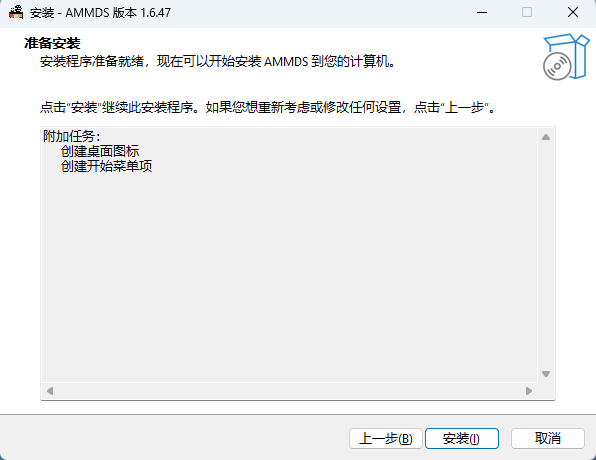
  4. Start Installation

    Installation Confirmation Interface

    After confirming the installation configuration, click the "Install" button to start the installation process.

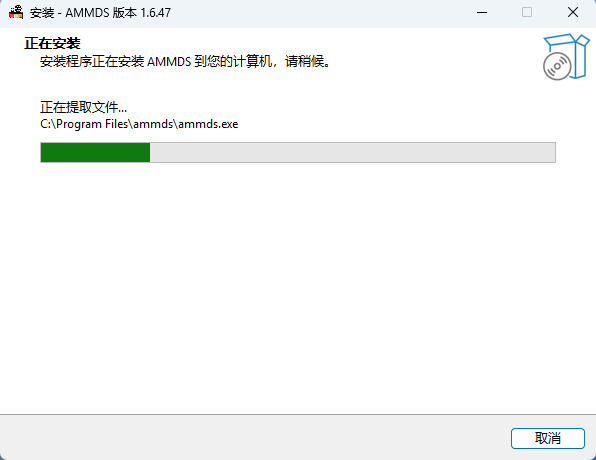
  5. Installation Progress

    Installation Progress Interface

    The installer will display the current installation progress and status. Please wait patiently for the installation to complete.

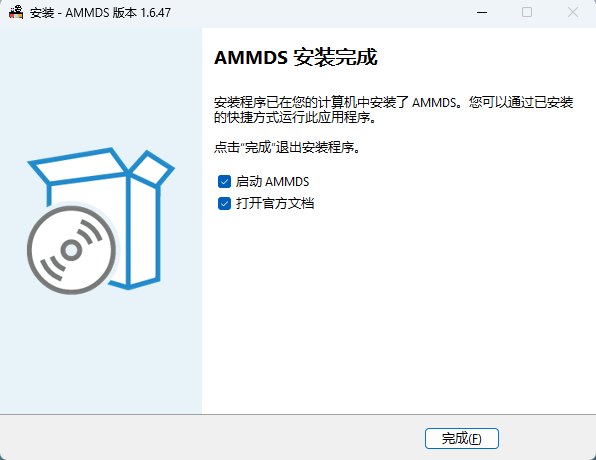
  6. Complete Installation

    Installation Completion Interface

    After installation is complete, click the "Finish" button to exit the installation wizard.

First Launch

After installation is complete, the system will automatically start AMMDS Launcher and display the official documentation homepage.

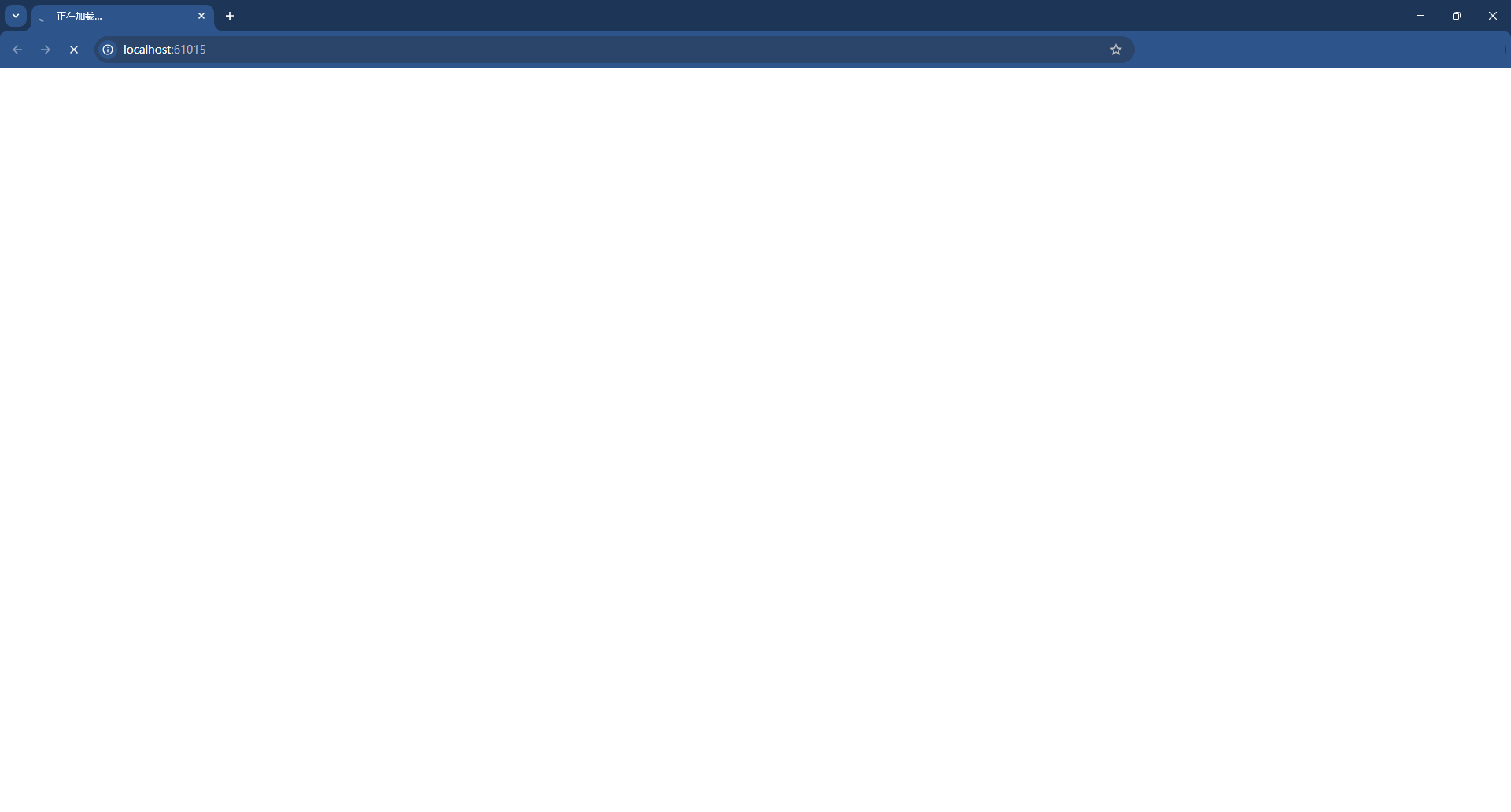
First Launch White Screen Status

Note: If a white screen appears during the first launch, this is a normal initialization process. The system is downloading necessary resource files in the background. Please wait patiently, and the page will automatically refresh after the download is complete.

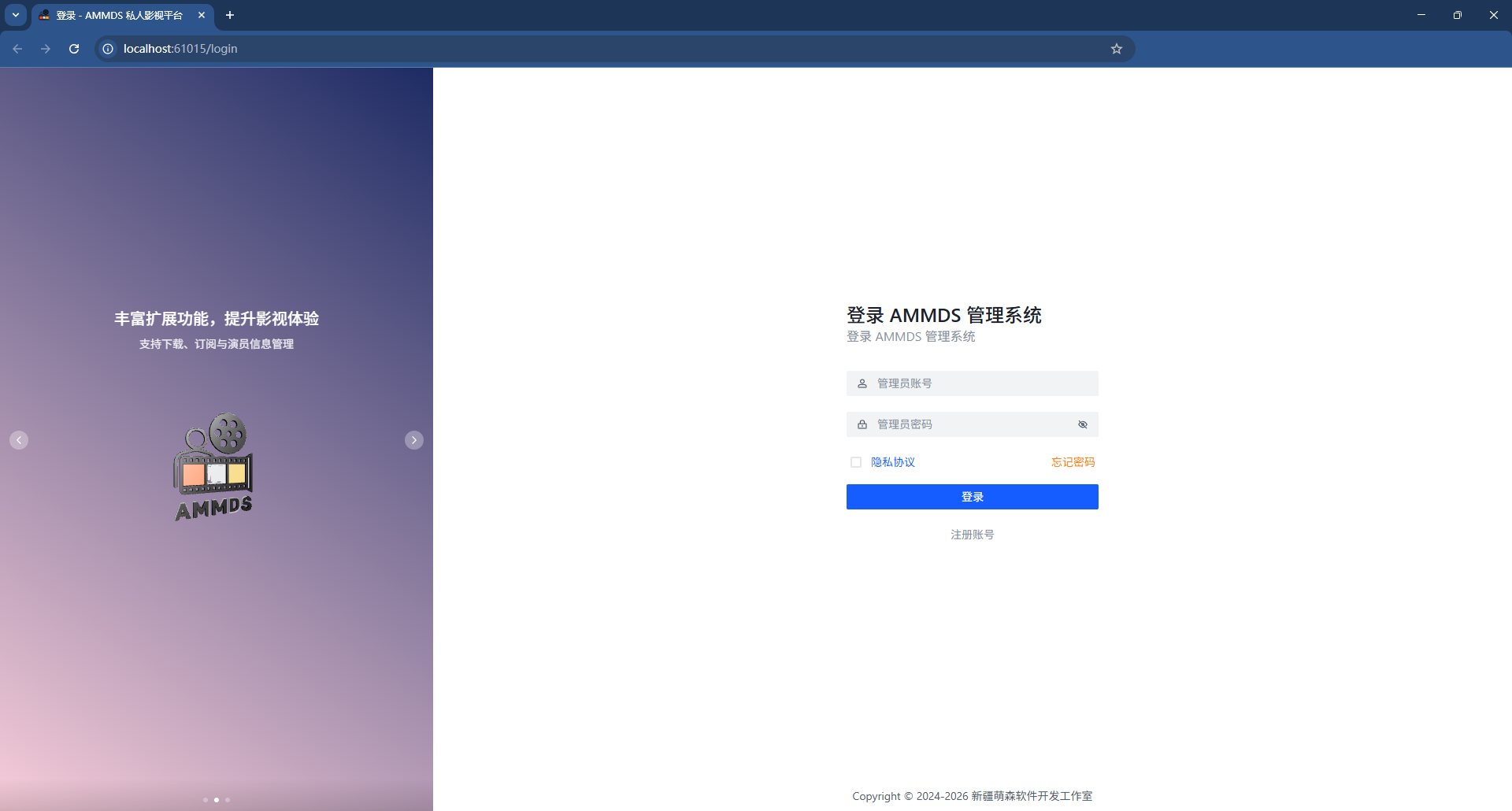
AMMDS Launcher Main Interface

After the resource download is complete, the system will automatically enter the AMMDS Launcher main interface, where you can start using all features.

Installation Notes

  • Do not close the installation window during the installation process
  • Ensure network connection is normal during first launch
  • If installation fails, check if you have sufficient disk space and administrator privileges

Upgrade

Pre-upgrade Preparation

  • Backup Data: It is recommended to backup AMMDS configuration files and important data before upgrading
  • Close Program: Ensure AMMDS Launcher is completely closed, including the tray icon
  • Download New Version: Download the latest version of ammds-setup.exe from the official GitHub Releases page

Upgrade Steps

  1. Launch the Upgrade Program

    Double-click the downloaded new version of ammds-setup.exe file to start the upgrade wizard.

  2. Follow the Upgrade Wizard

    The upgrade wizard will automatically detect the installed version and prompt for an overwrite upgrade. Follow the wizard prompts to complete the upgrade process.

  3. Complete the Upgrade

    After the upgrade is complete, click the "Finish" button to exit the wizard, and the system will automatically start the new version of AMMDS Launcher.

Upgrade Mechanism Description

AMMDS Launcher uses an overwrite upgrade mechanism with the following characteristics:

  • Preserve user configuration and data: The upgrade process will retain existing configuration files and data directories
  • Update core components: Automatically replace old version executable files and dependency libraries
  • Maintain system integration: Tray icon, auto-start, and other system integration settings will be preserved

Post-upgrade Verification

After the upgrade is complete, it is recommended to perform the following verifications:

  1. Check if AMMDS Launcher starts normally
  2. Verify if the version number has been updated (can be viewed on the About page)
  3. Confirm all features are working normally
  4. Check if data and configurations are completely preserved

Upgrade Notes

  • Do not close the upgrade window during the upgrade process
  • If upgrade fails, try uninstalling the old version first and then installing the new version
  • Major version upgrades may require re-downloading some resource files

System Tray Management

AMMDS Launcher Tray Menu

Tray Function Overview

After AMMDS Launcher is installed, it will create a dedicated icon in the Windows system tray, providing quick access and management functions. By right-clicking on the tray icon, you can open the function menu and perform various operations.

Tray Menu Functions

Menu ItemFunction DescriptionTechnical Description
Open Data DirectoryOpen AMMDS resource storage directoryDirectly navigate to %APPDATA%\AMMDS directory, containing data, configuration, and log files
StartStart AMMDS Launcher serviceStart background service process, ready to receive connections
RestartRestart AMMDS LauncherStop existing process first, then restart, used to apply configuration changes
StopStop AMMDS Launcher serviceStop background service process, release system resources
ExitCompletely exit AMMDS LauncherStop service and remove tray icon, completely release all resources
Open PanelOpen AMMDS Launcher main interfaceStart and display Web management interface, used for configuring and managing AMMDS
Start Auto-startToggle auto-start functionality at system startupAdd or remove AMMDS Launcher from Windows startup items

Tray Icon Status Explanation

  • Color Icon: AMMDS Launcher service is running
  • Gray Icon: AMMDS Launcher service has stopped
  • Blinking Icon: AMMDS Launcher is in the process of starting or restarting

Usage Suggestions

  • Daily Management: Use the tray menu for quick start, stop, and restart operations
  • Troubleshooting: When encountering problems, you can try to solve them through the restart function
  • System Optimization: If AMMDS is not used for a long time, it is recommended to use the exit function to completely release resources
  • Auto-start: For scenarios that require continuous operation, it is recommended to enable the auto-start function

Run Logs and Data Management

Data Directory Structure

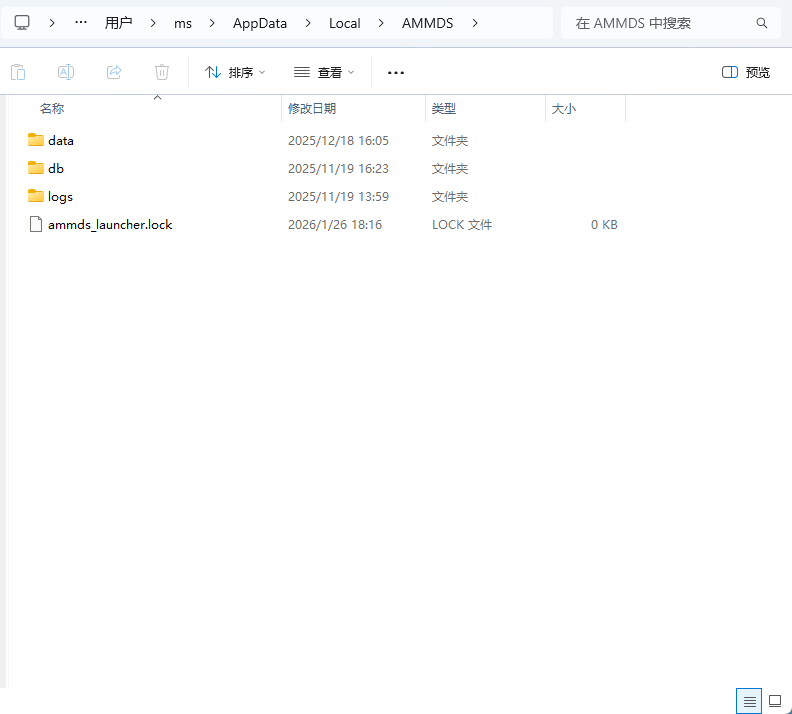
AMMDS Data Directory Structure

All AMMDS data and configuration files are stored in a dedicated data directory, with the default path: %APPDATA%\AMMDS

Directory Structure Explanation:

DirectoryFunction DescriptionTechnical Details
dataStore AMMDS resource filesContains model files, configuration templates, presets and other core resources, which will be automatically downloaded on first startup
dbStore AMMDS database filesContains user configurations, operation history, task records and other structured data
logsStore AMMDS running log filesContains system logs, error records, resource download logs, etc.

Log File Description

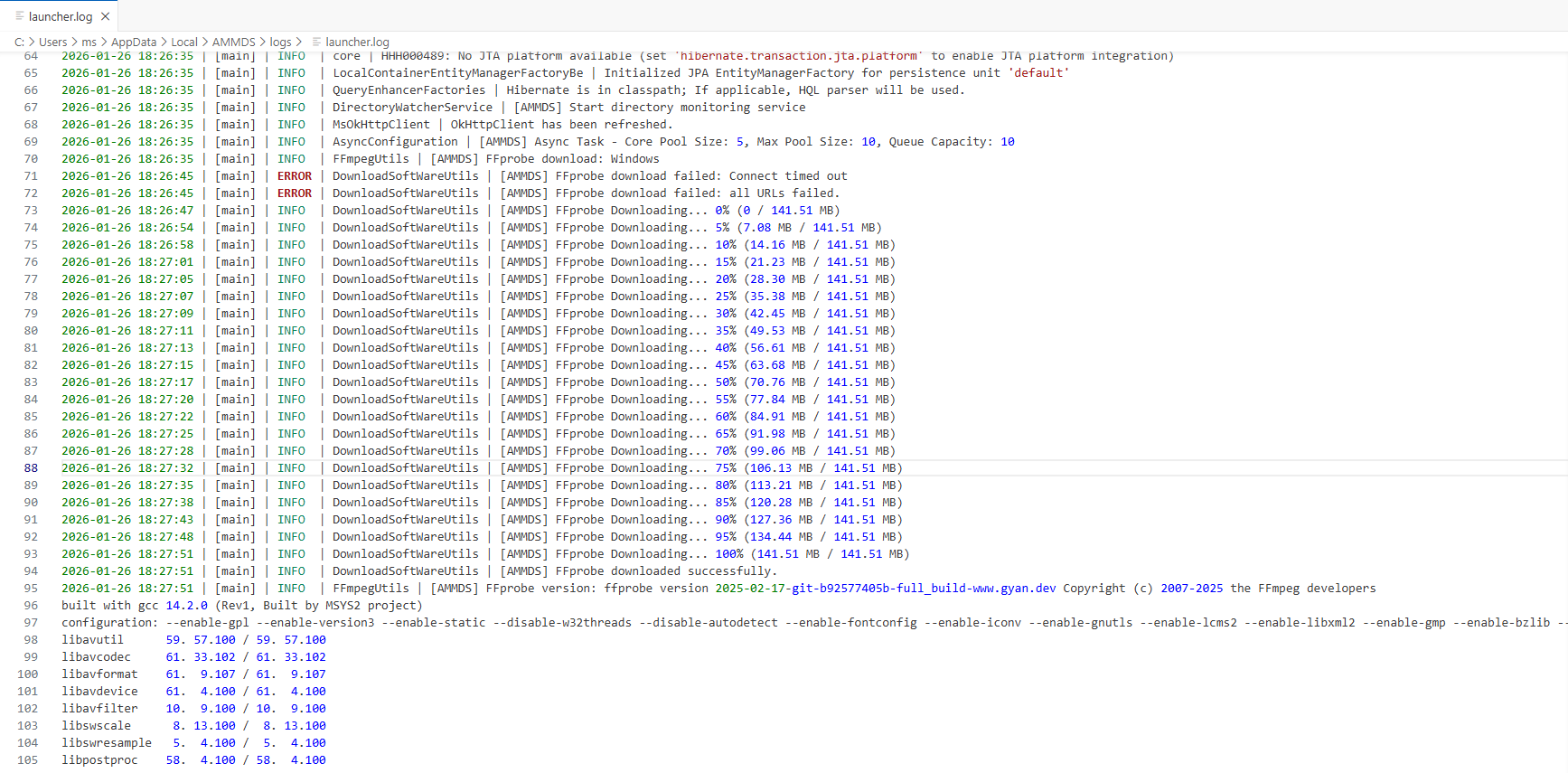
AMMDS Resource Download Log

Log File Storage Structure

AMMDS log files are mainly stored in two locations:

1. AMMDS Core Logs (data/logs directory)

Log FileFunction Description
data/logs/ammds.logSystem running log, recording AMMDS startup, stop, errors and other system events
data/logs/ammds-202x-xx-xx.logDate-named running log, recording AMMDS detailed running status and operation records
data/logs/ammds-error.logError log, specifically recording error information during system operation

2. Windows Launcher Logs (logs directory)

Log FileFunction Description
logs/launcher.logLauncher log, recording Windows AMMDS Launcher startup process, configuration information and system integration status

Log Content Interpretation

AMMDS Core Log Content

1. System Running Log (data/logs/ammds.log)

  • Records AMMDS startup and stop events
  • System-level errors and warning information
  • Configuration loading and initialization status
  • Service startup and stop status

2. Detailed Running Log (data/logs/ammds-202x-xx-xx.log)

  • Detailed operation records and status changes
  • User operations and system responses
  • Resource usage and performance metrics
  • Scheduled task execution status

3. Error Log (data/logs/ammds-error.log)

  • Detailed error stack information
  • Context of exception occurrence
  • Time and conditions of error occurrence
  • Possible error cause analysis

Windows Launcher Log Content

Launcher Log (logs/launcher.log)

  • Launcher startup process and configuration loading
  • System integration status (tray icon, auto-start)
  • Communication status with AMMDS core
  • Launcher's own errors and warnings

Resource Download Log

Resource Download Log (included in relevant log files):

  • Resource file name and version information
  • Download progress and speed statistics
  • Download status (success/failure/retry)
  • Download timestamp and duration
  • Download server information
Progress Indicator

When the log shows the progress has reached 100%, it means all necessary resource files have been downloaded completely

Log Usage Methods

1. Troubleshooting

AMMDS Core Issues

  • Check data/logs/ammds-error.log for detailed error information
  • Refer to data/logs/ammds.log to understand system startup and initialization status
  • Analyze data/logs/ammds-202x-xx-xx.log to view operation records before and after the error occurred

Launcher Issues

  • Check logs/launcher.log to understand the launcher startup process and configuration status
  • Check the communication status with AMMDS core

2. Resource Management

Resource Download Issues

  • Analyze download records in the logs to troubleshoot failed resource downloads
  • Check download server connection status
  • Confirm resource file version and integrity

Disk Space Management

  • Monitor log file sizes and regularly clean up expired logs
  • Analyze resource file download volume and plan disk space reasonably

3. Performance Analysis

System Performance

  • Analyze timestamps in the logs to understand the execution time of various operations
  • Monitor resource usage and optimize system configuration
  • Identify performance bottlenecks and adjust system parameters

Startup Time Optimization

  • Analyze startup process time consumption in logs/launcher.log
  • Check initialization time in data/logs/ammds.log
  • Optimize startup items and configurations to reduce startup time

4. Log File Management

Log Rotation

  • AMMDS automatically performs log rotation, generating date-named log files
  • Expired logs will be compressed or cleaned up to maintain reasonable disk usage

Log Backup

  • Regularly back up important log files, especially error logs
  • Back up current logs before system upgrades for problem comparison analysis

Log Level Adjustment

  • Adjust log levels as needed to balance detail and performance impact
  • Use detailed logs when debugging issues, and standard logs during normal operation

First Launch Notes

First Launch Reminder

When launching AMMDS for the first time, the system will perform the following operations. Please wait patiently:

  • Resource Download: Automatically download necessary resource files, including model files, dependency libraries, etc.
  • Time Estimation: Depending on network speed, first launch may take 5-30 minutes
  • Network Requirements: Please ensure a stable network connection to avoid interrupting the network during download
  • Disk Space: Sufficient disk space is required to store downloaded resource files, it is recommended to reserve at least 10GB of space

Warnings and Notes

Security Warnings

Important Security Tips
  • Official Source: Only download AMMDS installation packages from the official GitHub Releases page, avoid using third-party download sources
  • Antivirus Software: If you encounter antivirus software prompts during installation, please confirm it is a false positive and add trust
  • Administrator Privileges: Installation and upgrade processes require administrator privileges, please ensure you run the installer as an administrator

System Requirements

System Configuration Requirements

Minimum Configuration

  • Operating System: Windows 10 64-bit
  • Processor: Intel Core i3 or equivalent performance
  • Memory: 4GB RAM
  • Disk Space: At least 10GB available space
  • Network: Broadband internet connection
  • Operating System: Windows 10/11 64-bit
  • Processor: Intel Core i5 or equivalent performance
  • Memory: 8GB RAM or more
  • Disk Space: 20GB available space
  • Network: Stable broadband internet connection

Usage Notes

  • Data Backup: Regularly back up AMMDS data directory, especially important configuration files and model files
  • Resource Management: Monitor disk space usage and clean up unnecessary resource files in time
  • Network Connection: Ensure a stable network connection, especially when downloading resources and updates
  • System Maintenance: Regularly update Windows system and related drivers to ensure system stability

Troubleshooting

Common Issues

  • Installation Failure: Check administrator privileges and disk space
  • White Screen on Startup: Wait for resource download to complete, or check network connection
  • Function Abnormalities: View log files to locate issues, or restart AMMDS Launcher
  • Upgrade Failure: Try uninstalling the old version first and then installing the new version

Contact Information

If you encounter problems that cannot be resolved, please visit the official GitHub repository to submit an Issue or seek help

Best Practices

  • Regular Updates: Keep AMMDS Launcher updated to the latest version to get the latest features and security fixes
  • Reasonable Configuration: Configure AMMDS parameters reasonably based on system performance to avoid excessive resource usage
  • Safe Usage: Follow the official documentation guidelines and avoid modifying core configuration files
  • Community Participation: Participate in the AMMDS community, share usage experience and provide feedback on issues