Version: v1.6.49

FnOS Deployment Guide

FnOS is a NAS system crafted by a team of veteran enthusiasts, integrating local AI models to provide efficient and secure storage solutions for homes and businesses. This guide will detail the deployment process of AMMDS in the FnOS environment.

Deployment Methods Overview

AMMDS offers two deployment methods on FnOS:

  • FPK Offline App Installation: Manual installation through the FnOS App Center, suitable for most users
  • Docker Installation: Deployment via Docker containers, suitable for users familiar with container technology

FPK Offline App Installation

Download

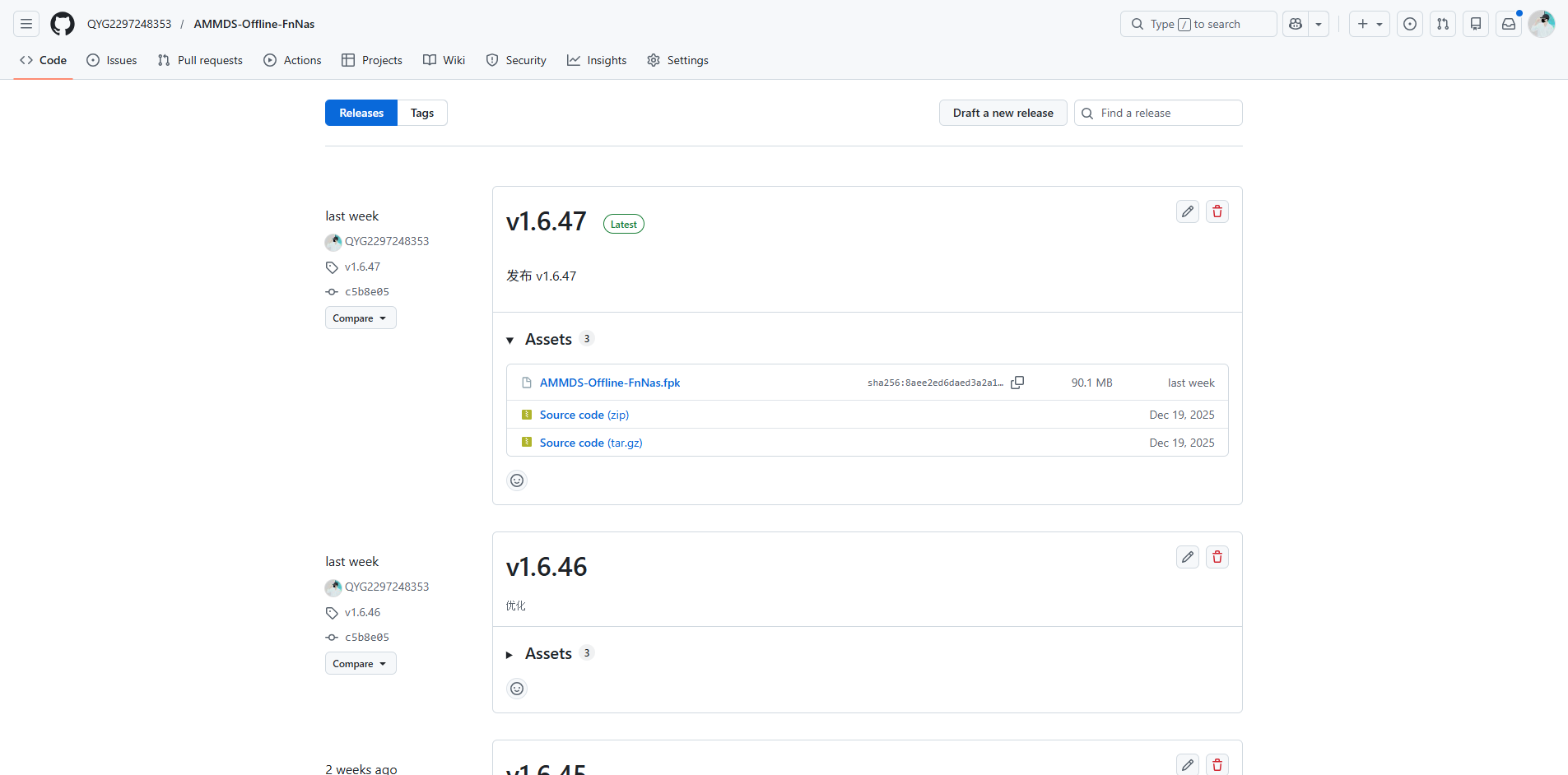
AMMDS FPK Download Page

Official Release Address

AMMDS Offline FnNas GitHub Releases

Available Installation Packages

File NameTypeDescription
AMMDS-Offline-FnNas.fpkFPKAMMDS offline installation package, suitable for FnOS system

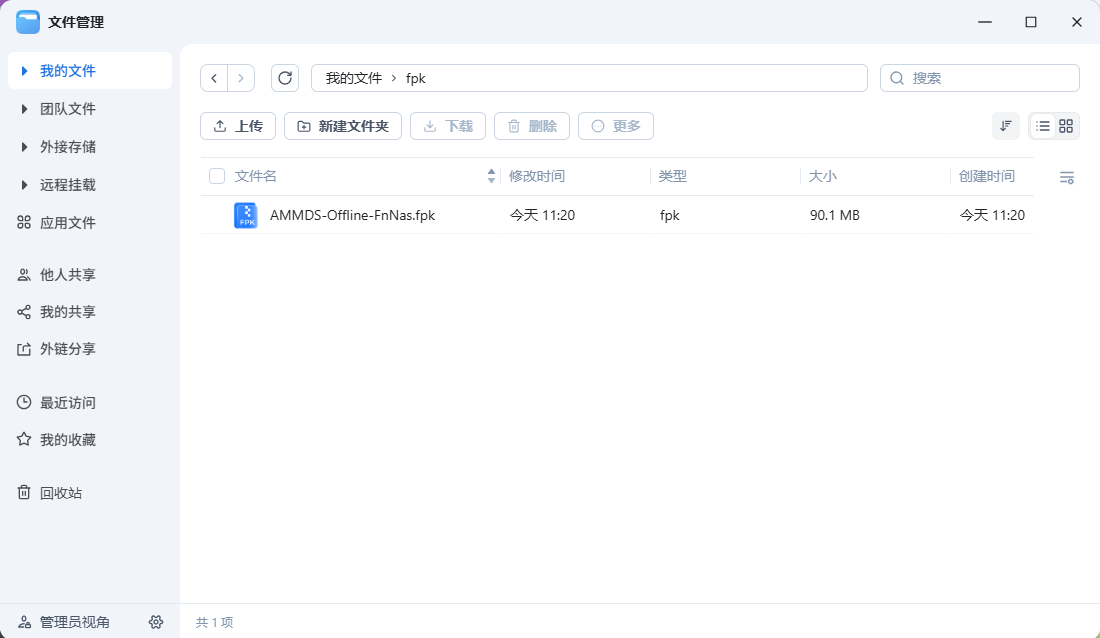
Download Methods

AMMDS FPK Download Options

You can choose to download the installation package to your local computer or directly on your FnOS device.

Installation Steps

AMMDS FPK Installation Interface

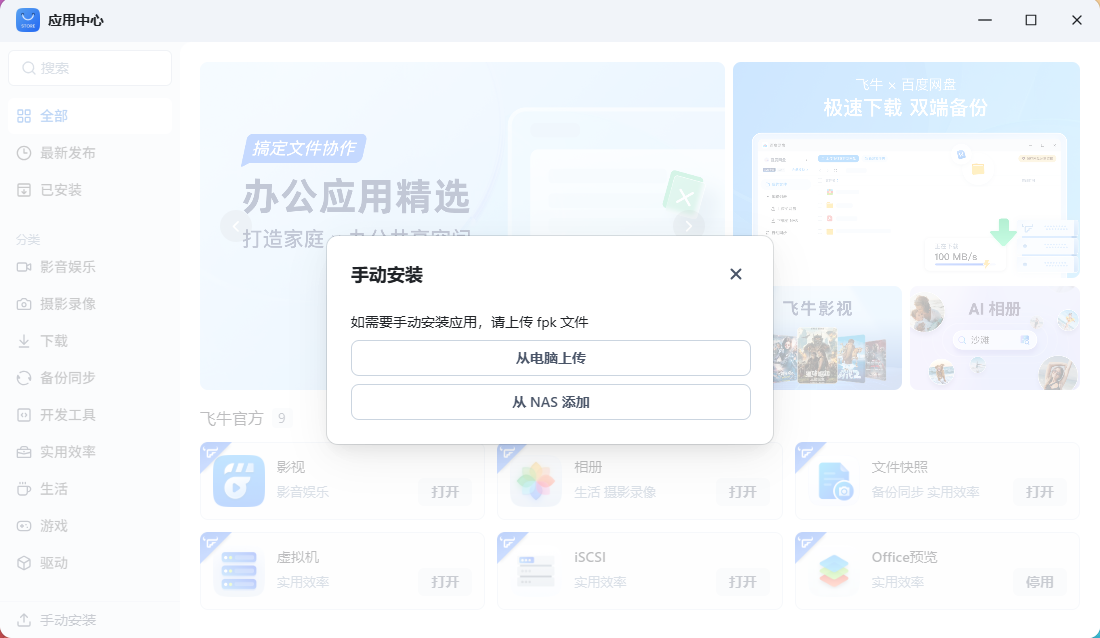
  1. Start Installation Process

    Open the App Center, click Manual Installation in the bottom left corner, select the downloaded FPK file, and click Install.

AMMDS FPK Installation Prompt

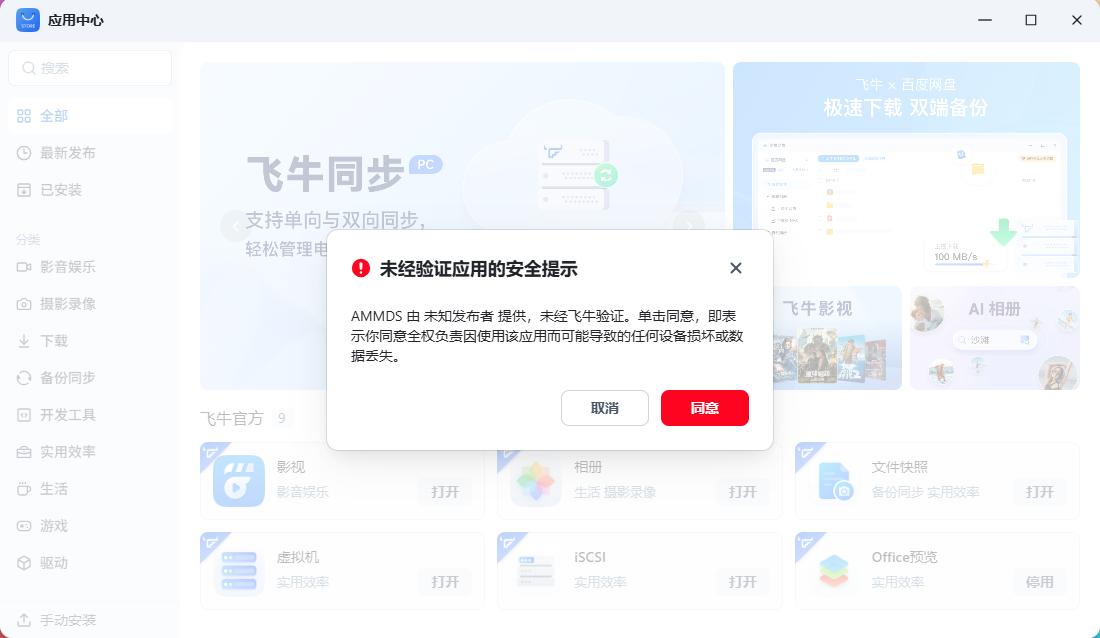
  1. Confirm Installation

    On the installation prompt interface, click Agree to proceed with the installation process.

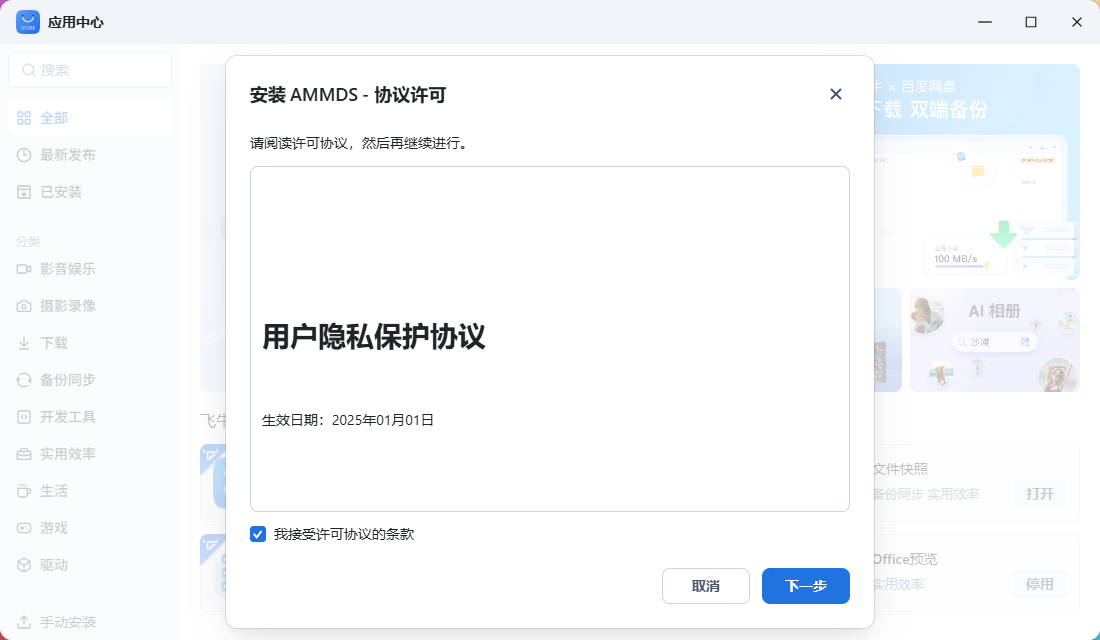
AMMDS FPK License Description

  1. Read License Description

    Carefully read the installation license description to understand the relevant terms.

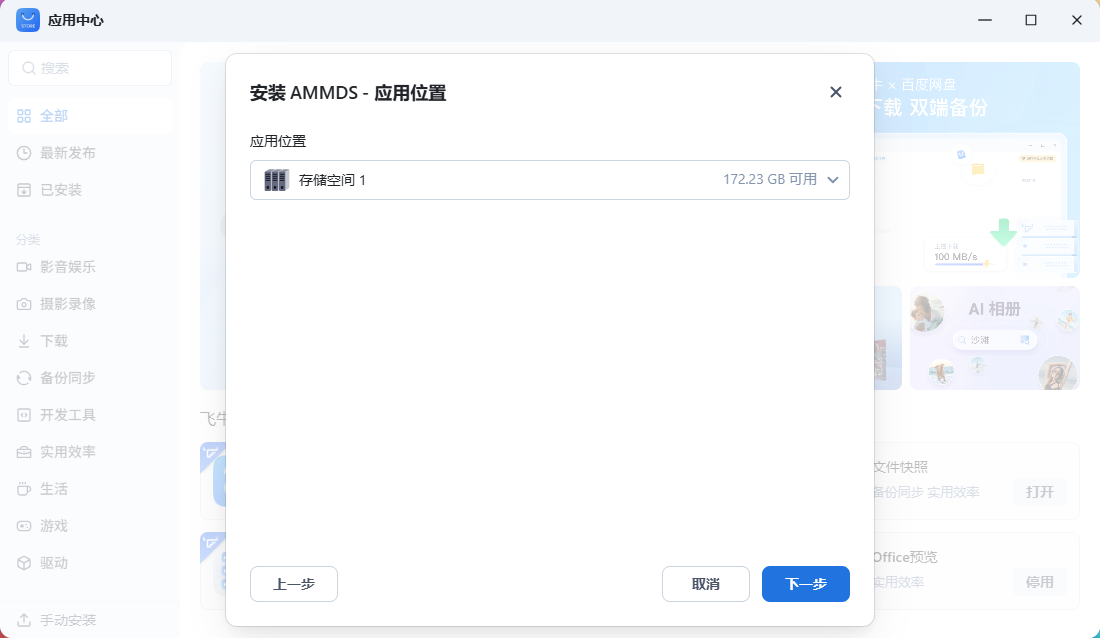
AMMDS FPK Select Installation Location

  1. Select Installation Location

    Select the disk location for app installation, it is recommended to choose a disk with sufficient space.

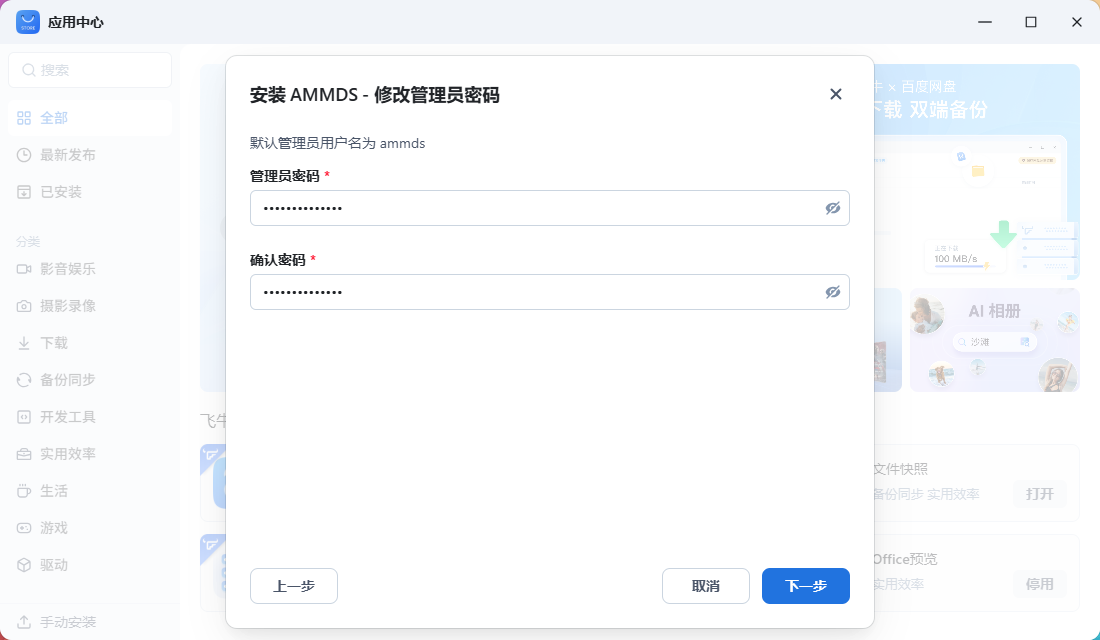
AMMDS FPK Set Admin Password

  1. Set Admin Password

    Set the login password for the AMMDS management interface, it is recommended to use a strong password.

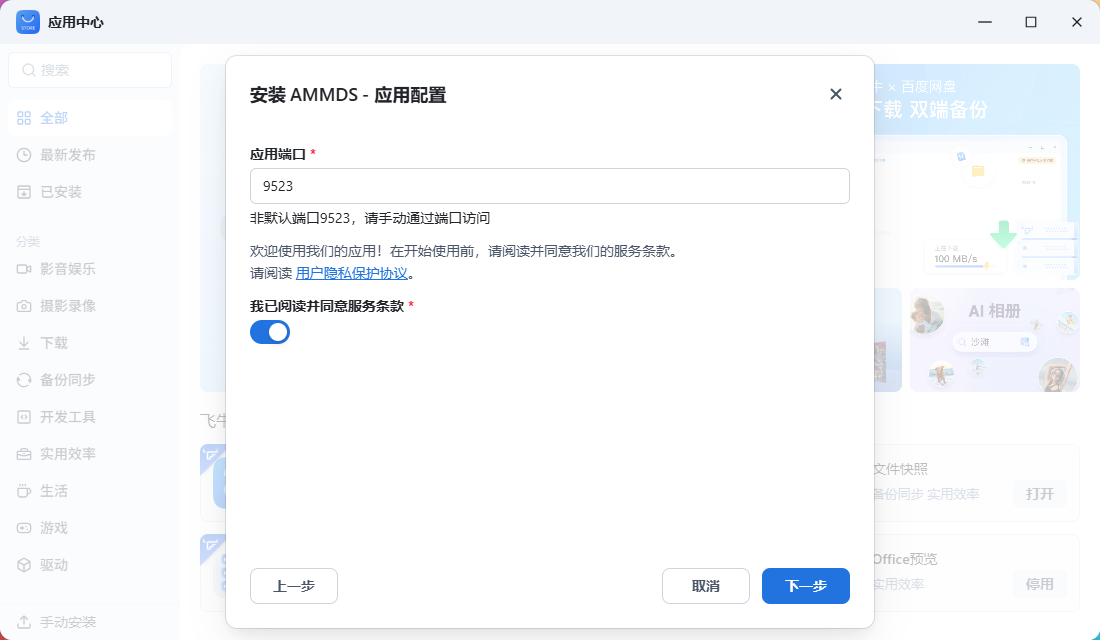
AMMDS FPK Set Access Port

  1. Set Access Port

    Set the access port for AMMDS, the default port is 9523. Read the service terms and click Agree.

AMMDS FPK Start Installation

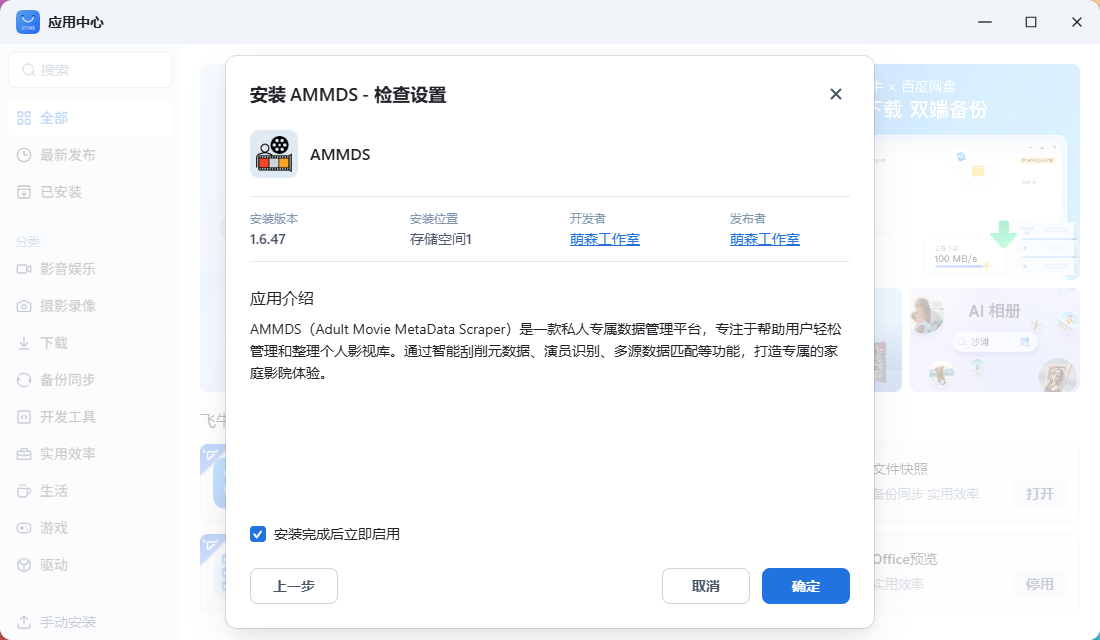
  1. Start Installation

    On the final installation prompt interface, click Confirm to start the installation.

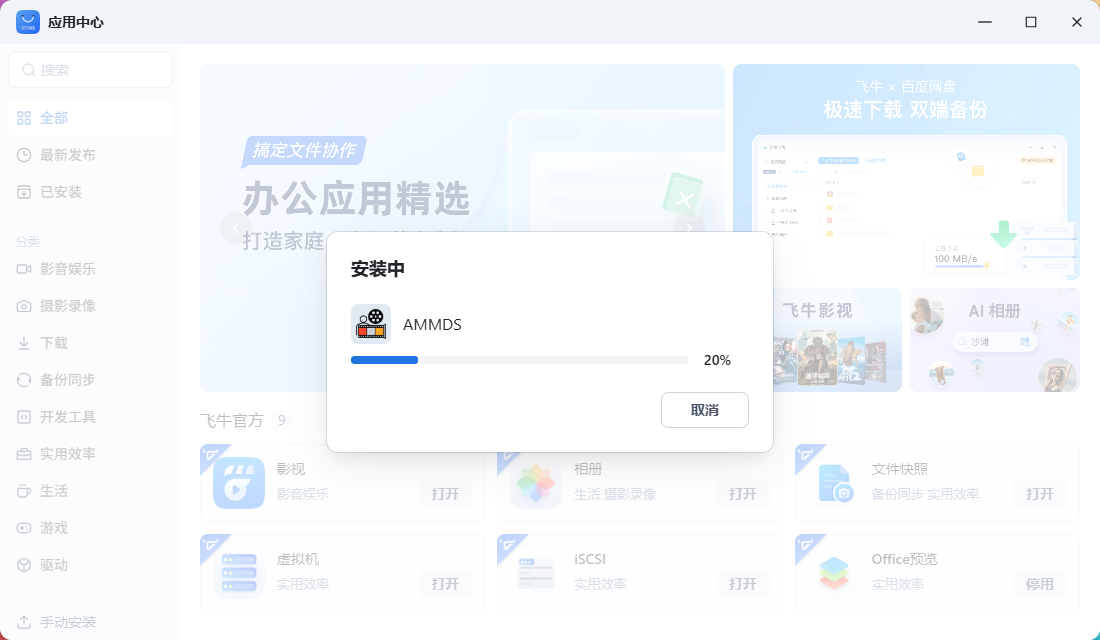
AMMDS FPK Installation Progress

  1. Wait for Installation to Complete

    A progress bar will be displayed during the installation process, please wait patiently for the installation to complete. If an error message appears, please follow the prompts to handle it, or try using an older version of the FPK installation package.

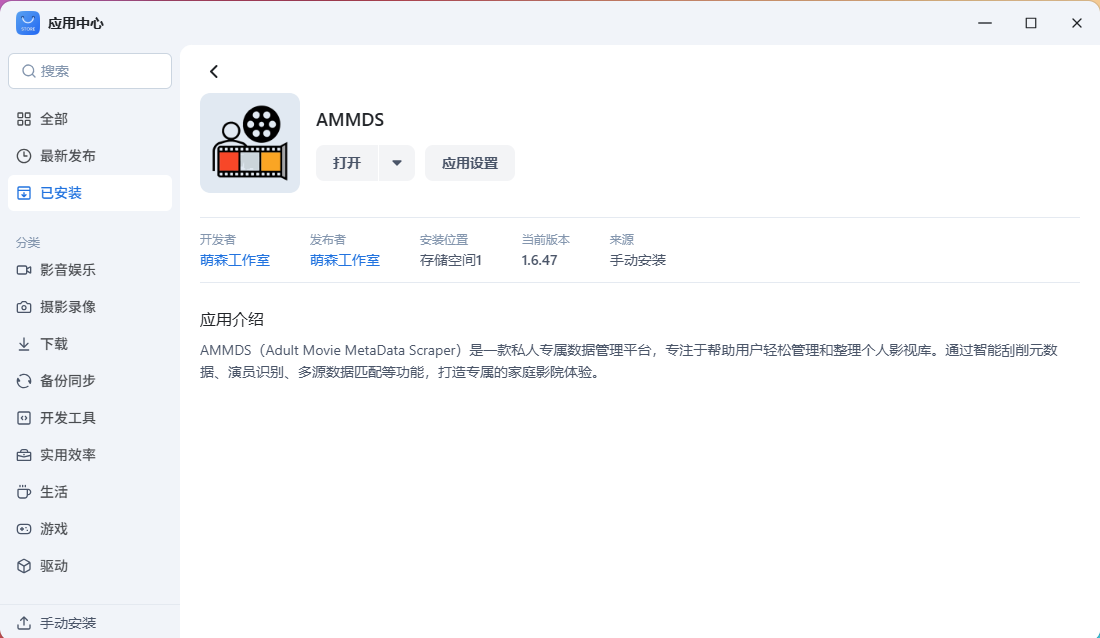
AMMDS FPK Installation Complete

  1. Confirm Installation Success

    After installation is complete, you can find the AMMDS app in the installed apps list.

Installation Directory

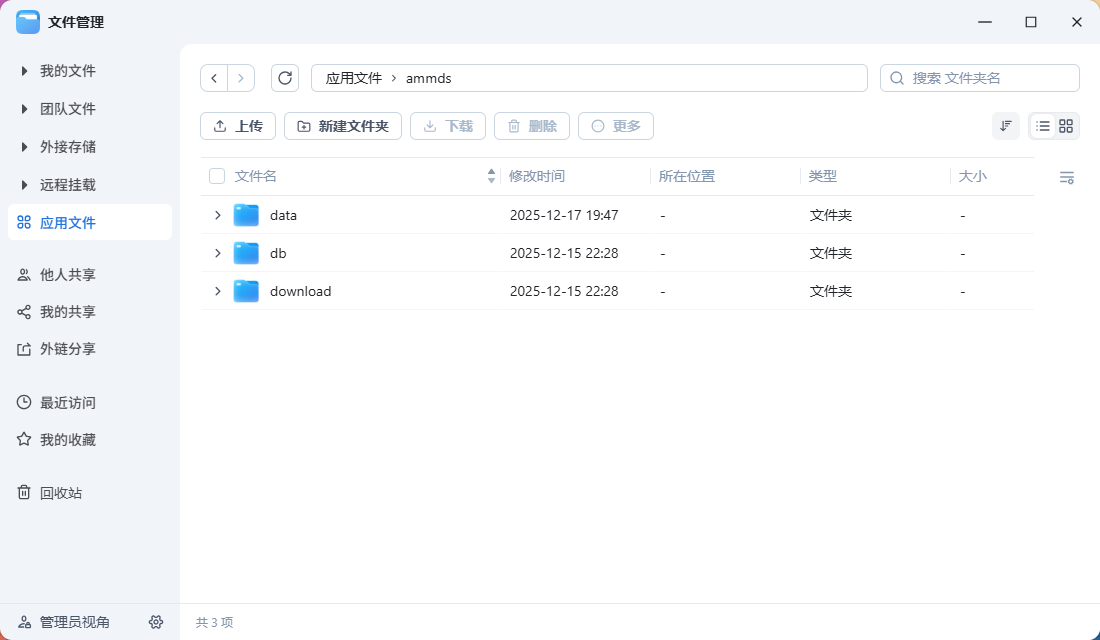
AMMDS Installation Directory

In File Management, you can find the AMMDS app's installation directory in App Files.

Docker Installation

Image Download

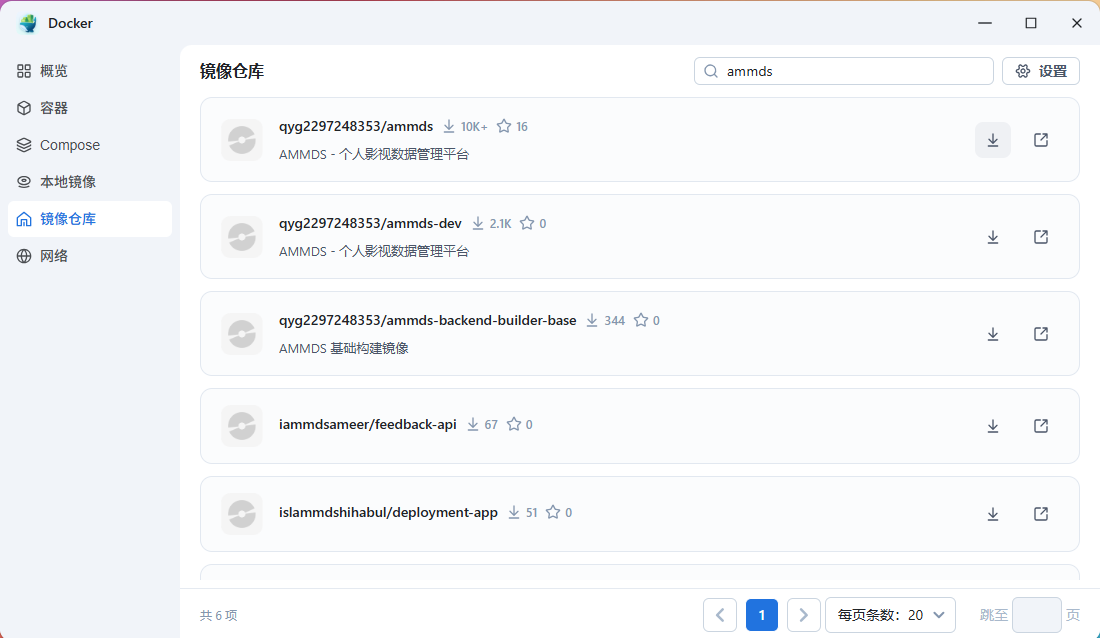
AMMDS Docker Image Search

  1. Search for Image

    Open the Docker app, complete initialization, click Image Repository in the left menu, and search for the AMMDS image.

  2. Select Image

    Select the image with the most downloads, the complete image name is qyg2297248353/ammds.

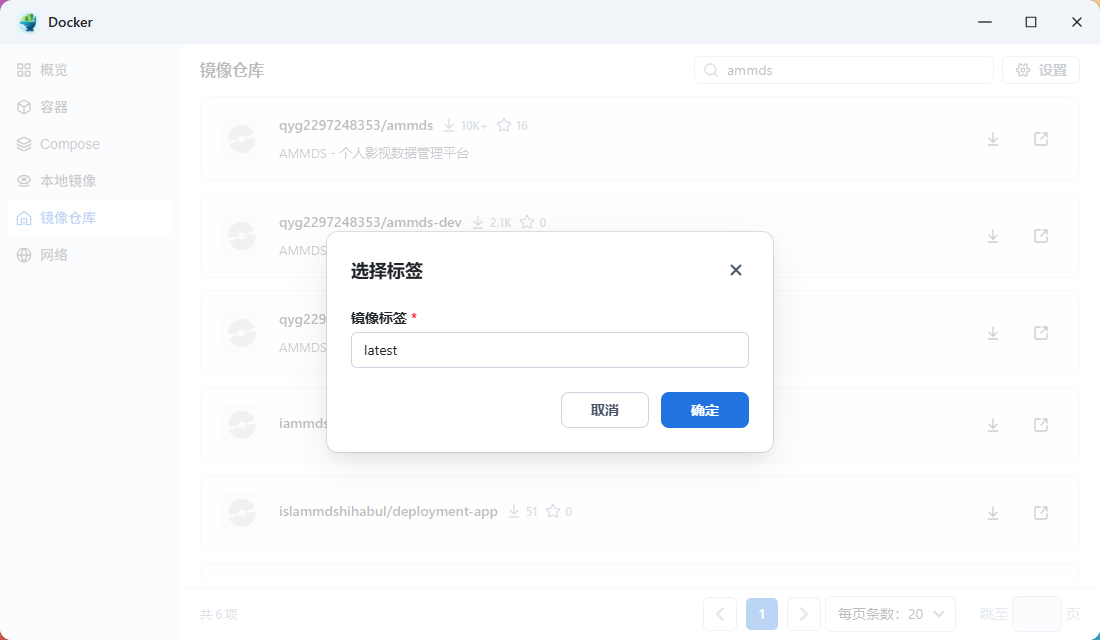
AMMDS Docker Image Version Selection

  1. Select Version

    The default version is latest. If your device is an older device, it may not support the latest version, and you need to select a version with the tag ending in ol8.

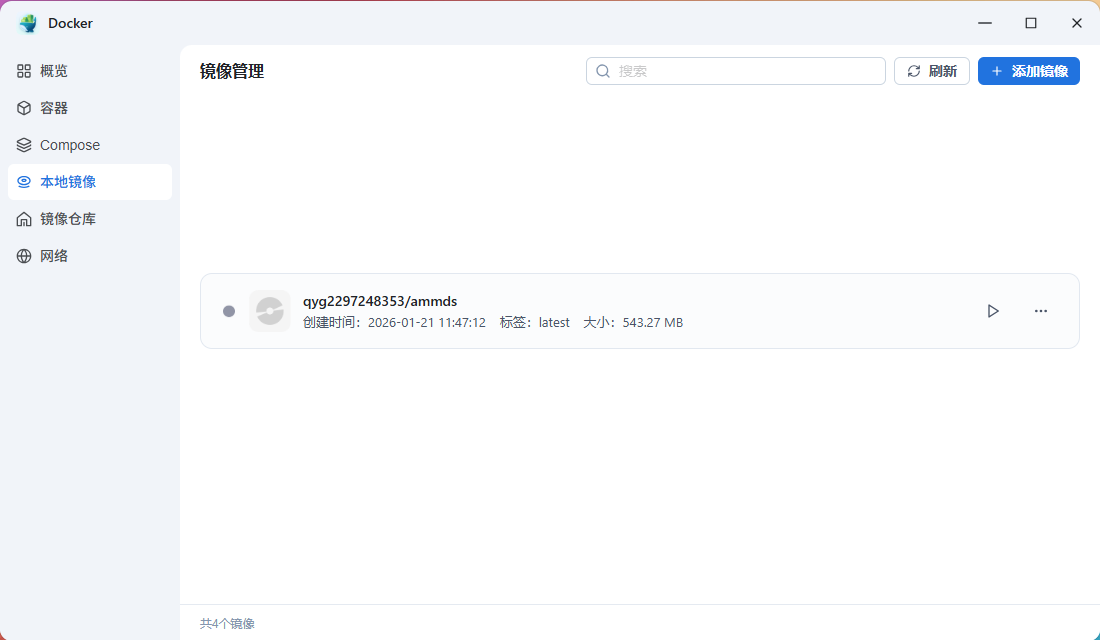
AMMDS Docker Image Download Complete

  1. Wait for Download to Complete

    You can check the download progress in Local Images, and after the download is complete, you will see the Run button.

Container Creation and Configuration

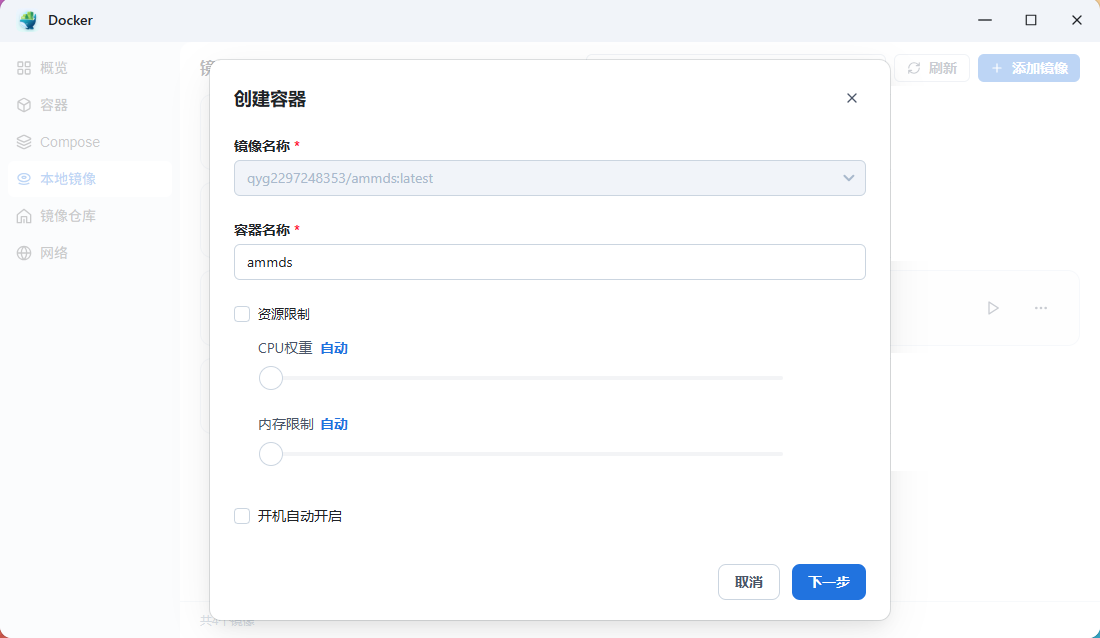
AMMDS Docker Container Creation

  1. Create Container

    Click the Run button to start deployment. Customize the container name, for example, ammds. Allocate appropriate resources based on device performance and requirements. You can choose to enable the Auto-start on boot feature.

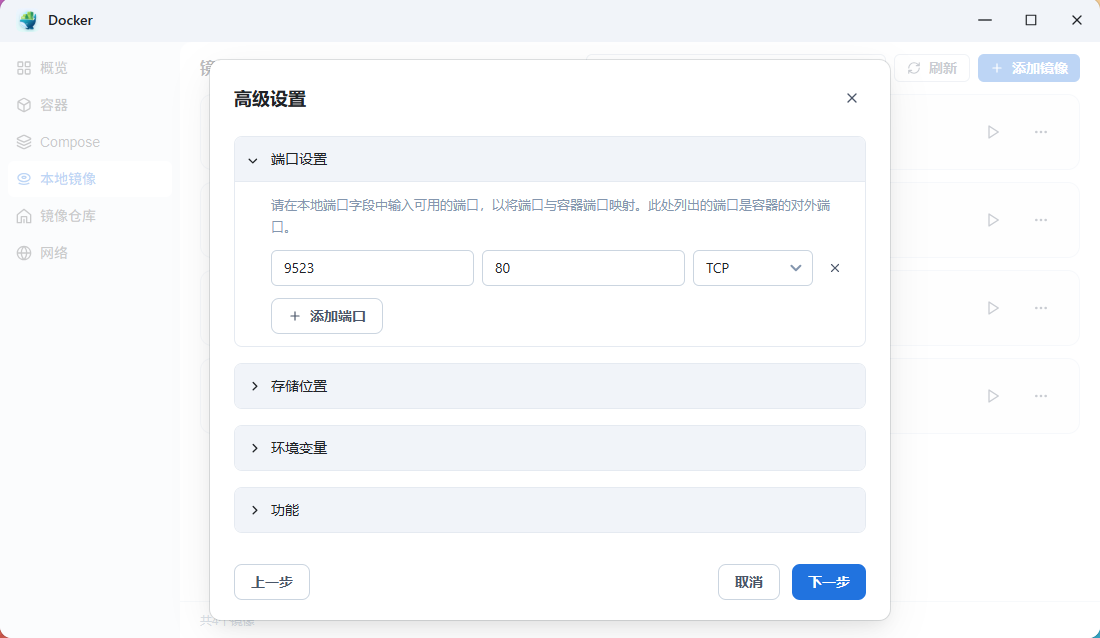
AMMDS Docker Port Settings

  1. Port Settings

    In Advanced Settings, configure port mapping:

    • Default container port is 80 (TCP)
    • Modify the access port to 9523 (or other available port)

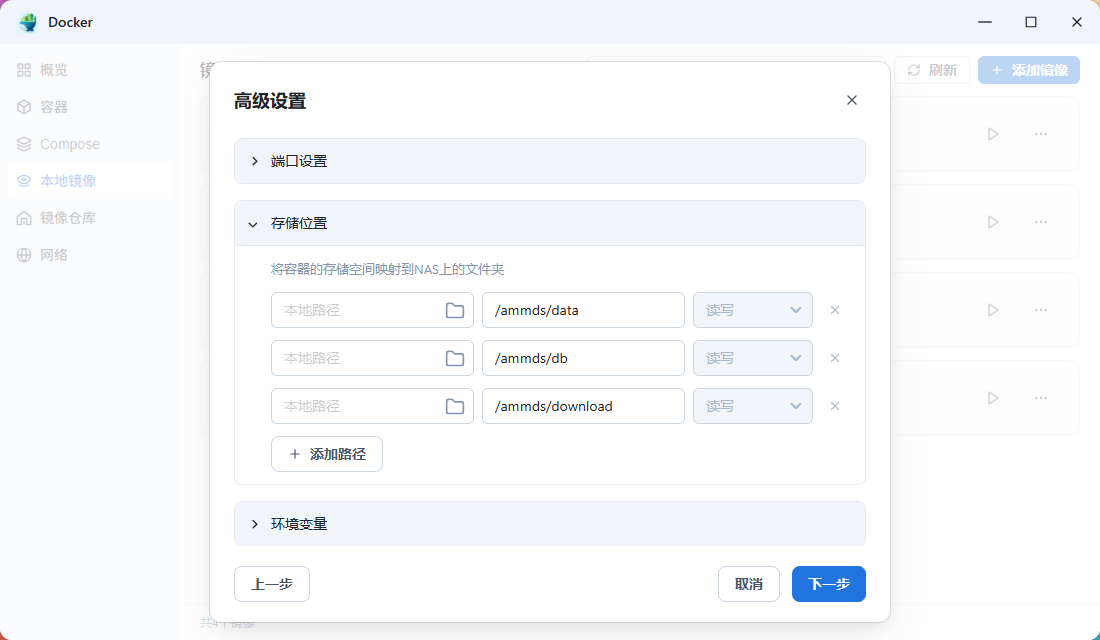
AMMDS Docker Storage Settings

  1. Storage Settings

    It is recommended to mount local directories to the container for persistent storage:

    • By default, FnOS will create a unified temporary storage directory, but this directory is easily cleaned by the system
    • It is recommended that you manually create the corresponding directory and mount it to the container

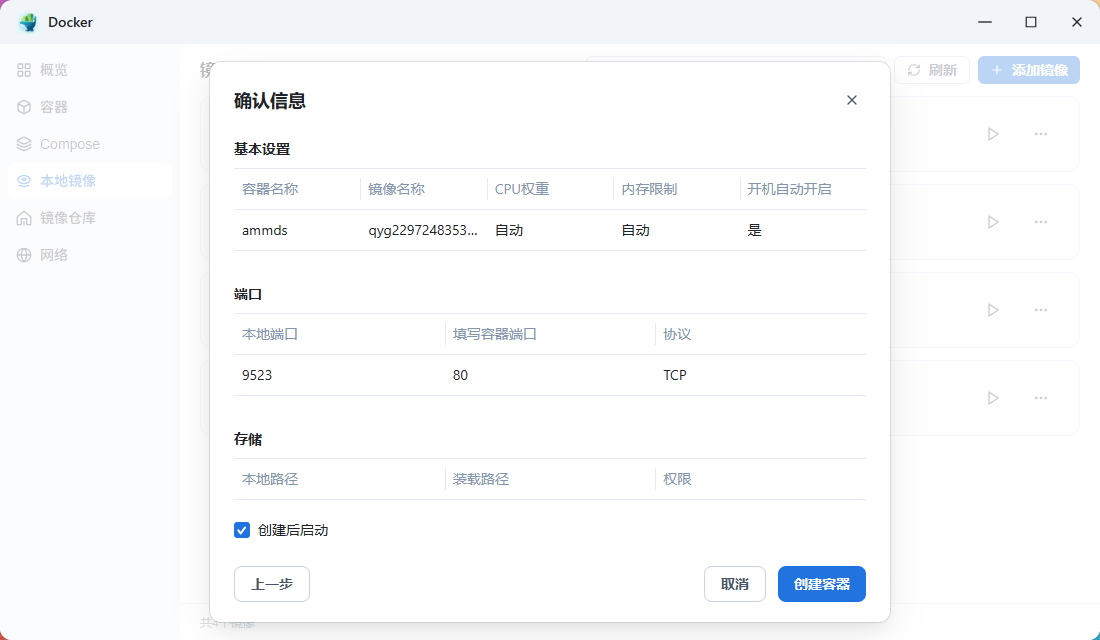
AMMDS Docker Information Confirmation

  1. Confirm Configuration

    After confirming all configuration information is correct, check the Start after creation option.

Operation and Management

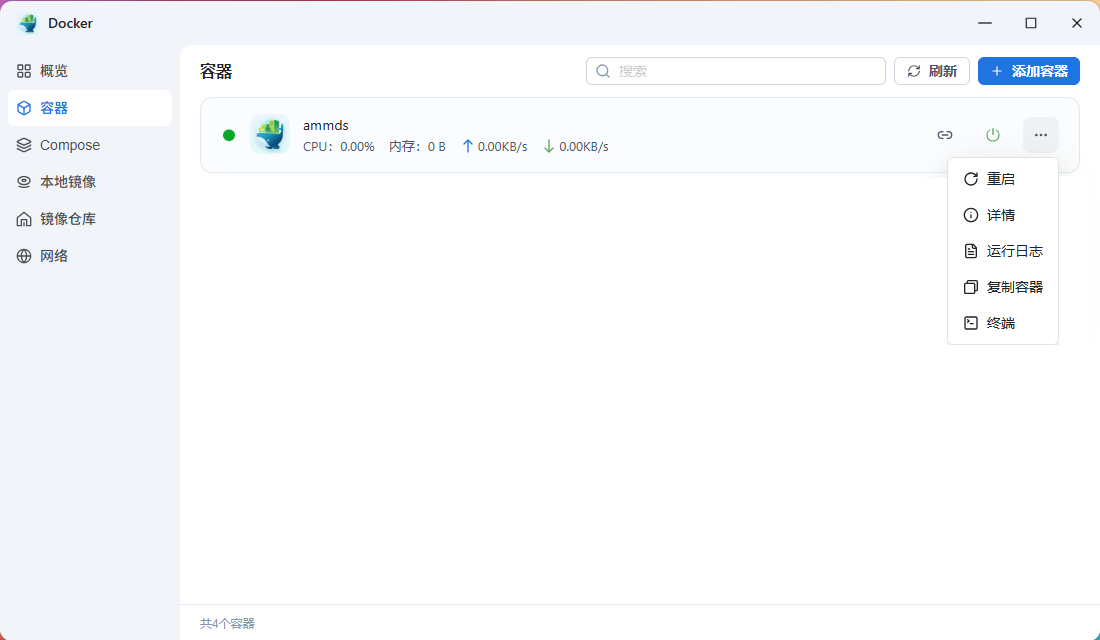
AMMDS Docker Container Running Status

  1. Check Running Status

    You can see the AMMDS app running in the container list. The three dots on the right provide quick actions.

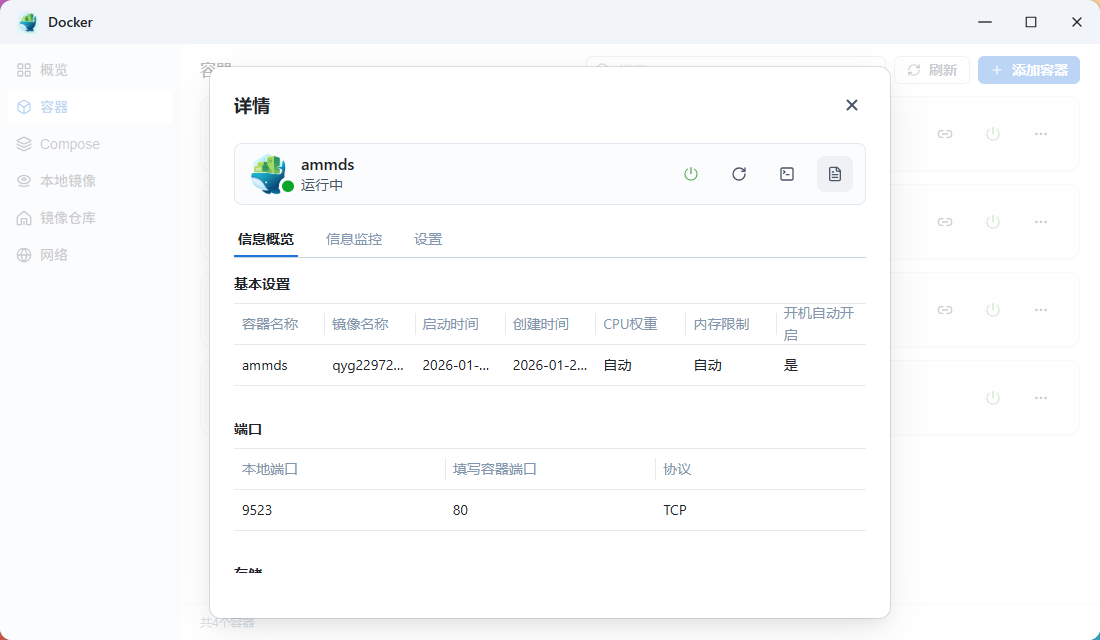
AMMDS Docker App Details

  1. View App Details

    Click on the container to enter the details page and view detailed information about the app.

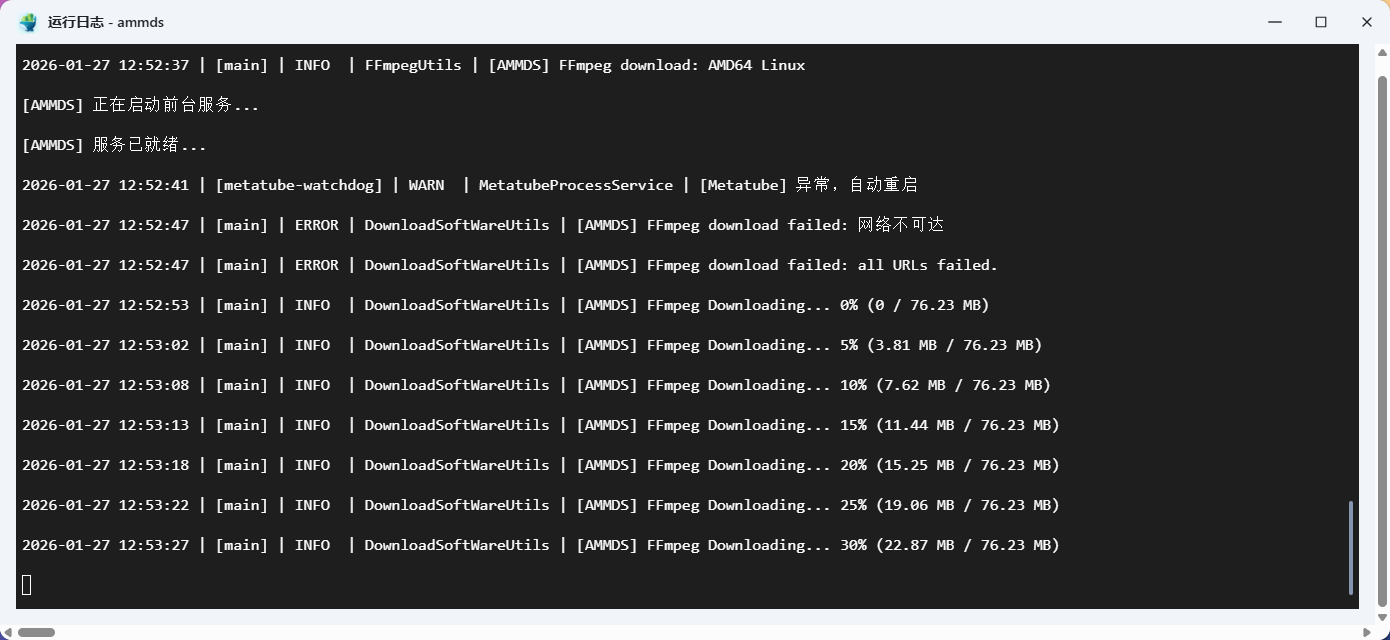
AMMDS Docker Running Logs

  1. View Running Logs

    Click View Logs to check the app's running status and download progress.

    First Startup Note

    During the first installation, the system will automatically download necessary resource files, which takes some time. The download progress will be displayed in the logs.

Installation Complete

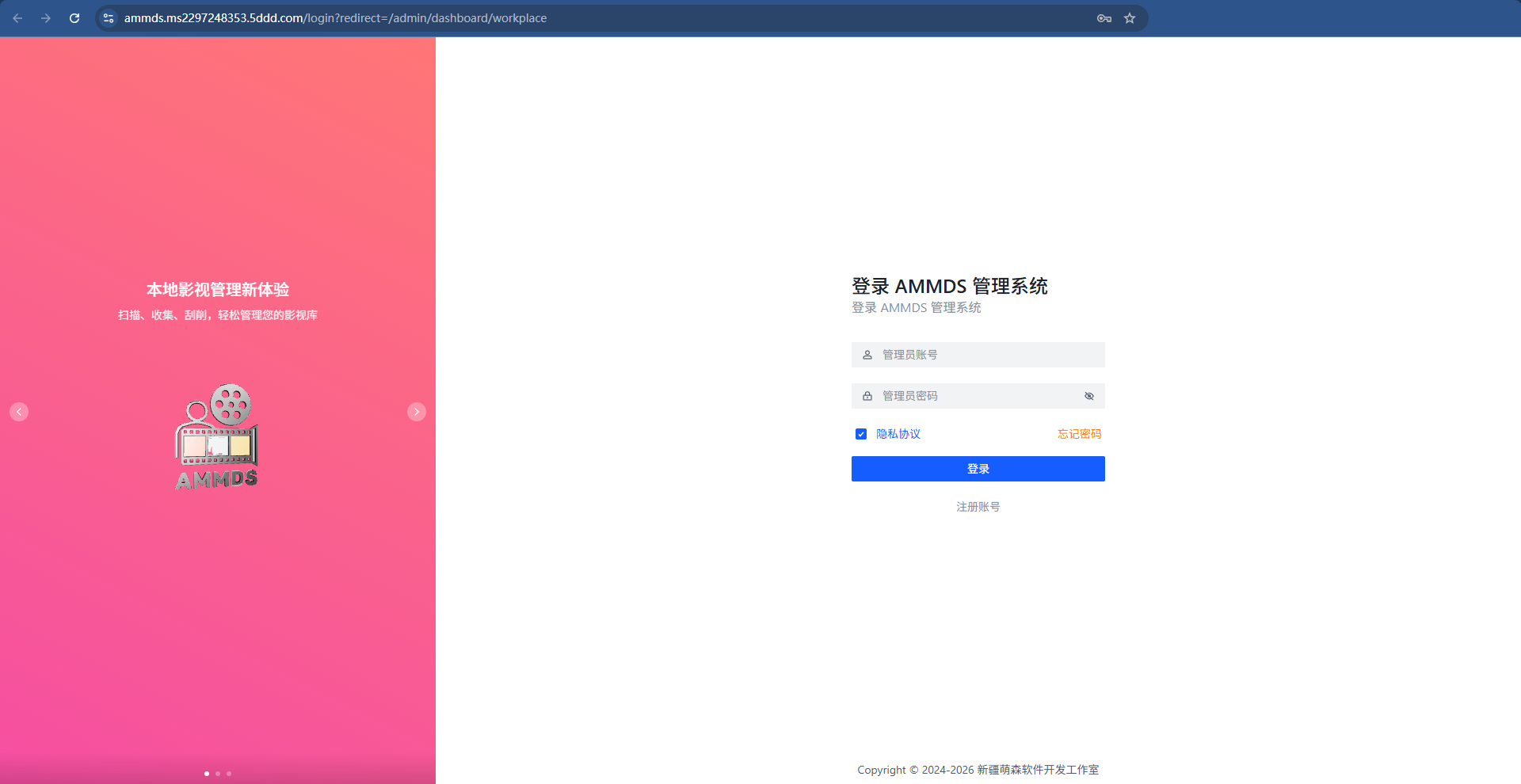
AMMDS Installation Complete Interface

After installation is complete, you can access the AMMDS management interface through a browser and start using all features.

Advanced Attempts

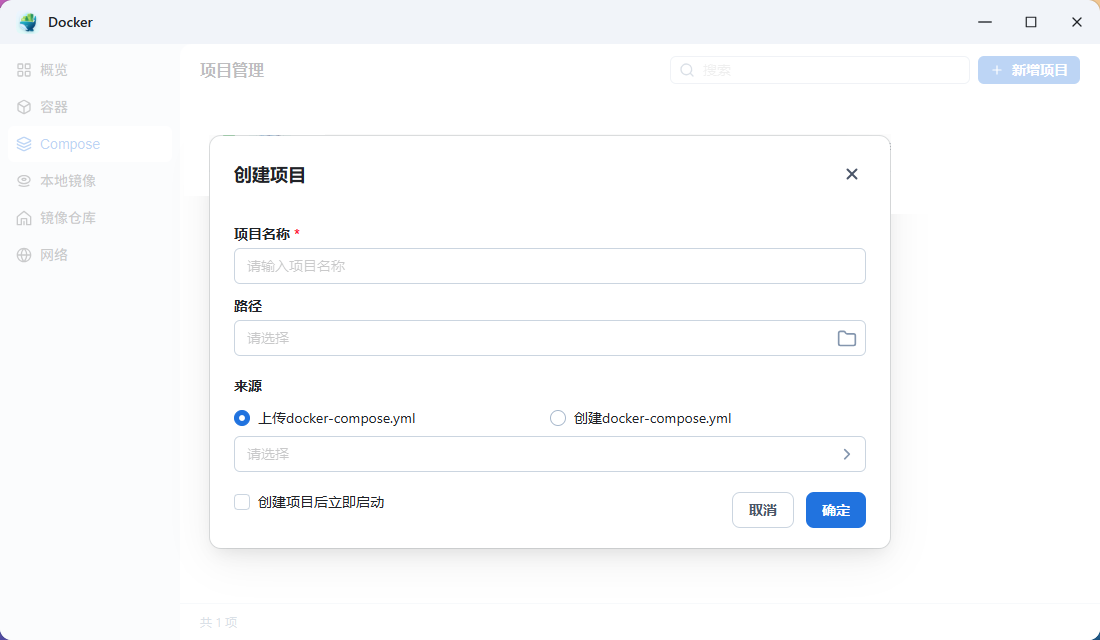
AMMDS Docker Compose Deployment

If you are familiar with Docker's orchestration mode, you can choose to deploy AMMDS through a Compose file for a more flexible configuration and management experience.

Warnings and Precautions

Security Warnings

Important Security Tips
  • Official Sources: Only download AMMDS installation packages from the official GitHub Releases page, avoid using third-party download sources
  • Password Security: Set strong passwords and change them regularly, avoid using weak passwords
  • Port Security: Ensure to modify the default port to reduce the risk of attacks

System Requirements

System Configuration Requirements

Minimum Configuration

  • Operating System: Latest version of FnOS
  • Processor: Intel Core i3 or equivalent performance
  • Memory: 4GB RAM
  • Disk Space: At least 10GB of available space
  • Network: Broadband internet connection
  • Operating System: Latest version of FnOS
  • Processor: Intel Core i5 or equivalent performance
  • Memory: 8GB RAM or more
  • Disk Space: 20GB of available space
  • Network: Stable broadband internet connection

Usage Precautions

  • Data Backup: Regularly back up AMMDS configuration files and important data
  • Resource Management: Monitor disk space usage and timely clean up unnecessary resource files
  • Network Connection: Ensure stable network connection, especially when downloading resources and updating
  • System Maintenance: Regularly update the FnOS system to ensure system stability

Troubleshooting

Common Issues

  • Installation Failure: Check if disk space is sufficient and network connection is normal
  • Startup Abnormality: View running logs to obtain detailed error information
  • Access Failure: Check if port configuration is correct and firewall allows access
  • Upgrade Failure: Try uninstalling the old version before installing the new version

Contact Information

If you encounter unsolvable problems, please visit the official GitHub repository to submit an Issue or seek help.

Best Practices

  • Regular Updates: Keep AMMDS updated to the latest version to get the latest features and security fixes
  • Reasonable Configuration: Configure AMMDS parameters reasonably based on device performance to avoid excessive resource usage
  • Secure Usage: Follow official documentation guidelines and avoid modifying core configuration files
  • Community Participation: Participate in the AMMDS community to share usage experience and feedback issues