Version: 最新

Site Authentication

Site authentication is an important feature. After authentication, you can enable advanced features such as leaderboards and search, enhancing the system's user experience and functional completeness.

Accessing the Site Authentication Page

You can access the site authentication page through the following path:

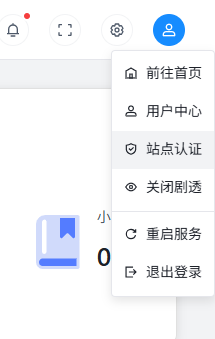
Backend top right corner avatar dropdown menu >> Site Authentication

Authentication Interface

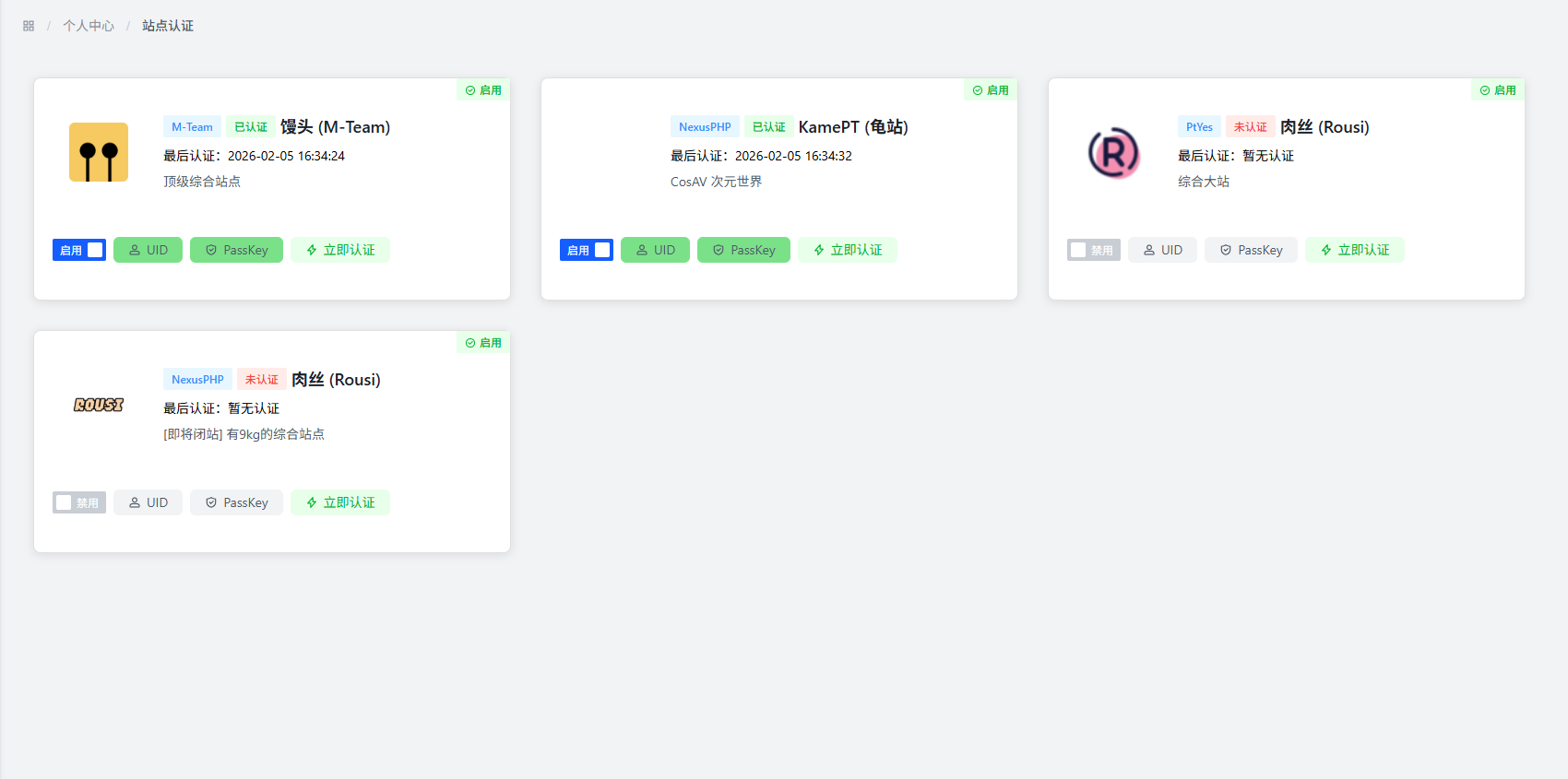
Site Authentication Page Site Authentication Page

Authentication Method

Select Authentication Site

Based on your needs, select the site for which you have an account from the dropdown list.

Fill in Authentication Information

Fill in the following authentication information for the selected site:

  • UID: The unique identifier of the site user, usually a number, and for some sites, it is the username filled in during registration
  • PassKey: The site key, a security credential used to verify user identity

Submit Authentication

After filling in the information, click the submit button to complete the authentication process.

How to Obtain UID and PassKey

Obtaining UID

  • The UID of most sites can be viewed on the user profile page
  • The UID of some sites will be displayed in user settings or account information
  • The UID of a few sites is the username used during registration

Obtaining PassKey

The method of obtaining PassKey may vary for different sites, and it can generally be obtained through the following channels:

  • Site Settings: Look for API key or PassKey options in user settings or security settings
  • Profile: Some sites provide PassKey viewing or resetting functions on the profile page
  • Account Security: Look for key management options on account security-related pages

Notes

Important Note
  • Protect your PassKey: PassKey is equivalent to your site account password, do not disclose it to others
  • Fill in authentication information correctly: Ensure that UID and PassKey are filled in correctly to avoid authentication failure
  • Update authentication regularly: If you modify relevant information on the site, you may need to re-authenticate
  • Comply with site rules: When using the site authentication function, please comply with the usage rules and terms of each site

Frequently Asked Questions

Q: What is the function of site authentication?

A: After site authentication, you can use advanced features such as leaderboards and search in the system, enhancing the system's user experience and functional completeness.

Q: What should I do if authentication fails?

A: Authentication failure may be due to the following reasons:

  • UID or PassKey is filled in incorrectly
  • The site server is temporarily unavailable
  • Network connection issues

Please check if the authentication information is correct, confirm that the site is accessible normally, and then try authentication again.

Q: Can I authenticate multiple sites at the same time?

A: Yes, you can authenticate multiple different sites as needed, and the authentication information of each site is independent of each other.

Q: What should I do if PassKey is leaked?

A: If your PassKey is accidentally leaked, please reset your PassKey at the corresponding site immediately and update the authentication information in the system.

Best Practices

  • Check authentication status regularly: Ensure that your site authentication remains valid
  • Use a secure network environment: Ensure a secure network environment when performing site authentication
  • Save authentication information: It is recommended to properly save your authentication information for future use
  • Follow site rules: When using the site authentication function, strictly comply with the usage rules of each site
  • Update authentication information in a timely manner: When you modify relevant information on the site, update the authentication information in the system in a timely manner